Documentation index: llms.txt. This page is also available as markdown: append .md to this URL or send Accept: text/markdown.
Using the GraphQL Reference
This guide walks through the Catalog GraphQL API reference. Each section explains one block of the reference UI: what it shows, how the pieces connect, and where to edit values before you send a request. For GraphQL syntax and how to read a query line by line, see Introduction to GraphQL.
Open the Reference
Start at Catalog GraphQL API. That page covers authentication, regional base URLs, and links to the rest of the reference.
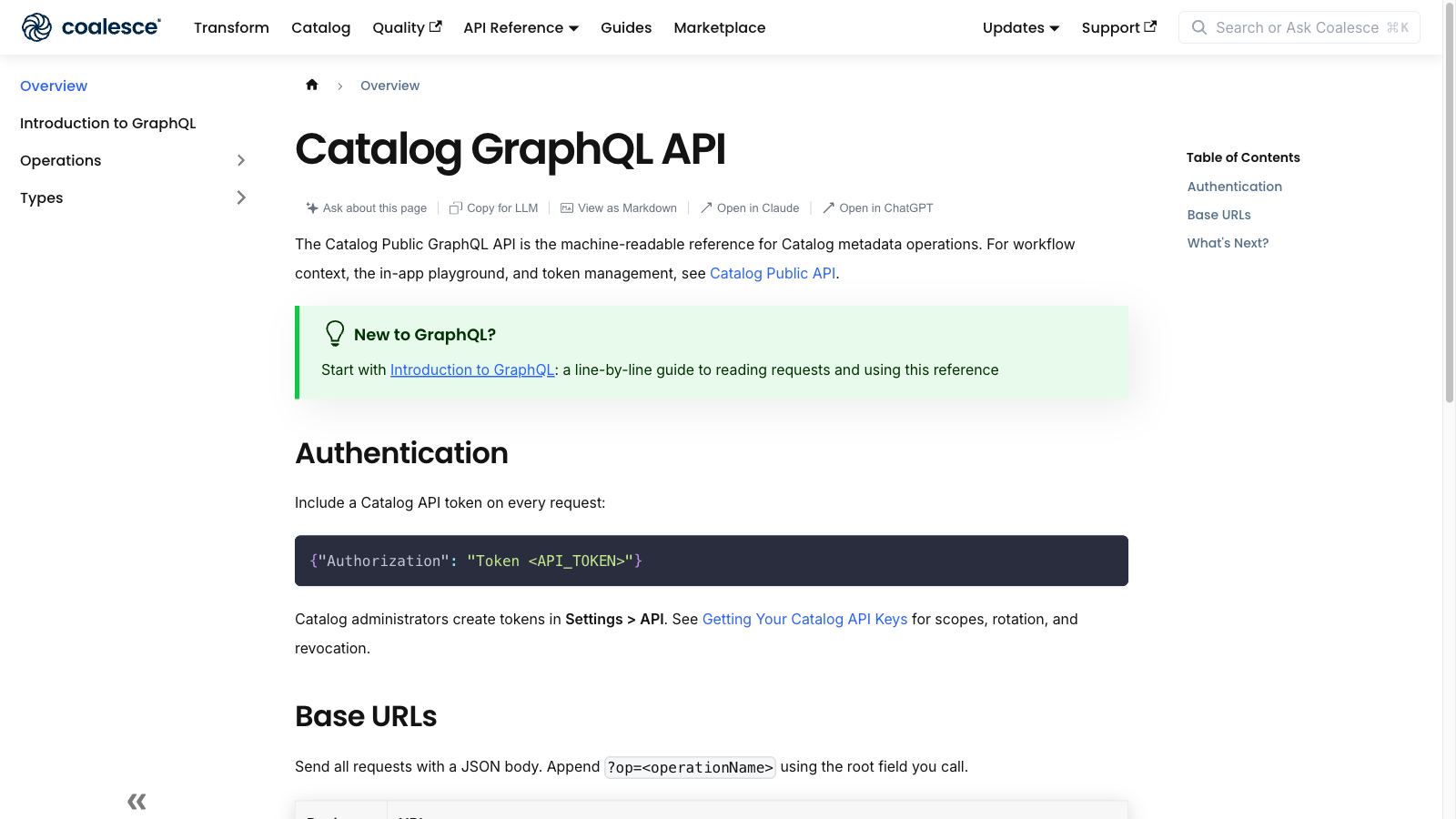
The left sidebar is your map:
| Section | What it contains |
|---|---|
| Overview | Authentication headers, EU and US base URLs |
| Introduction to GraphQL | How to read query text and Variables JSON |
| Using the GraphQL Reference | This walkthrough of the reference UI |
| Operations | Every query (read) and mutation (write) you can call |
| Types | Input shapes, response objects, enums, and scalars |
Under Operations, blue query badges mark read-only operations. Green mut badges mark mutations that create or update metadata.
The Three-Panel Layout
Open any operation, such as Get tables, to see the full layout. On a wide screen the page splits into three areas:
- Left (navigation) - Jump between operations and types.
- Center (documentation) - What the operation does, which arguments it accepts, example query text, and the response shape.
- Right (Try it) - Live code samples and a form to send the request from your browser.
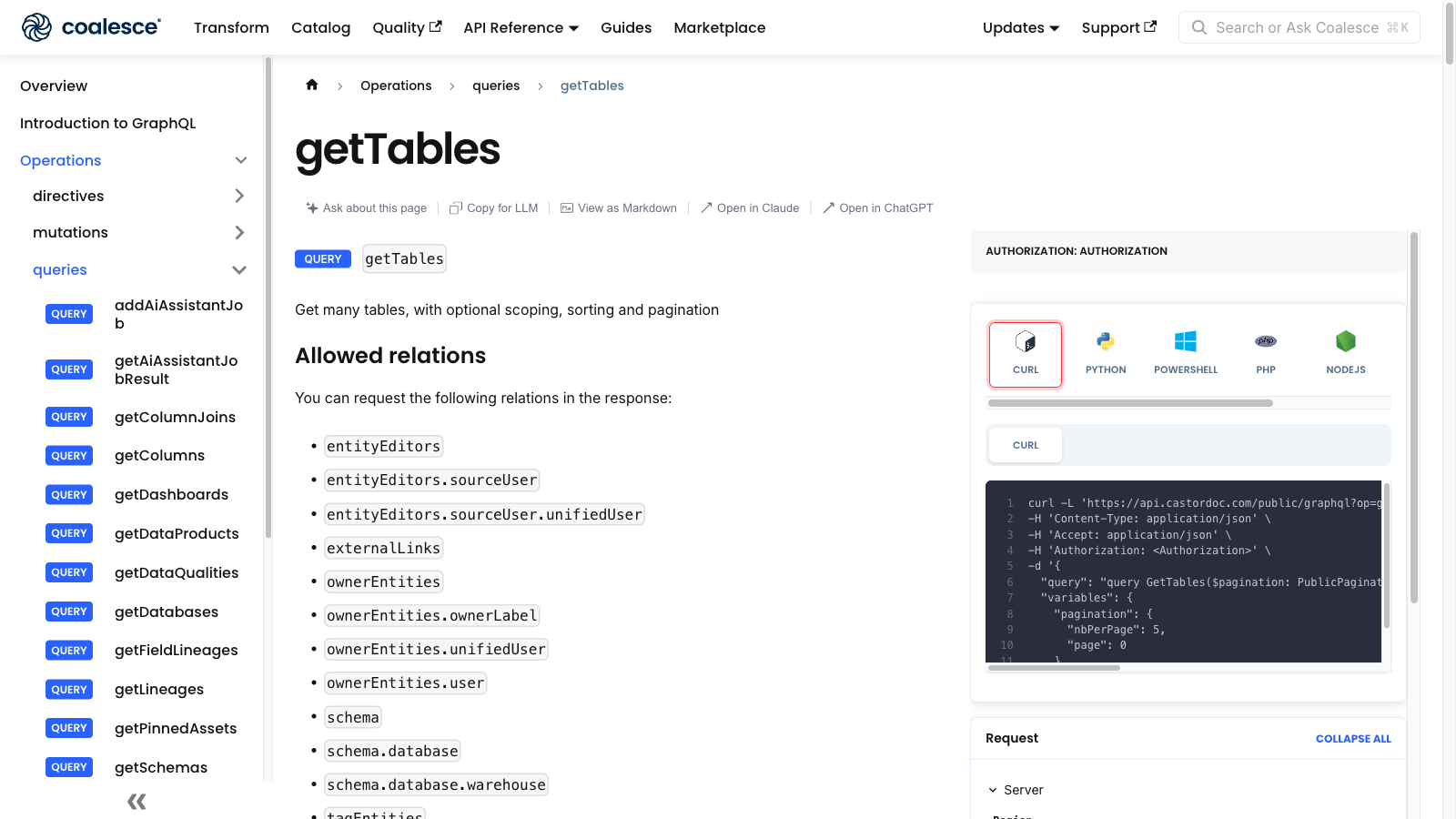
On smaller screens the Try it panel stacks under the documentation. Widen your browser window if you do not see the side-by-side layout.
Read the Center Panel
Each operation page follows the same structure top to bottom. The subsections that follow walk through each block in order.
Header and Description
At the top you see a badge (query or mutation) and the operation name, for example getTables. The short description tells you what the call returns or changes.
| Block | What it tells you |
|---|---|
| Badge | query means read-only; mutation means create, update, or delete |
| Operation name | The root field name to use in GraphQL text, for example getTables |
| Description | Plain-language summary of what the call does |
The operation name matches the root field in the Example query and the ?op= value in HTTP URLs on Catalog GraphQL API.
Arguments
The Arguments section lists every input the operation accepts. Each row shows:
| Part | Meaning |
|---|---|
| Name | Argument name used in the query, for example pagination |
| Type | Schema type; click the link to open the type page |
| Required or Optional | Whether you must supply a value |
Nested fields under an argument describe the keys allowed inside a Variables object. For example, when pagination has type PublicPagination, the nested rows show nbPerPage and page as the keys you can put inside "pagination": { ... } in Variables JSON.
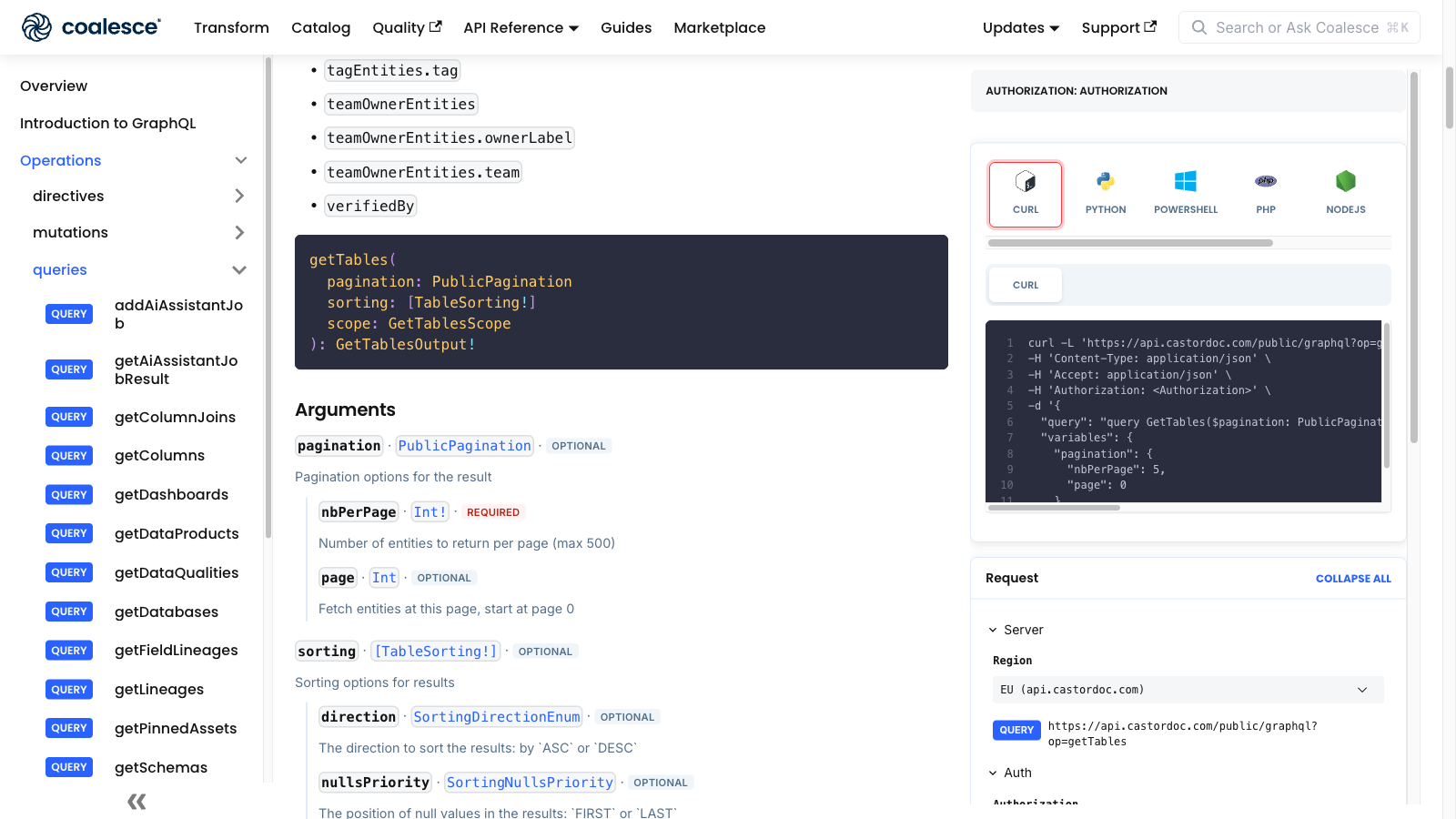
Read this block top to bottom:
- Top-level rows - Arguments you pass in parentheses on the root field, for example
getTables(pagination: $pagination). - Nested rows - Keys inside the Variables object for that argument.
- Type links - Open the type page when you need the full field list or enum values.
Example: Query Block
The Example section is the fastest way to copy a working request. It has two blocks. The Query block is GraphQL operation text.
query GetTables($pagination: PublicPagination) {
  getTables(pagination: $pagination) {
    totalCount
    data {
      id
      name
    }
  }
}
Walk through each line:
| Line | Piece | What it means on this page |
|---|---|---|
| 1 | query | Read-only operation. Mutations start with mutation. |
| 1 | GetTables | Operation label for your logs or client. It does not change the API call. |
| 1 | ($pagination: PublicPagination) | Declares one variable. $pagination is filled from Variables JSON. PublicPagination links to the type page. |
| 2 | getTables(pagination: $pagination) | Root field. Matches the operation name in the page header and the Arguments section. |
| 3 | totalCount | Field to return: total rows across all pages. |
| 4–7 | data { id name } | Paginated rows and the fields to include on each row. |
Copy the whole Query block into the Try it Query field or into your client.
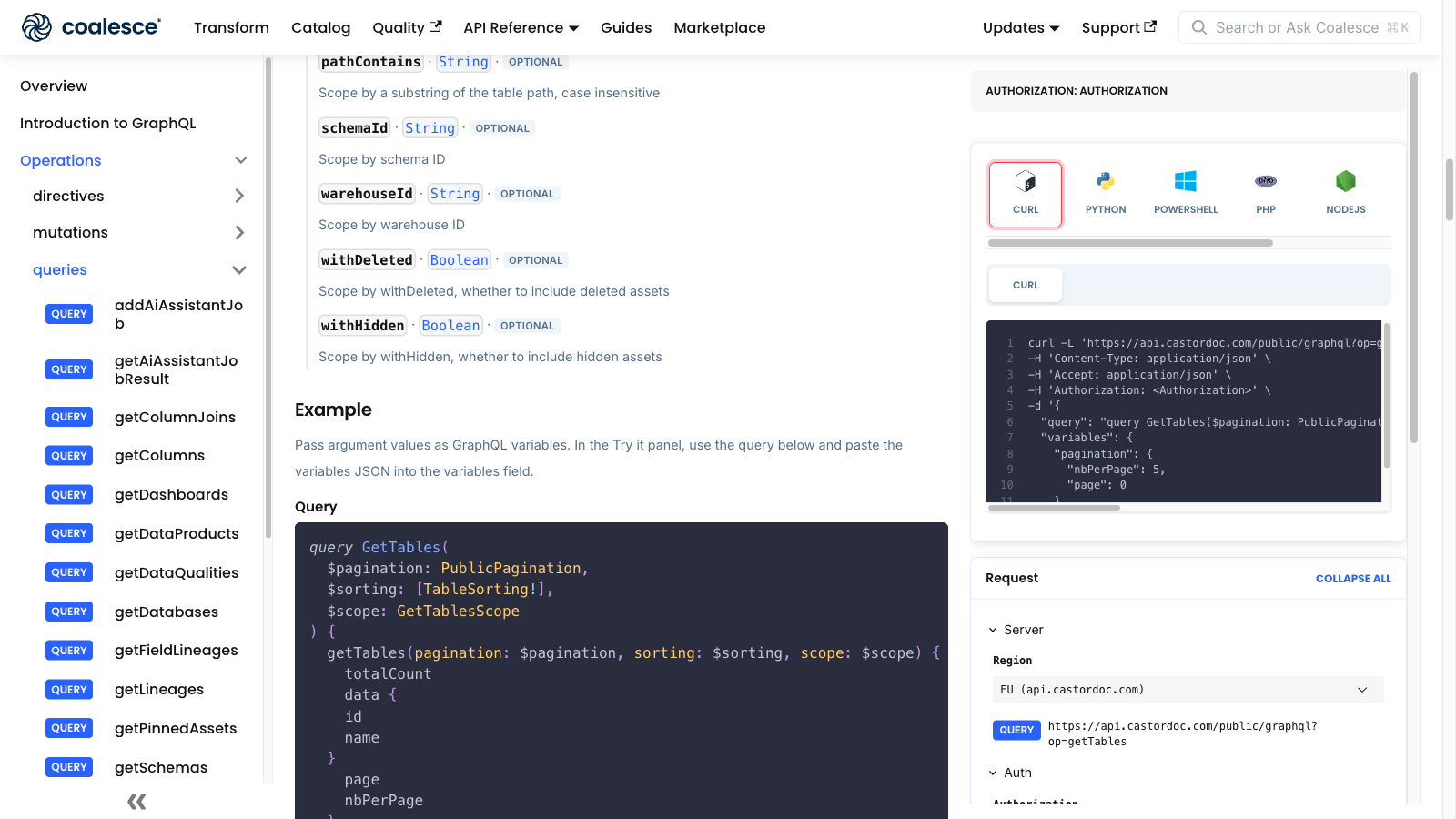
Some operations have no variables. Those pages show only the Query block.
Example: Variables Block
The Variables block is plain JSON that supplies values for each $variable in the query:
{
  "pagination": {
    "nbPerPage": 10,
    "page": 0
  }
}
Walk through each part:
| Line | Key or value | What it means on this page |
|---|---|---|
| 2 | "pagination" | Matches $pagination from the query. No $ on JSON keys. |
| 3 | "nbPerPage": 10 | Page size. Capped at 500 for PublicPagination. |
| 4 | "page": 0 | Zero-based page index. |
The type name PublicPagination is schema documentation only. It never appears as a JSON key. Operations with multiple arguments add more top-level keys. Each key matches a $variable declared on line 1 of the query.
Response
The Response section lists only the fields you can request on this operation—not every field that exists on the underlying GraphQL type.
| Block | What it shows |
|---|---|
| Root type | Return type for the operation, for example [Column!]! or GetTablesOutput |
| Scalar fields | Simple values you can always ask for on this endpoint (id, name, tableId, …) |
| Nested rows | Nested objects you can request on this operation, when supported |
Nested paths use dot notation in your query—for example schema { database { name } } on table rows. The Response section lists only fields you can request on this endpoint. If you need related data not shown there (for example table after createColumns), run a follow-up read query such as getColumns or getTables.
If nested fields are not listed under Response, stick to simple fields only.
Use the Try It Panel
The right column is an interactive explorer. You do not need a separate GraphQL client to test a call.
Code Samples
At the top, tabs switch between curl, Python, PowerShell, PHP, and NodeJS. Each sample is a complete HTTP request built from the current query and variables. To change the values, update the query and variables block.
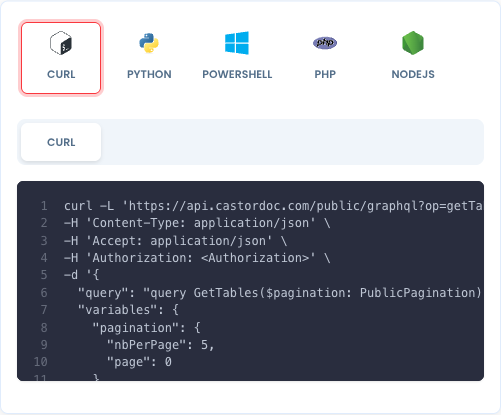
A curl sample breaks down like this:
| Block | What it contains |
|---|---|
| URL | Regional host plus ?op=getTables (operation name from the page header) |
| Headers | Content-Type, Accept, and Authorization: Token ... |
Body "query" | The GraphQL text from the Query field, often on one line |
Body "variables" | The JSON object from Variables (JSON) |
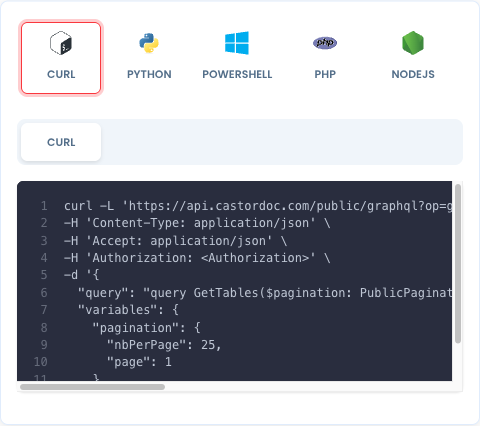
When you change the Query or Variables (JSON) fields, every language tab updates immediately.
For example, changing "page": 0 to "page": 1 and "nbPerPage": 5 to "nbPerPage": 25 updates the "variables" object in every language tab:
Request Form
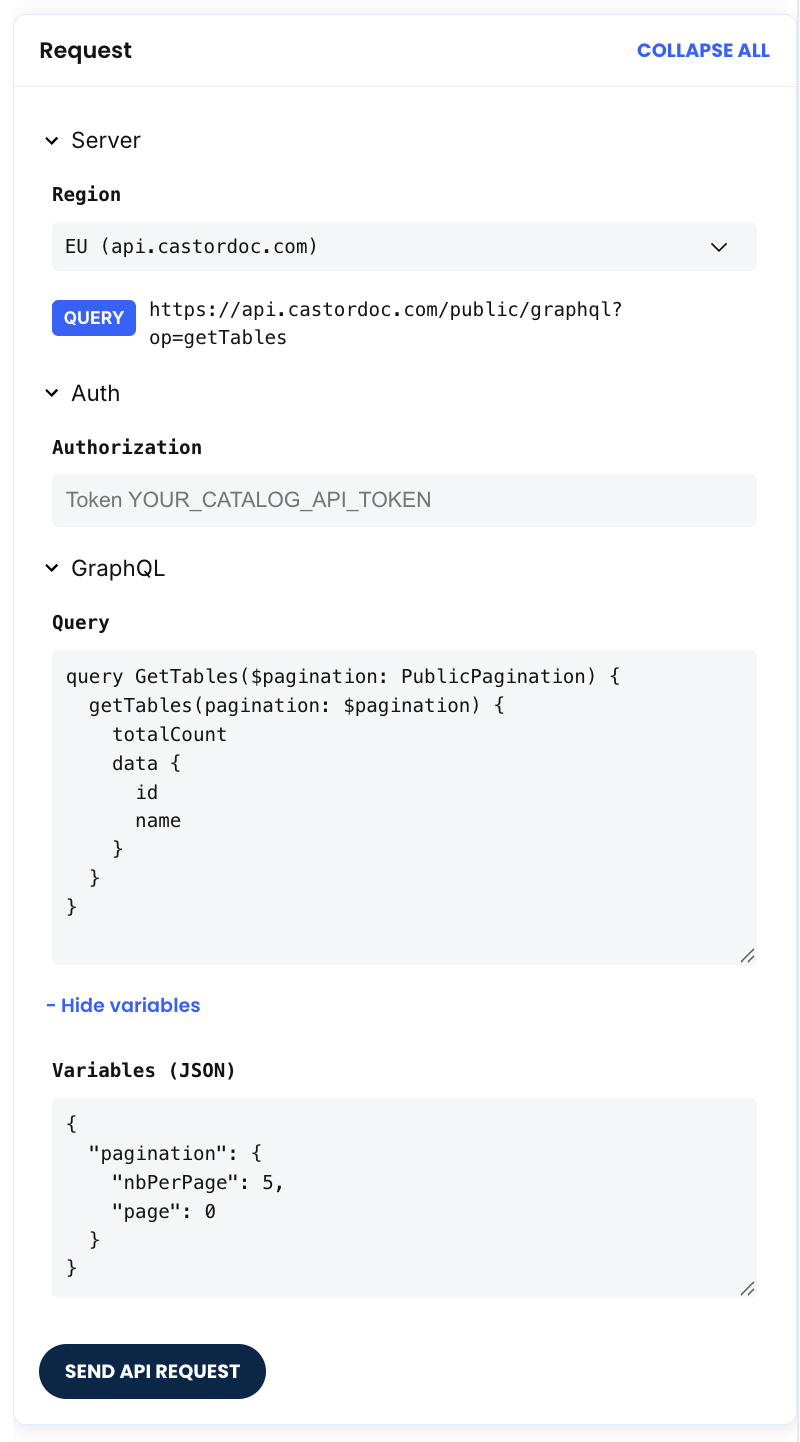
Changing values here, will update the values in the code samples block. Below the samples, the Request form has three collapsible sections:
Server Block
| Control | Effect |
|---|---|
| EU | Sets the host to api.castordoc.com |
| US | Sets the host to api.us.castordoc.com |
Auth Block
| Control | Effect |
|---|---|
| Token field | Value sent as the Authorization header. Include the Token prefix. |
GraphQL Block
| Control | Effect |
|---|---|
| Query textarea | Same GraphQL text as the Example > Query block. Edit fields inside { } to change the response shape. |
| + Show variables | Opens the Variables (JSON) textarea when it is hidden |
| Variables (JSON) textarea | Same JSON as the Example > Variables block. Invalid JSON is rejected when you send the request. |
Send a Request From the Browser
To run a live call against your Catalog environment:
- Open an operation page, for example Get tables.
- In Auth, paste a token with the
Tokenprefix. - Confirm Server matches your Catalog region (EU or US).
- Review or edit Query and Variables (JSON). Start from the Example section if you are unsure.
- Click Send API Request.
- Read the Response panel. HTTP
200means the request reached the API; checkdataanderrorsto see whether the call succeeded. See API Responses and Error Codes for status codes and troubleshooting.
Response Panel
After you click Send API Request, the Response panel shows the HTTP result:
| Block | What to look for |
|---|---|
| Status code | 200 means the HTTP request reached the API (auth failures can still return 200) |
data | Fields you asked for when the call succeeded |
errors | GraphQL or validation messages when something failed; see extensions.code |
Compare the data object to the fields in your Query block. Nested keys should match the selection set you built in the center panel Example or in the Try it Query field.
Query and Variables: Quick Reference
Use this table when you need a side-by-side reminder of how Query text and Variables JSON fit together:
| Query (GraphQL text) | Variables (JSON) | |
|---|---|---|
| Format | GraphQL syntax | Plain JSON object |
| Declares | Operation name, $variables, fields to return | Actual values for each variable |
| Key rule | $pagination in the query | "pagination": { ... } in JSON. No $ on keys. |
| Where to edit in the reference | Example > Query and Try it Query field | Example > Variables and Try it Variables (JSON) field |
| Sent to the API as | "query": "..." in the POST body | "variables": { ... } in the POST body |
The HTTP POST body always combines both:
{
  "query": "query GetTables($pagination: PublicPagination) { ... }",
  "variables": {
    "pagination": { "nbPerPage": 10, "page": 0 }
  }
}
| Line | Key | What it is |
|---|---|---|
| 2 | "query" | Full GraphQL operation text as a JSON string |
| 3 | "variables" | JSON object whose keys match $variables in the query |
| 4 | "pagination" | One variable value. Nested keys come from the Arguments section and type pages. |
For a deeper explanation of each line in the query, see Introduction to GraphQL.
Type Pages
When an argument or field links to a type name, open that type under Types in the sidebar. Each type page follows the same block pattern as operation Arguments and Response sections:
| Type kind | What the page describes |
|---|---|
| Input | Keys allowed in Variables JSON |
| Object | Fields you can select in { } |
| Enum | Allowed string values such as sort direction |
| Scalar | Single values such as String, Int, or ID |
Use type pages when the Arguments nested rows or Response tree do not show every field you need.
What's Next?
- API Responses and Error Codes - HTTP status codes and GraphQL error troubleshooting
- Catalog GraphQL API - Authentication and base URLs
- Introduction to GraphQL - Read query syntax and variables line by line
- Get tables - Worked example operation
- Getting Your Catalog API Keys - Create and manage tokens