Documentation index: llms.txt. This page is also available as markdown: append .md to this URL or send Accept: text/markdown.
Getting Your Catalog API Keys
Catalog API tokens (also called API keys) authenticate programmatic access to Coalesce Catalog. You need one for the Catalog Public API, MCP Integration, metadata importers, the in-app API playground, Castor Extractor uploads, and custom automation.
This page covers how to create a token in the app and how to manage expiration, rotation, and revocation. Integration-specific setup steps stay on each guide; return here when you need to rotate credentials or fix 401 Unauthorized errors.
Generate a Catalog API Token
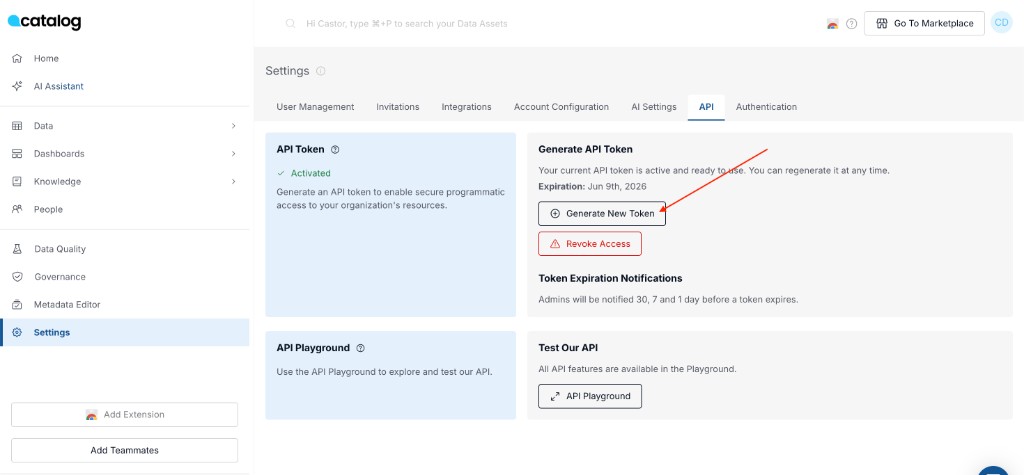
Catalog administrators generate tokens in the Catalog app. You need admin access to Settings > API.
- Sign in to Coalesce Catalog.
- Open Settings > API.
- Click Create Token.
- Enter an optional Name (for example
Production MCPorBI importer). - Choose a Scope:
- Read Only for search, lineage reads, and MCP use cases that do not write metadata.
- Read & Write for metadata importers, uploads, automation that creates or updates catalog assets, and AI Assistant integrations (including the Dust Integration).
- If a token already exists for that scope, read the warning, acknowledge it, and confirm Generate new token.
- Copy the token from the success dialog immediately. For security, Catalog does not show the full token again after you close that dialog.
Store the token in a secrets manager or your team's credential store. Never commit it to Git or paste it into public channels.
Token Scopes and Limits
Each Catalog account can have one active token per scope:
- One active Read Only token
- One active Read & Write token
You can use both at the same time when different integrations need different permissions. For example, point MCP at a Read Only token and keep Read & Write for castor-upload or importer scripts.
The token list shows each active token's masked value, scope, name, and expiration date.
Where to Use Your Token
Pass the token in the Authorization header (or the auth field your client expects) when calling Catalog APIs or configuring tools:
| Use case | Documentation |
|---|---|
| GraphQL Public API and playground | Catalog Public API |
| Claude, Cursor, Dust, and other MCP clients | MCP Integration |
| BI, warehouse, and manual lineage importers | Catalog APIs |
| Client-managed extraction uploads | Castor Extractor |
| AI Assistant polling via API | AI Assistant API |
| Dust agent tool | Dust Integration |
The AI Assistant API and Dust integration require Read & Write scope. MCP and read-only GraphQL queries can use Read Only.
Use the API base URL that matches your region:
- EU:
https://api.castordoc.com - US:
https://api.us.castordoc.com
Expiration and Email Notifications
New Catalog API tokens are valid for one year from creation.
Catalog emails account administrators about token status:
- 30, 7, and 1 days before a token expires
- When a token expired within the last 24 hours
- When a token is generated or revoked
Expiring emails include a link to Settings > API and remind you that generating a replacement token revokes the current token for that scope immediately.
Rotate or Revoke a Token
Rotate Before Expiration
Plan rotation when you receive an expiration notice or as part of your security cadence.
- Inventory every integration that uses the token for that scope (MCP client configuration, extractor jobs, CI secrets, importer scripts, playground, and partner tools).
- In Settings > API, create a token with the same scope.
- Copy the new token from the one-time dialog.
- Update each integration with the new value.
- Verify API calls and MCP connections succeed.
Generating the new token revokes the previous active token for that scope right away. API and MCP requests fail with 401 Unauthorized until every consumer uses the new secret.
Revoke Without Replacing
To remove access immediately, open Settings > API, find the token row, and click Revoke. Administrators receive an email notification. Revoked tokens cannot be restored; create a new token if you still need API access.
If You Lost the Token Value
Catalog cannot display a token again after the creation dialog closes. Generate a new token for that scope and update your integrations. That action revokes the lost token.
SCIM Tokens Are Separate
SCIM provisioning uses a different token from the Catalog Public API token. Rotating a Public API token in Settings > API does not update SCIM credentials in Okta or Microsoft Entra ID. Contact Coalesce Support for SCIM token rotation.
Troubleshooting
401 Unauthorized from the API or MCP
- Confirm the token is not expired on the Settings > API list.
- Confirm the integration uses the correct scope (Read Only vs Read & Write).
- Confirm nobody rotated or revoked the token without updating your config.
- For MCP, update the
Authorizationvalue in your client config and restart the app.
Integrations Broke After Someone Created a Token
Creating a token for a scope replaces the prior token for that scope. Coordinate with your team before rotating shared credentials, or use separate scopes when Read Only access is enough for some tools.
Expiration Email but Integrations Still Work
The email refers to the token that will expire on the listed date. Rotate before that date to avoid a hard cutoff when the token expires.