Documentation index: llms.txt. This page is also available as markdown: append .md to this URL or send Accept: text/markdown.
Search Your Asset
Use Catalog search to move from a name or tag to the right table, dashboard, or knowledge page. Quick search surfaces top matches, while advanced search adds filters for owners, certification, and more.
Search Bar
Search is a powerful feature in Catalog.
At any moment you can press the following shortcuts to run a search:
- From a Mac: ⌘ + K
- From a PC: Ctrl + K
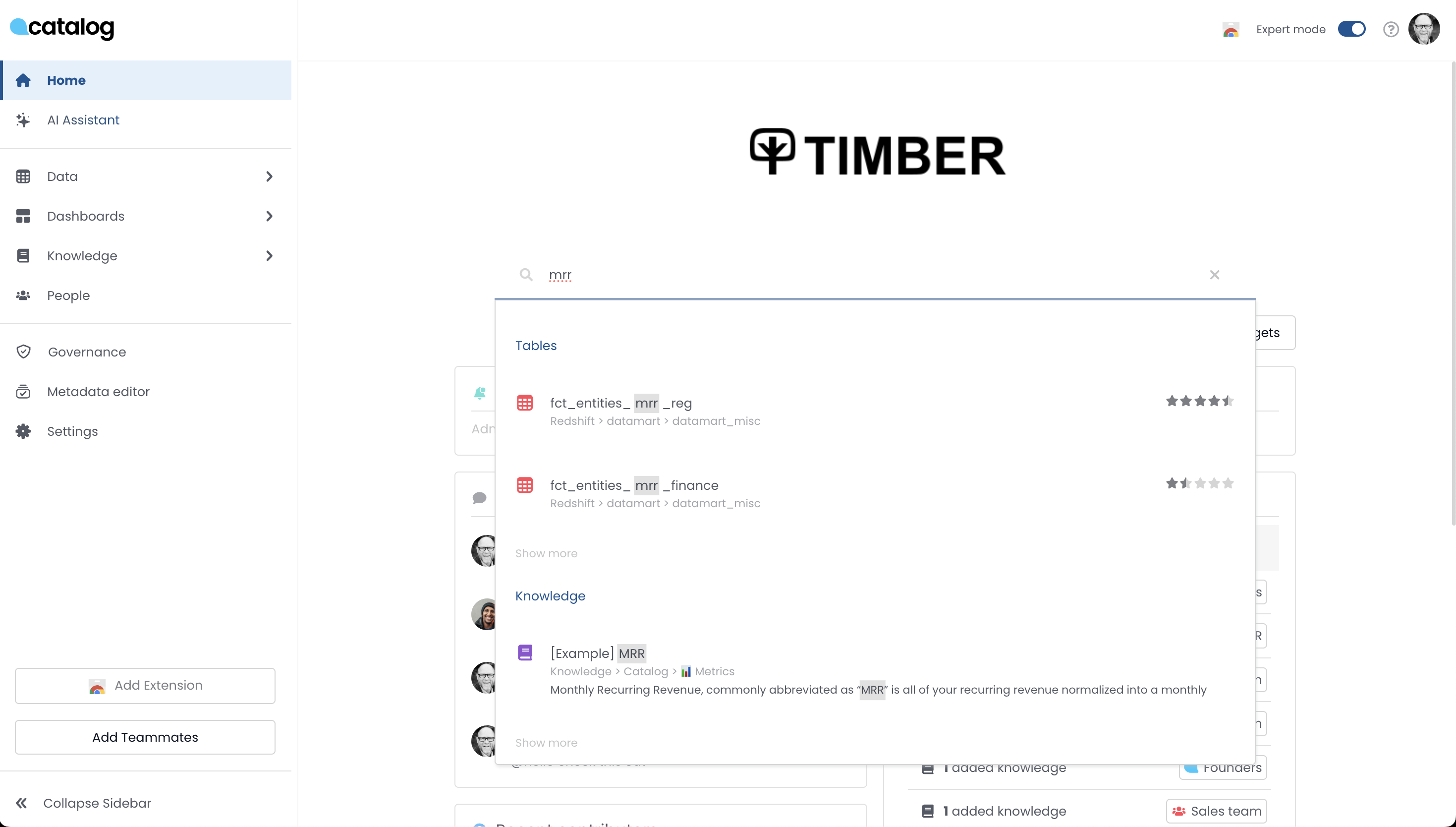
Quick Search Results
The search is performed through all elements in the Catalog App.
Quick search shows the top results within Tables, Dashboards, visualization models, and Knowledge.
Advanced Search Results
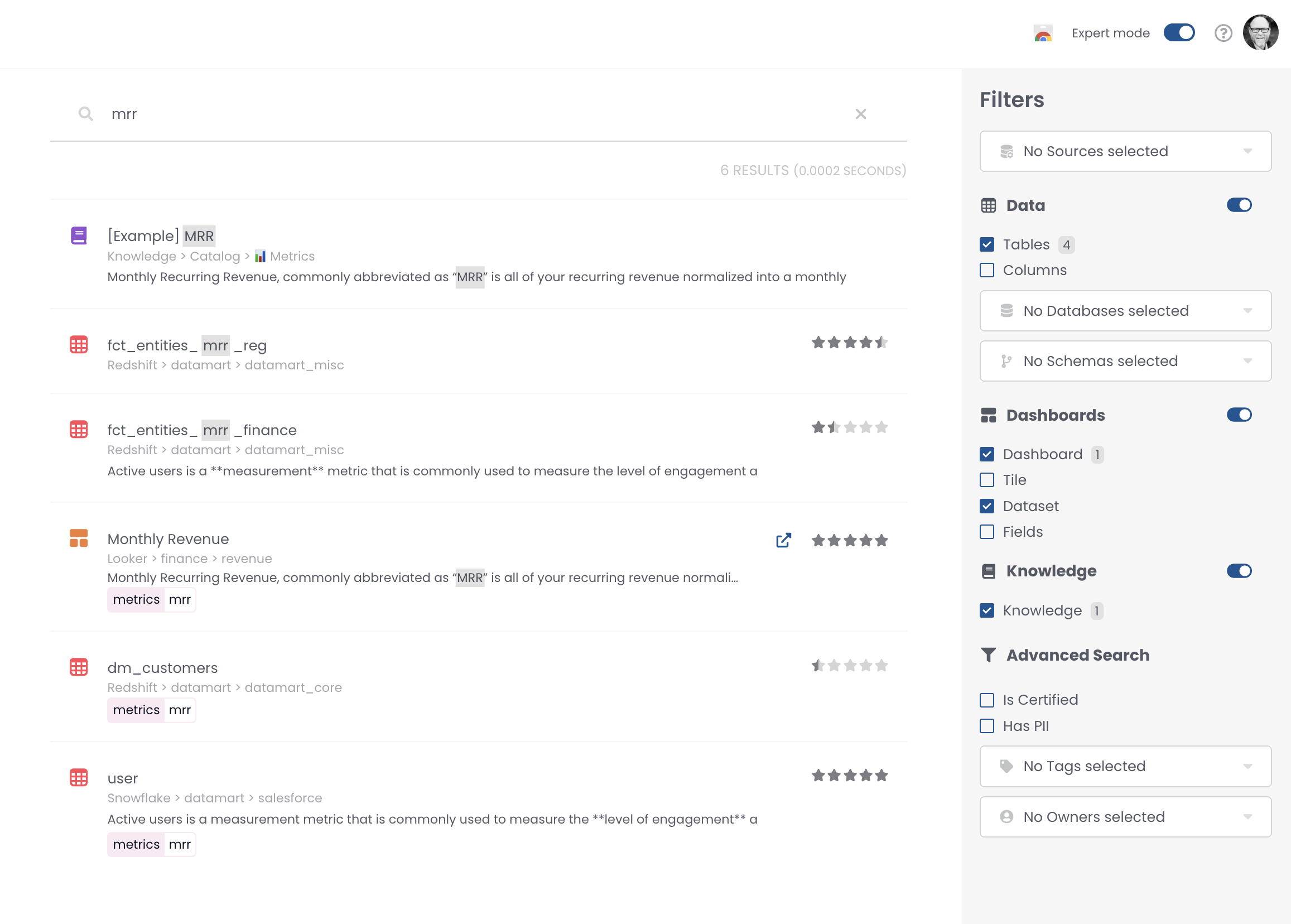
You can access advanced search results by clicking "Show more."
Advanced search results allow you to filter by result type:
- Tables
- Columns
- Dashboards
- Visualization models: Looker Explores, Tableau data sources, Power BI data sets, Sigma data sets, and Qlik apps
- Fields
- Knowledge
Additionally, in the advanced search you can filter results by:
- is Certified
- has PII
- Tags on columns and assets; you can choose AND, OR, or EXCLUSION behaviors
- Owner: individual contributors or teams; you can choose AND, OR, or EXCLUSION behaviors
How Is Search Performed
| Asset | Quick search | Advanced search |
|---|---|---|
Dashboards | Dashboard name | Dashboard name, Dashboard description, Dashboard external description, Applied tags |
Visualization models | Visualization model name | Visualization model name, Visualization model description, Visualization model external description, Applied tags. If dashboard field check box is checked: Field name and label, Field label |
Dashboard fields | N/A | Visualization model name, Field name, Field description, Field external description |
Tables | Database name, Schema name, Table name | Database name, Schema name, Table name, Table description, Table external description, Applied tags. If column check box is checked: Column name, Column description, Column external description |
Columns | N/A | Column name, Column description, Column external description |
Knowledge pages | Knowledge page name | Knowledge page name, Knowledge description, Knowledge applied tags |
Left Hand Menu
One of Catalog's key features is to allow you to search for your data. You can search through the left-hand menu or through the search bar, accessible from everywhere in the Coalesce App.
Catalog organizes your assets in three categories:
- Data: the elements in your warehouses. The hierarchy is defined by:
- Warehouse technology
- Database
- Schema
- Table
- Dashboards: the elements in your data visualization tools
- Visualization technology
- Inherited hierarchy from the technology
- Knowledge: widely used KPIs definition and documentation
Troubleshooting
These scenarios explain common misunderstandings about Catalog search behavior.
You Cannot Find Raw SQL Fragments Across Every Dashboard at Once
Catalog indexes curated metadata and fields documented through integrations. It does not provide a global plain-text search across every underlying SQL statement inside third-party BI servers.
Resolution:
- Use advanced search filters for visualization models, fields, and knowledge pages that relate to the metric or column names you remember.
- When you must trace literal SQL, inspect connector extracts or your BI tool's native query logs for that asset.
Advanced Search Returns Fewer Assets Than Quick Search
Advanced search applies explicit filters such as certification, PII tags, or owners. Quick search ranks broader matches.
Resolution:
- Clear optional filters you no longer need.
- Expand asset types (for example include visualization models and fields) when looking for lineage terminology carried on fields rather than tables.
Keyboard Shortcut Does Nothing
Browser extensions, embedded BI frames, or OS-level shortcuts can intercept ⌘ K / Ctrl + K before Catalog receives it.
Resolution:
- Click inside the Catalog chrome, outside embedded iframes, before invoking the shortcut.
- Open search through the magnifying glass icon if shortcuts conflict with another application.
Results Look Stale After Large Documentation Imports
Search indexes refresh after ingestion and indexing jobs complete.
Resolution:
- Wait several minutes after bulk imports or API pushes, then retry.
- If assets appear in browse trees but not search, contact Coalesce Support.
Left-Hand Explorer Expands but Search Cannot Jump to Deep Tables
Hierarchy navigation and search index slightly different timing depending on ingestion order.
Resolution:
- Navigate through Data until the database finishes syncing, then retry quick search on the exact table name.
- Use advanced search with schema filters when multiple warehouses reuse identical table names.