Documentation index: llms.txt. This page is also available as markdown: append .md to this URL or send Accept: text/markdown.
Knowledge
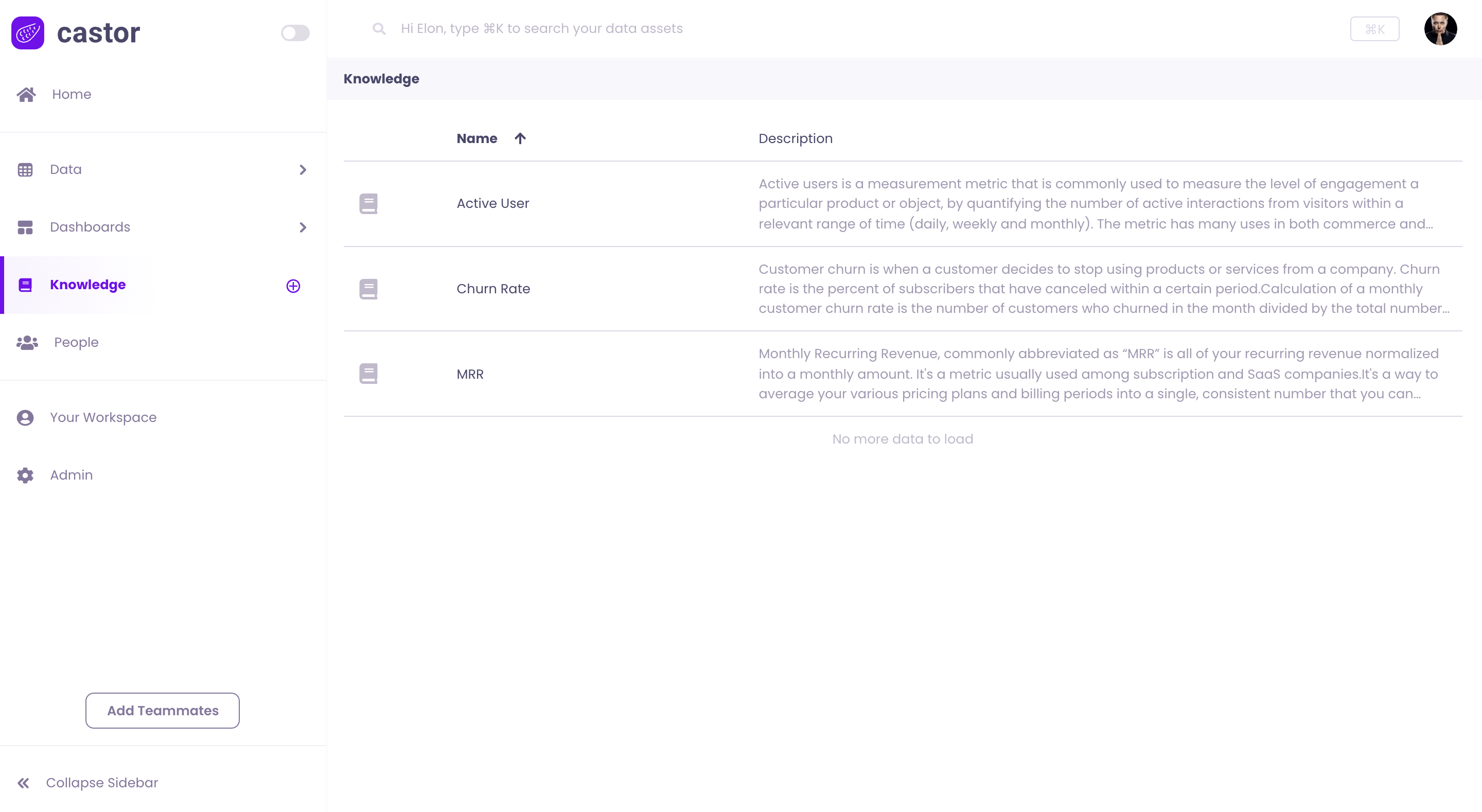
One of the Catalog's goals is to centralize all information around your data. Some knowledge goes beyond tables and dashboards, such as KPIs and frequently used terms, and can be stored in the Knowledge section of the Catalog App.
Each entry is composed of a Home, Comments, and History tab. You can nest Knowledge pages in one another.
Home
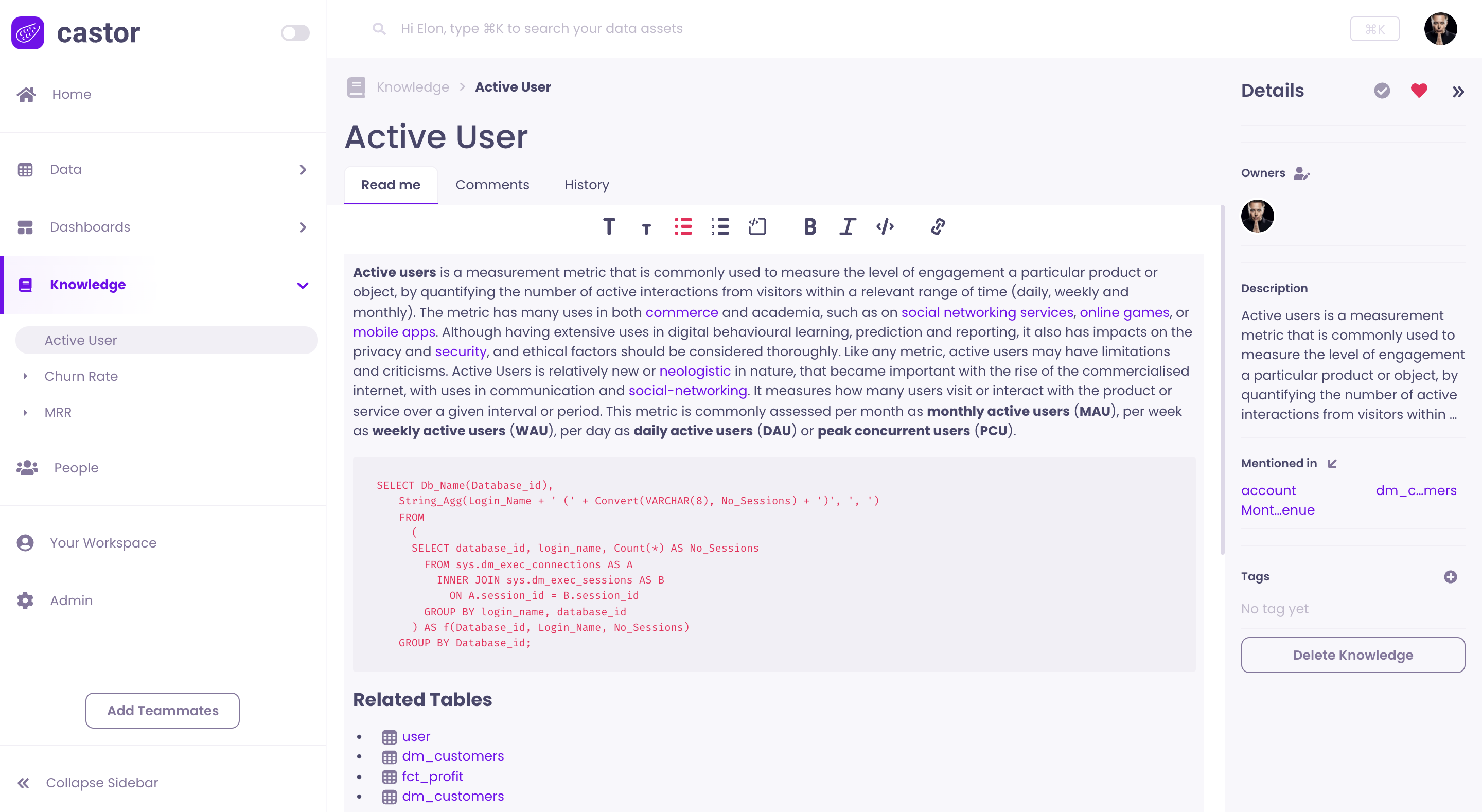
The Home tab is a Rich Text section allowing you to describe and explain any concept, KPI, or definition.
Details
On the right-hand side of your screen:
- Verified: admins can mark an entry as verified to indicate documentation has been reviewed
- Favorites: users can mark entries as favorites
- Owners: a user can be assigned as the owner of an entry
- Description: contains an extract of the description in the Home tab. By clicking on it, you will return to the Home tab.
- Mentioned in: lists the assets which reference the entry
- Tags: tags can be used to describe assets. They are common for all users of a company.
- Delete definition: button to delete definitions. Either an admin or the definition owner can do so
Pinned Assets
To improve your knowledge content, you can directly pin relevant assets to it.
.png)
How does this work? See the pinned assets page for details.
Link a Tag
Determine which tag relates to the definition you're writing to make all tagged assets appear in the page directly and dynamically.
-
Select the tag that is linked to your definition:
.png)
-
Once the tag is linked, all assets with that tag will appear for easier discovery
.png)
Comments
To easily collaborate and communicate between users, each dashboard has a Comments section:
.png)
History
Catalog records metadata changes on the History tab. See History in Catalog for what is logged and how stewards use the timeline for governance reviews.
.png)