Documentation index: llms.txt. This page is also available as markdown: append .md to this URL or send Accept: text/markdown.
Pinned Assets
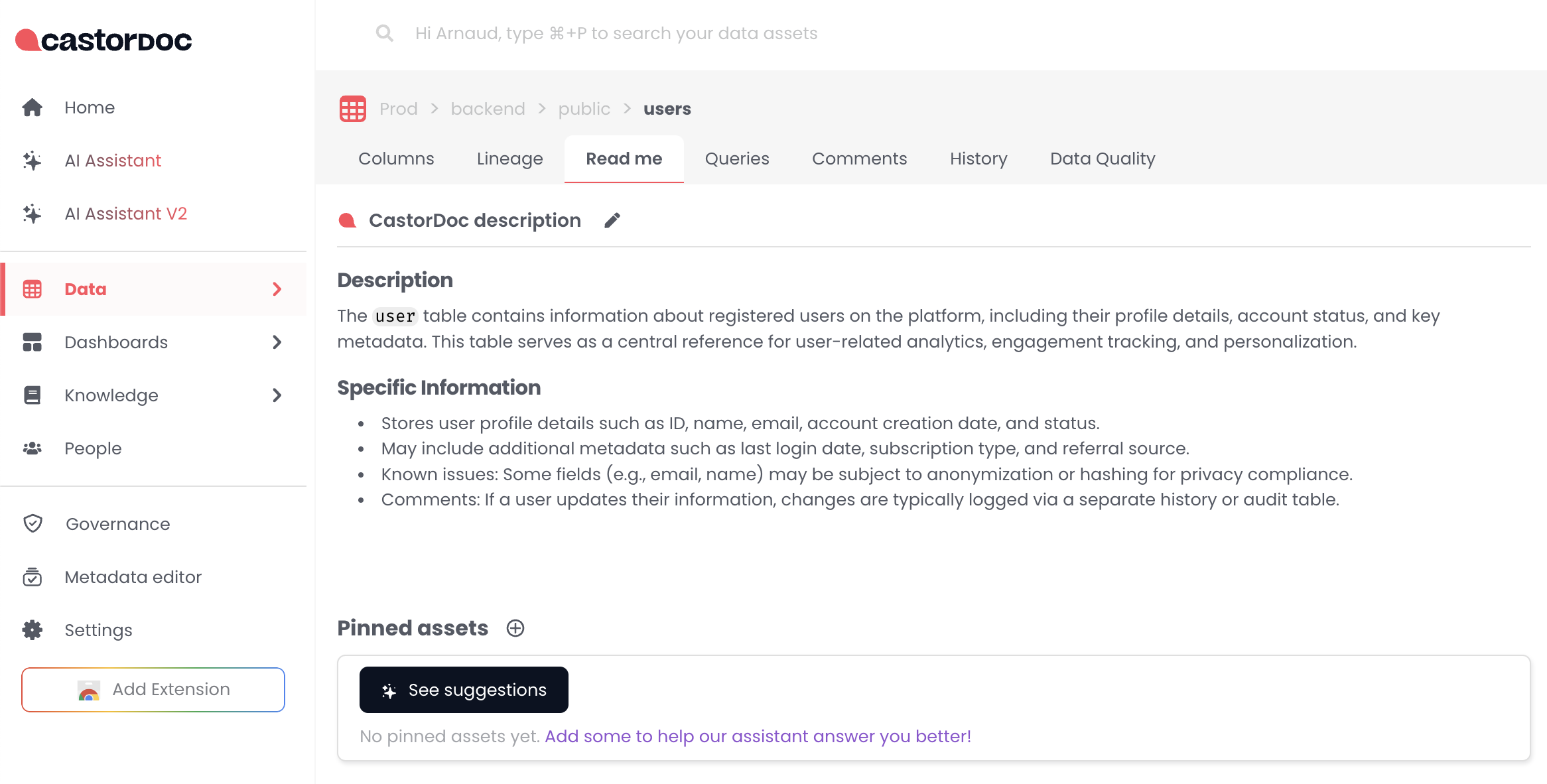
On an asset page, you might want to give it more context by pinning the relevant tables or dashboards to a given asset.
Here's how it works:
Pin an Asset
Click the "+" or See suggestions to open the modal and select your relevant assets.
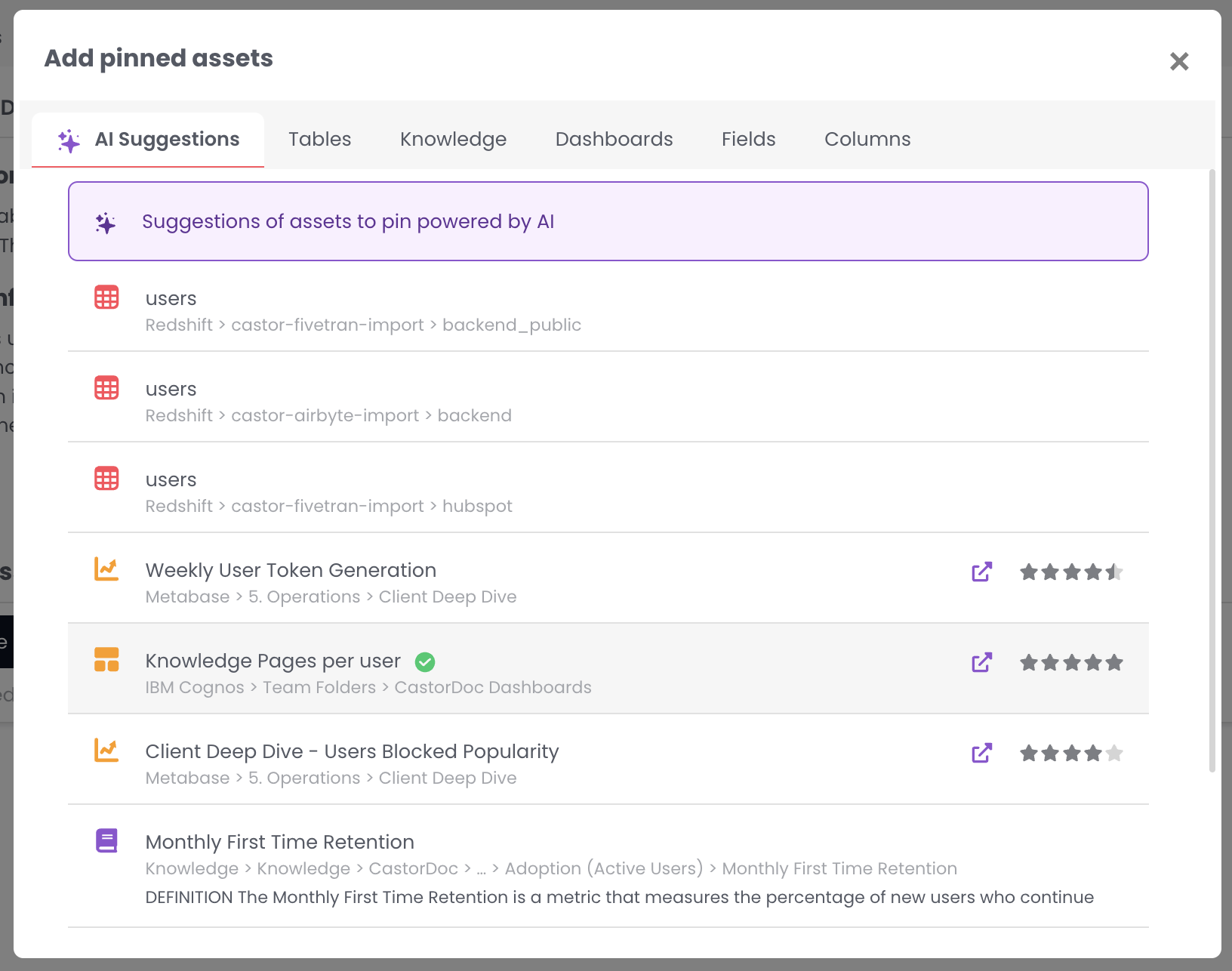
The first "AI Suggestions" tab offers suggestions of assets to pin based on their semantic proximity. For example, if your table is called users, you may get suggestions of dashboards dealing with user activity.
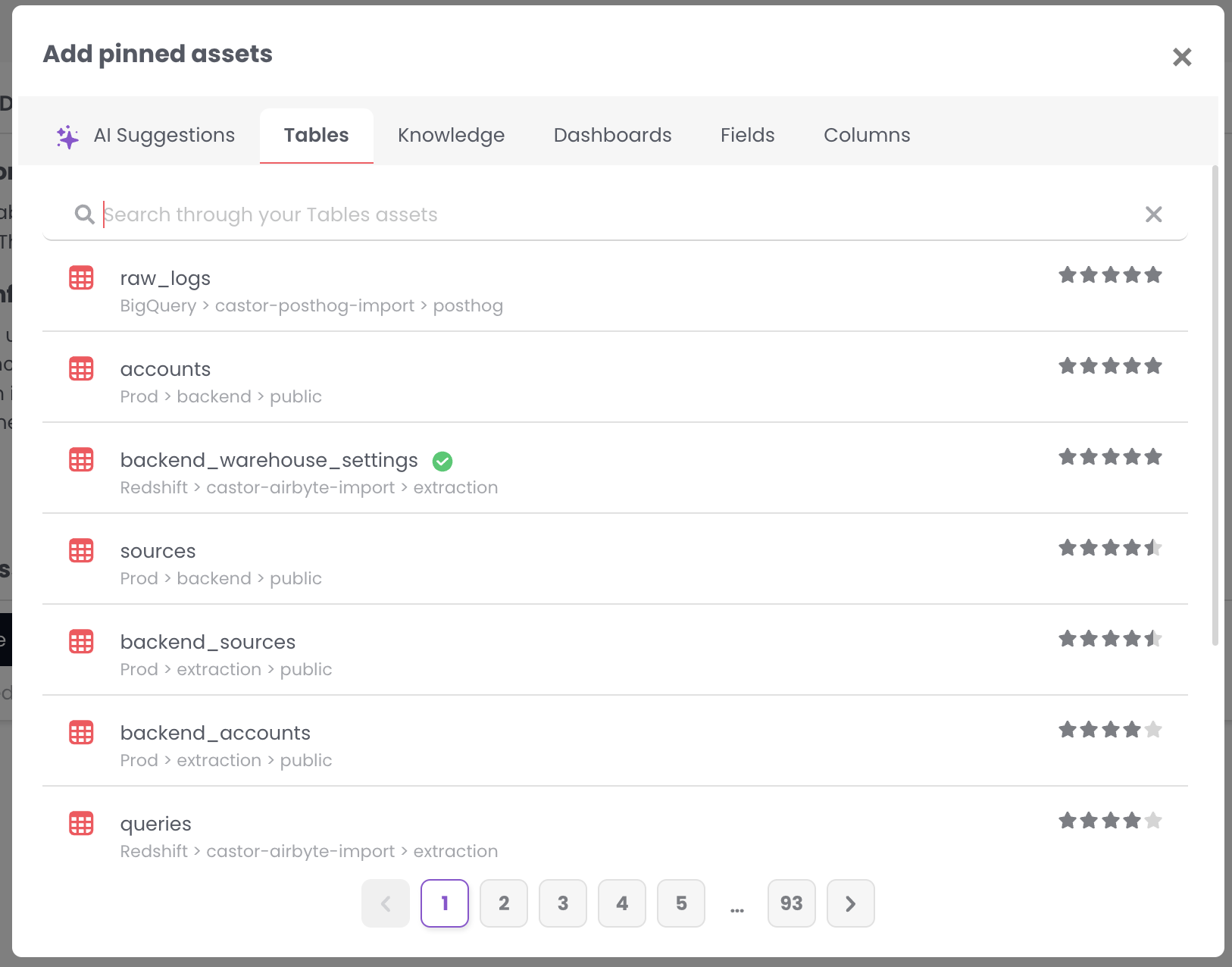
Other tabs allow you to search and pick assets of different types.
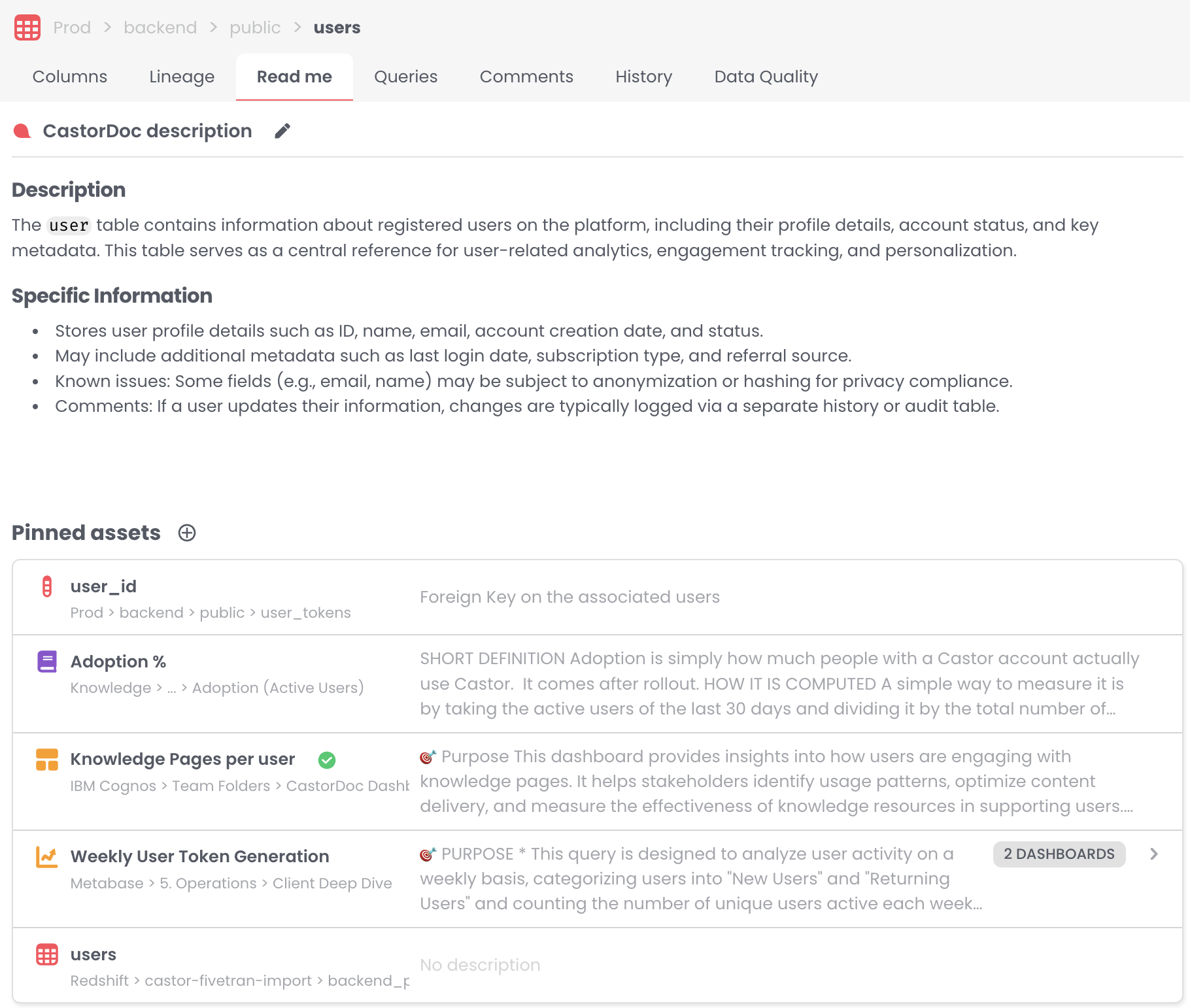
When you're done, close the modal, now any Catalog can see the assets you've just pinned.
Mentioned In
When you're done pinning assets and you're looking at your favorite table, you can visualize all the assets that pinned your table. Those are grouped in the "Mentioned in" section of the sidebar.
.png)