Documentation index: llms.txt. This page is also available as markdown: append .md to this URL or send Accept: text/markdown.
Interaction Between Teams
Reach consensus on data documentation by using Catalog's collaboration features: ownership, comments, and Slack integration.
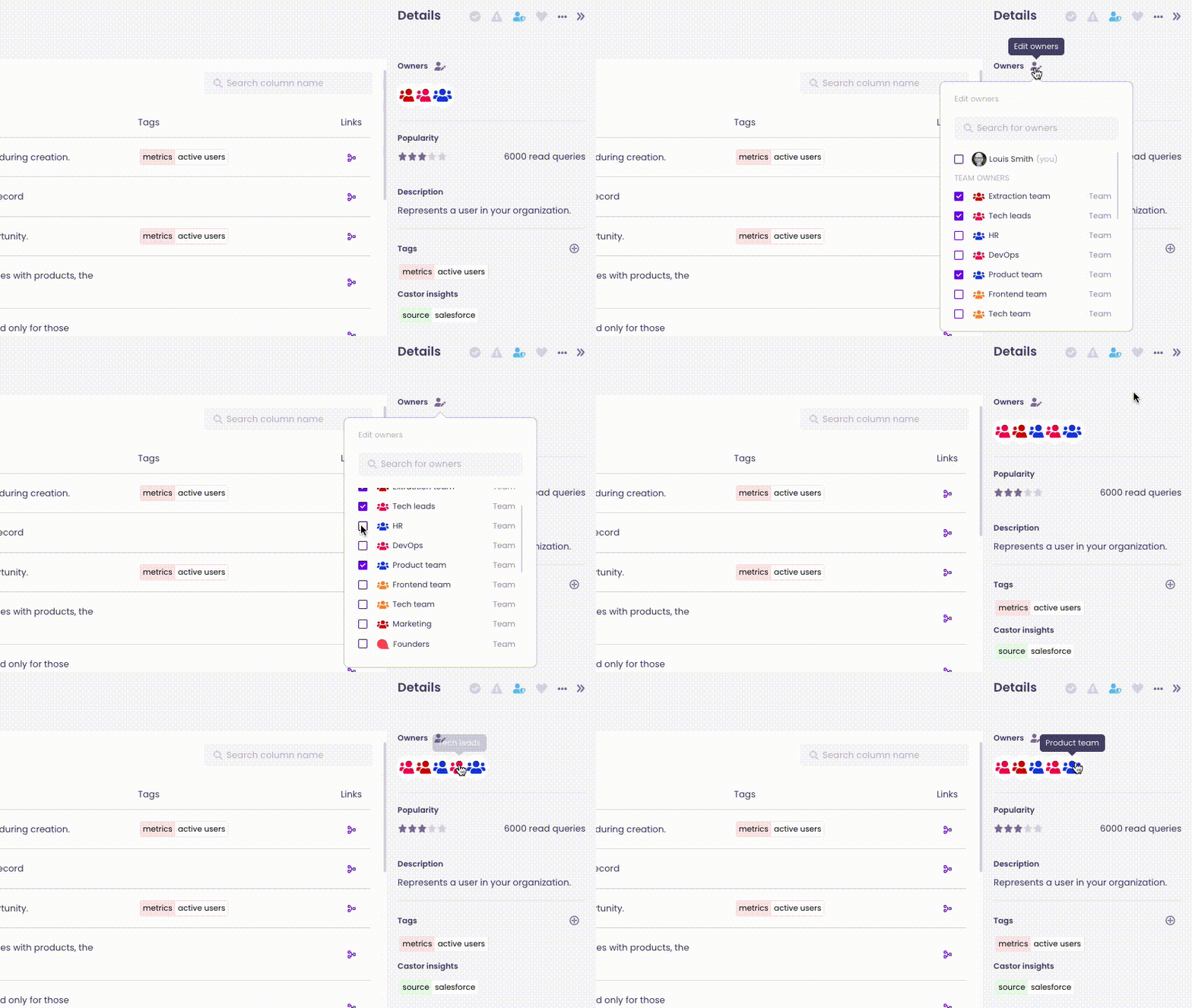
Ownership
Now that you have set your teams in the Catalog, you can start using it. Wait, you haven't done that yet.
Go to your favorite table or dashboard and assign the responsible team as owner.
Comments
Every asset page in the Catalog contains a Comments section.
It's a great place to ask questions if existing definitions do not cover everything.
For example:
- Who is the owner of this asset?
- Can a definition be more explicit (include units)?
- Will the asset become deprecated?
Whenever you have a question about an asset, it's a good place to check if someone has already answered it.
Keep in mind that you can mention users using the "@" handle.
.png)
Slack
Slack is now a go-to for collaboration in all companies. That's why we created our Slack app to seamlessly integrate within your communication process.
Preview Asset Metadata in Slack
When pasting a Catalog link in Slack, details of the related asset will unfurl in Slack.
.png)
Keep a Trace of Your More Insightful Exchanges
You don't want to answer the same question repeatedly.
Click on Save thread link in Catalog and the Slack thread link and first message will appear on the corresponding asset's comment section. It will build a log for users to see the FAQ.
.png)
Only available in public channels.
Good Practice Advice
To get your people to use the Catalog more and become more independent with data:
All questions in Slack regarding a data asset should include a Catalog link.
A Catalog link should appear in the header of your dedicated data support Slack channels.