Documentation index: llms.txt. This page is also available as markdown: append .md to this URL or send Accept: text/markdown.
Approval Process
The Read Me Content Review feature helps you ensure that documentation is reviewed before it is published.
When enabled, all updates to Read Me content are reviewed before publication. Depending on your permissions, changes are either published immediately or submitted for approval and only applied once an asset owner or admin validates them.
When Should You Enable Read Me Content Review?
By default, all users with the Contributor role or above can directly edit and publish Read Me content.
This flexible model works well when documentation is maintained by a small group of trusted users.
Enable Read Me Content Review if you want to:
- Allow more users to contribute documentation while keeping published content under control.
- Ensure Read Me updates are reviewed before they become visible.
- Make asset owners accountable for published documentation.
- Introduce a consistent review process for documentation.
What Is Covered?
Read Me Content Review only applies to Read Me content for:
- Tables
- Dashboards
- Terms
Other metadata (such as owners, tags, certifications, or deprecation status) is not affected.
How It Works
1. A User Updates a Read Me
You can update Read Me content from:
- The asset page
- The Metadata Editor
The result depends on your permissions:
| User | Result |
|---|---|
| Asset Owner | Changes are published immediately. |
| Admin | Changes are published immediately. |
| Contributor (who is not the owner) | Changes are submitted for approval. |
| Steward (who is not the owner) | Changes are submitted for approval. |
2. A Change Is Submitted for Approval
When a submitter submits a change:
- The published Read Me remains unchanged.
- The proposed version is stored for review.
- Only one pending approval can exist for an asset at any time.
- Additional edits are blocked until the pending approval is resolved.
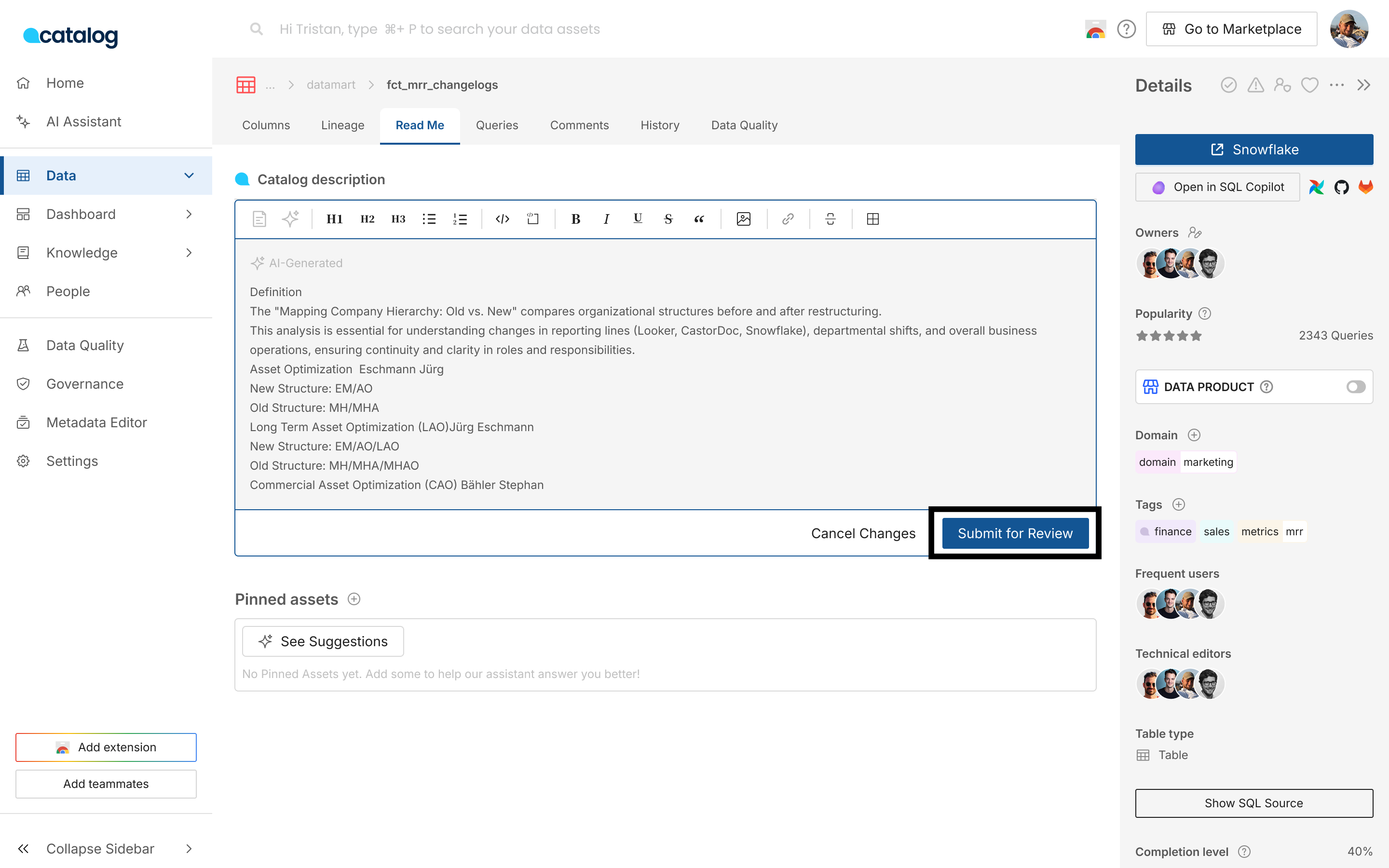
The user who submitted the change can view the pending approval and cancel it if needed. From the Read Me editor, click Submit for Review to send the proposed change to an asset owner or admin for validation.
3. A Designated Approver Reviews the Change
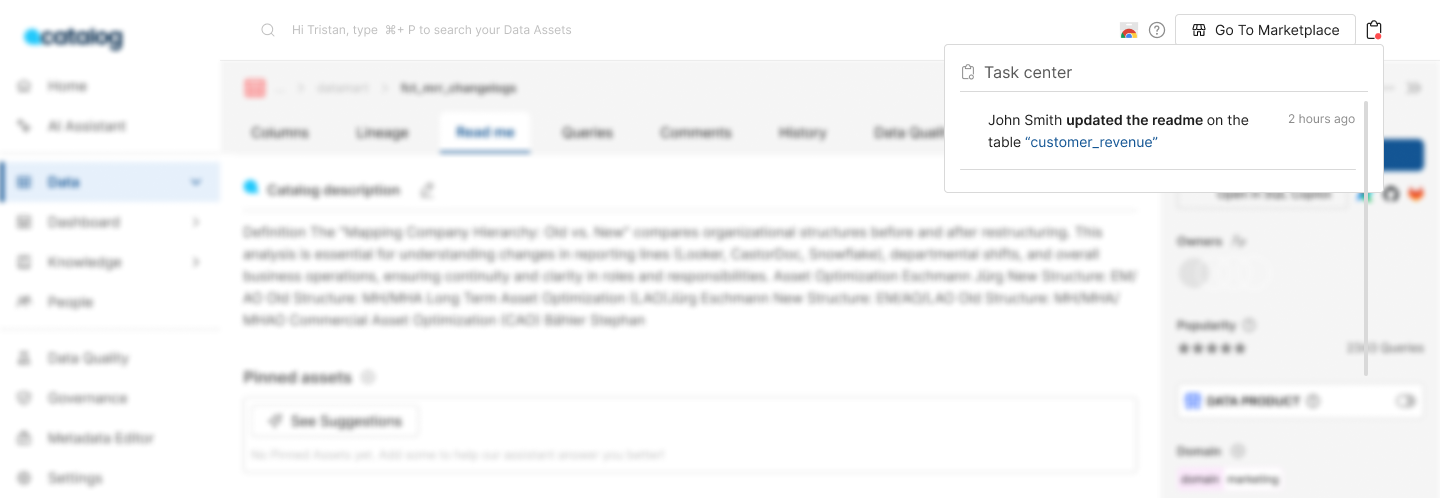
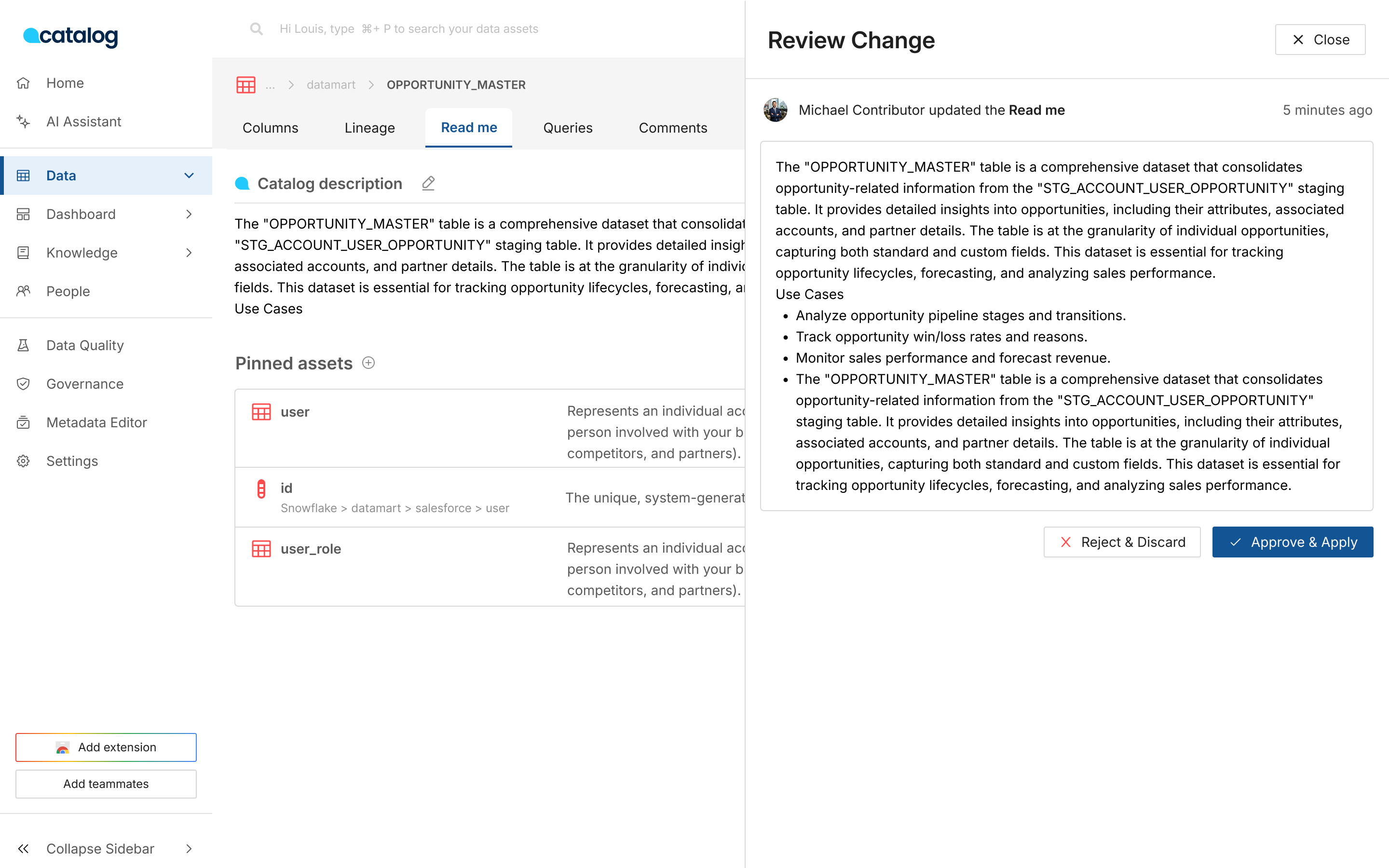
A designated approver (an asset owner or an admin) receives the approval request in the Task Center.
They can:
- Approve the change and publish it immediately.
- Reject the proposed change.
Only one approval is required.
4. The Review Is Completed
After an approver acts on the request, Catalog applies one of the following outcomes.
If the Change Is Approved
- The new Read Me is published.
- The pending approval is removed.
- New changes can be submitted.
If the Change Is Rejected
- The published Read Me remains unchanged.
- The proposed change is discarded.
- New changes can be submitted.
Role Summary
| Action | Contributor (non-owner) | Steward (non-owner) | Owner | Admin |
|---|---|---|---|---|
| Edit and publish Read Me when the feature is disabled | ✅ | ✅ | ✅ | ✅ |
| Edit and publish Read Me when the feature is enabled | ❌ | ❌ | ✅ | ✅ |
| Submit a change for approval | ✅ | ✅ | Not applicable | Not applicable |
| Cancel their own pending approval | ✅ | ✅ | Not applicable | Not applicable |
| Approve a pending change | ❌ | ❌ | ✅ | ✅ |
| Reject a pending change | ❌ | ❌ | ✅ | ✅ |
API Behavior
Read Me Content Review is designed for interactive documentation updates. API updates follow slightly different rules.
No Pending Approval
If no approval is currently pending for the asset, the API updates the Read Me and publishes it immediately.
Pending Approval Exists
If a Read Me change is already waiting for approval, the API request is rejected.
The pending approval must first be approved, rejected, or cancelled before another update can be applied.
This prevents API updates from overwriting a proposed change that is still awaiting review.
AI Assistant Updates Through MCP
Updates made by an AI assistant through the MCP server are not API updates. They follow the same rules as an edit in Catalog: an owner of the asset or an Admin publishes immediately, and other users submit a change for approval.
Enable Read Me Content Review
Only an admin can enable or disable this feature.
- Go to Settings.
- Open Account Configuration.
- Under Documenting your Data, enable Read Me Content Review.
The feature is disabled by default.
Read Me Content Review cannot be disabled while there are pending approvals. Resolve all pending approvals before disabling the feature.