
Documentation index: llms.txt. This page is also available as markdown: append .md to this URL or send Accept: text/markdown.

Exporting Data

You can export some of the data in Coalesce using the following methods.

Individual Run Screen​

Right click on a row in the table to see the export options. This will export the entire run.
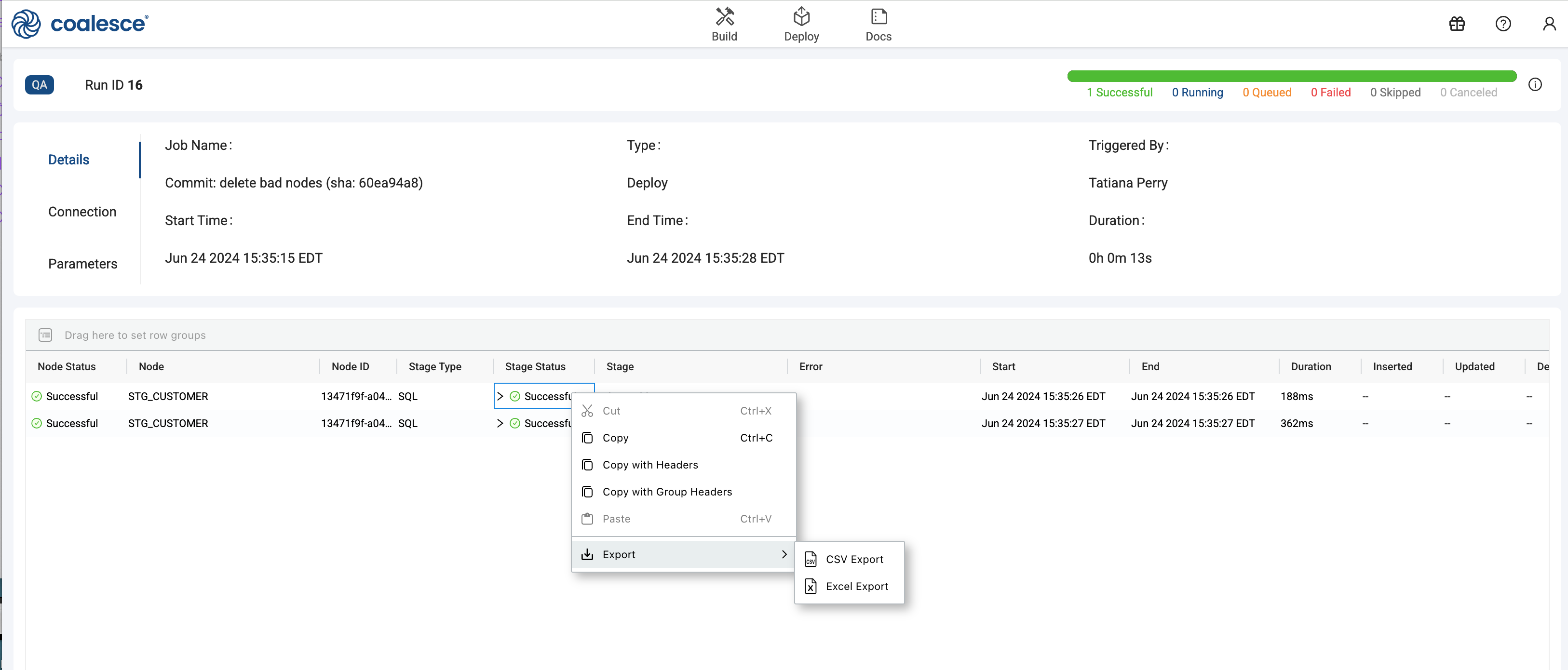
Coalesce job run overview, showing the details of a deploy job. The job name is listed, along with the connection used and the timestamps for the start and end times. It also includes information about the run’s success, with all nodes marked as successful. The exported data options for this run are accessible, allowing for CSV or Excel export. The interface is organized, with details of node execution times and status visible.

Data Preview Results​

In the data preview tab, after a Node has run, it will export the 100 rows returned.
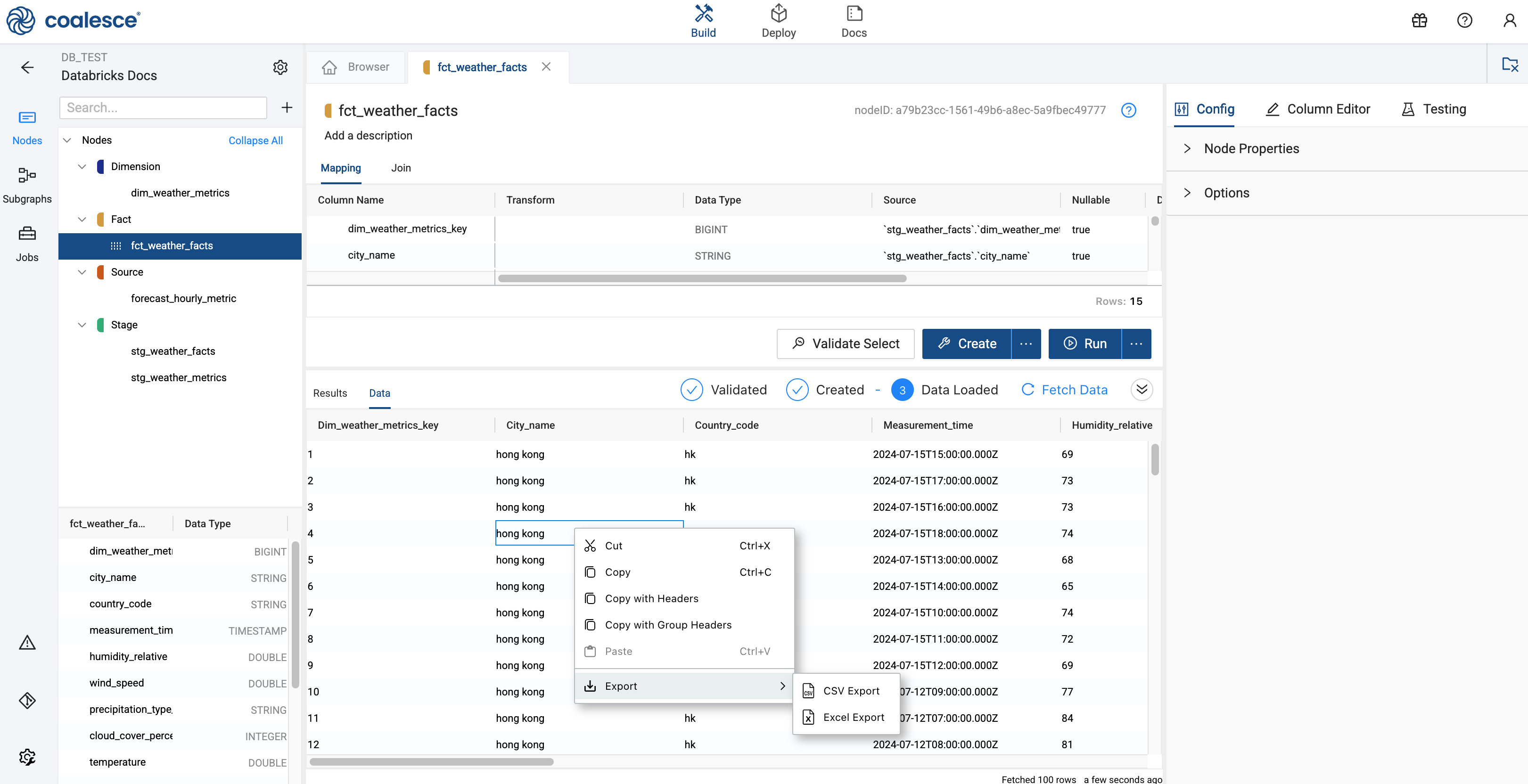
This screenshot shows a Coalesce data view for a fact table node named fct_weather_facts. The node is linked to a source (forecast_hourly_metric) and includes mapping for columns such as dim_weather_metrics_key and city_name. The results panel displays a table with 15 rows of data, including columns for city name, country code, measurement time, humidity, wind speed, and other weather-related metrics. Options for validating, creating, and exporting data (as CSV or Excel) are also available.

Copy Unload Node​

You can use the Copy Unload Node to external locations such as AWS and others.