Documentation index: llms.txt. This page is also available as markdown: append .md to this URL or send Accept: text/markdown.
Notion
Permissions from Notion are NOT synced to Catalog.
All synced pages become visible to all Catalog users, regardless of source permissions. Do not sync confidential, private, or regulated content unless all Catalog users should have access.
Integrate Notion with the Catalog to enable seamless synchronization of data documentation content.
Introduction To the Feature
This integration ensures:
- A constantly updated and comprehensive knowledge base for the Data Governance Team
- A powerful AI Assistant that utilizes the content to provide the best responses to your questions
Why Synchronize Your Notion Pages in Catalog?
Advantage 1: Enhanced AI Assistant Intelligence
All imported content feeds the Assistant, significantly boosting its intelligence. This empowers your teams to gain independence and efficiency in their work.
Advantage 2: Always Up-to-Date Content
Currently, users manually copy and paste content from Notion into the Catalog, leading to redundant maintenance efforts and potential inconsistencies. With this feature, these issues are eliminated. The synchronized content becomes the single source of truth, always up-to-date and read-only in the Catalog.
How To Perform the Synchronization
Follow these steps to set up the integration:
-
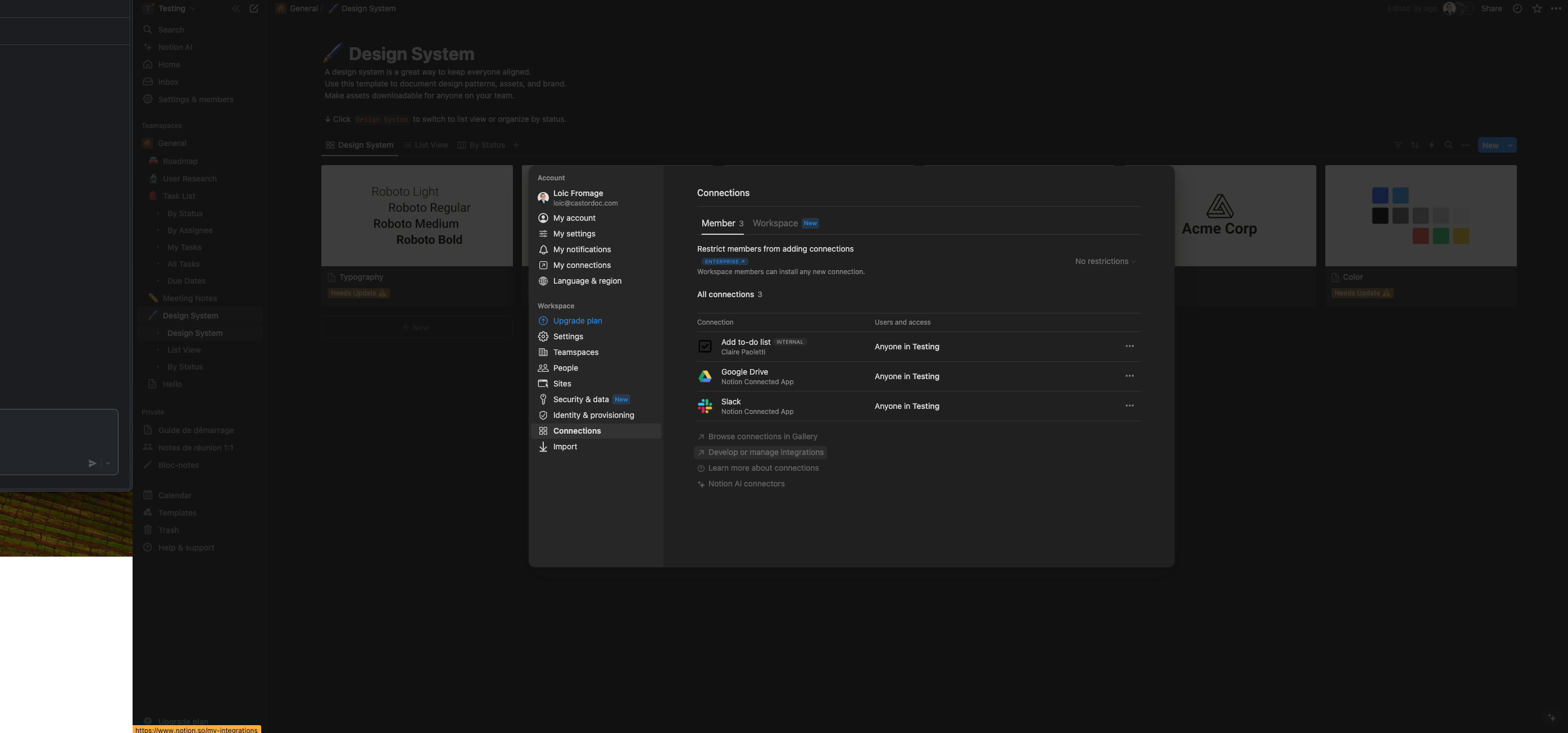
Navigate to the integration page (as an admin)
Location: Your Internal Notion Space
-
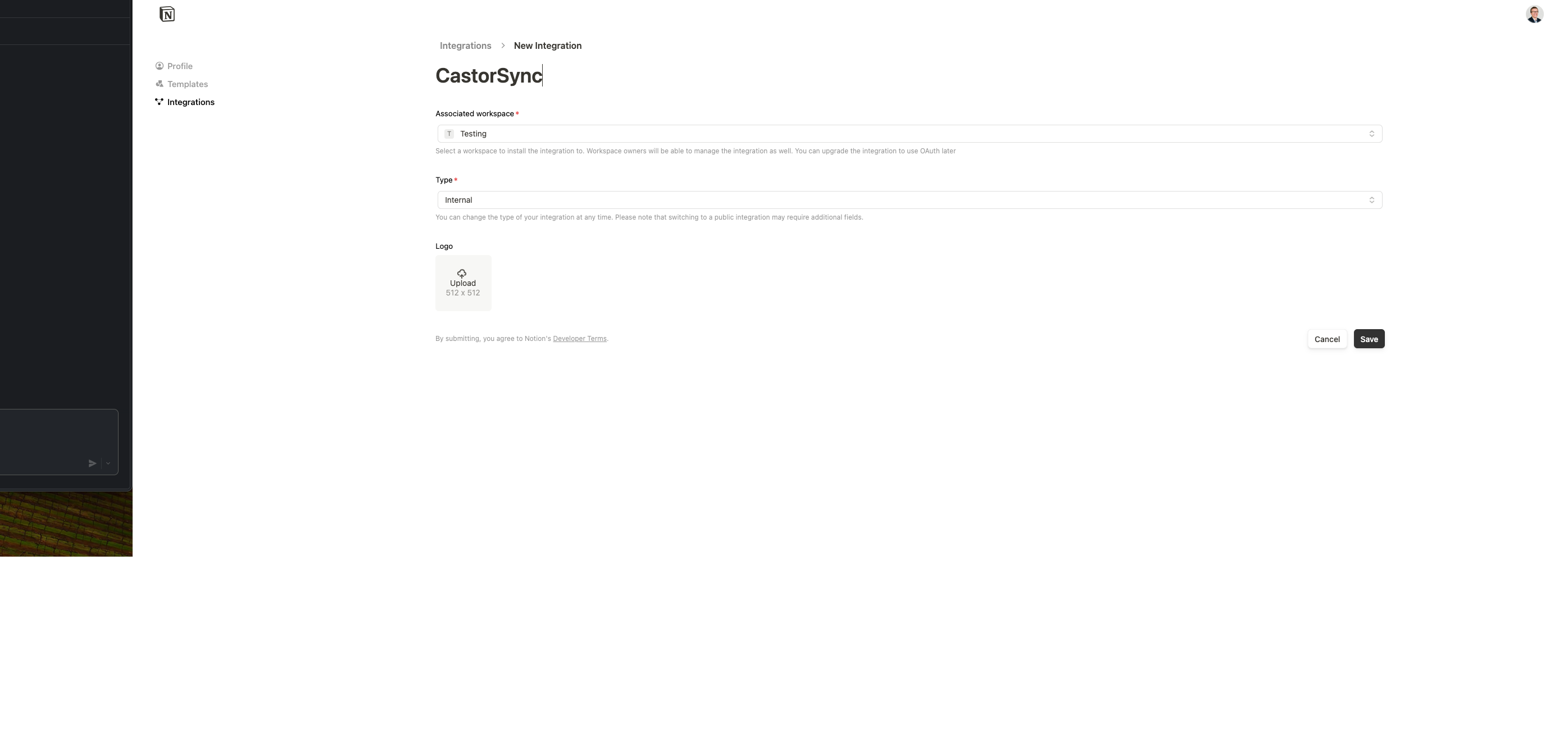
Name the integration and sync it with the workspace
Location: Your Internal Notion Space
-
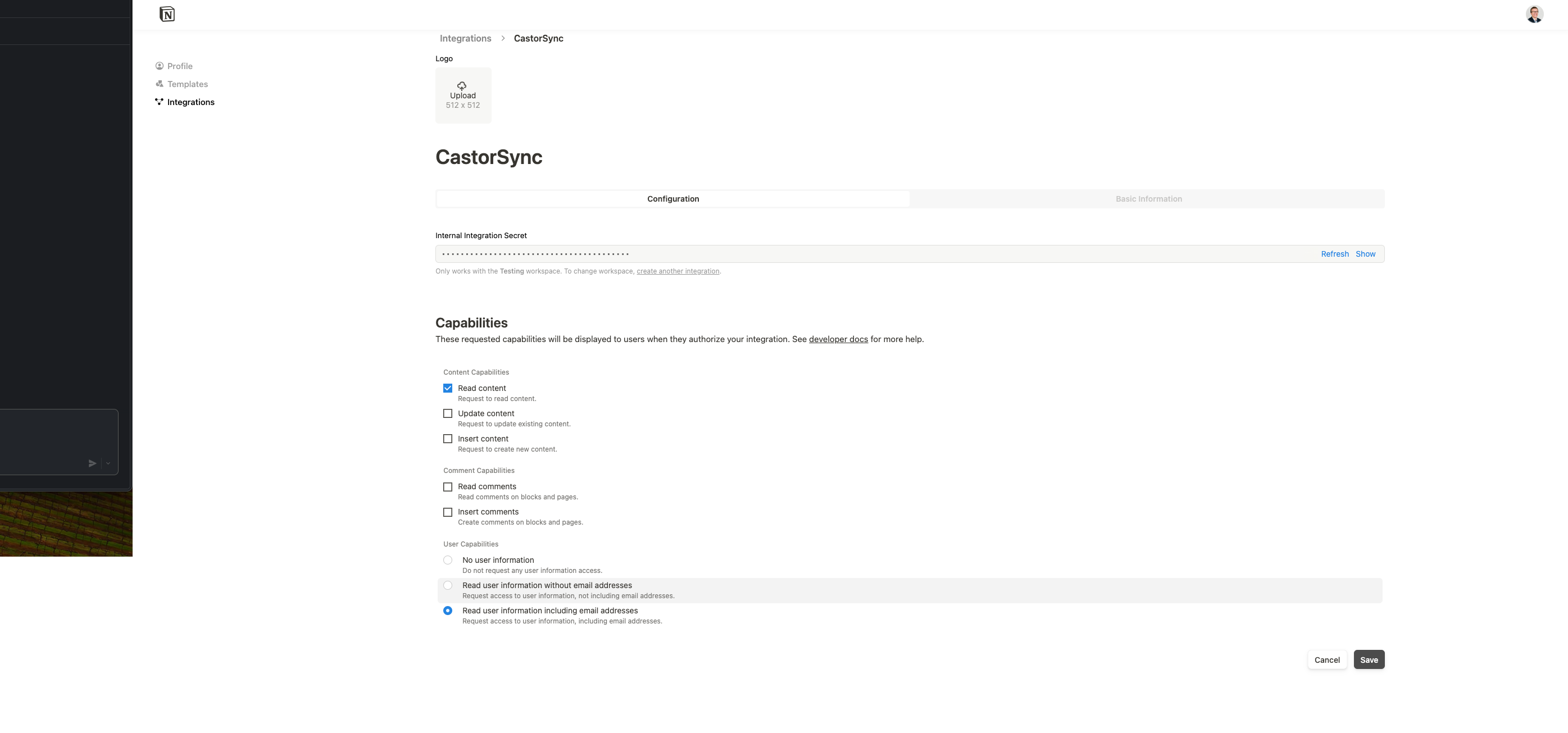
Grant permissions and copy the Internal Integration Secret token
Location: Your Internal Notion Space
-
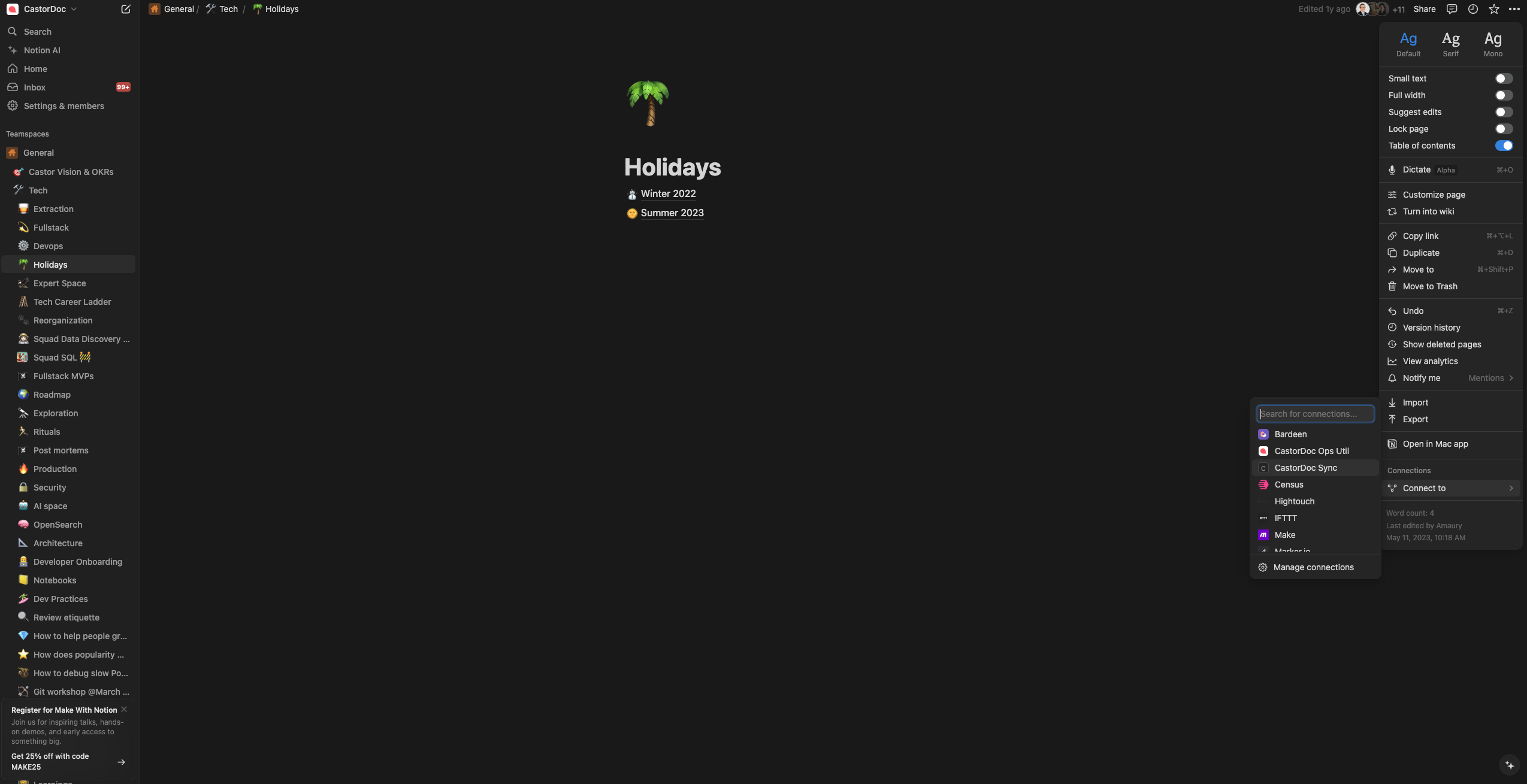
Connect to a page
Location: Your Internal Notion Space
-
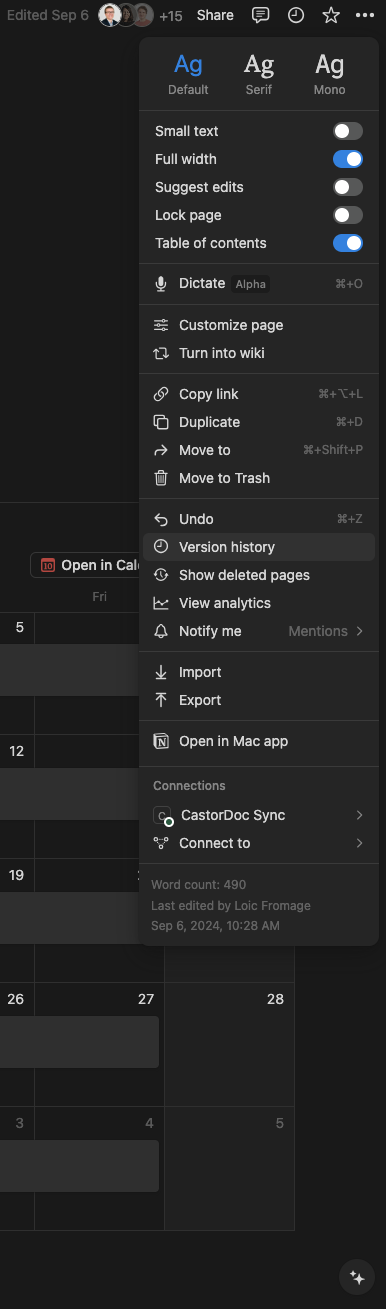
Verify the page's appearance when the integration is properly connected (and how to disconnect if needed)
Location: Your Internal Notion Space
-
Complete the integration process
Location: In Catalog
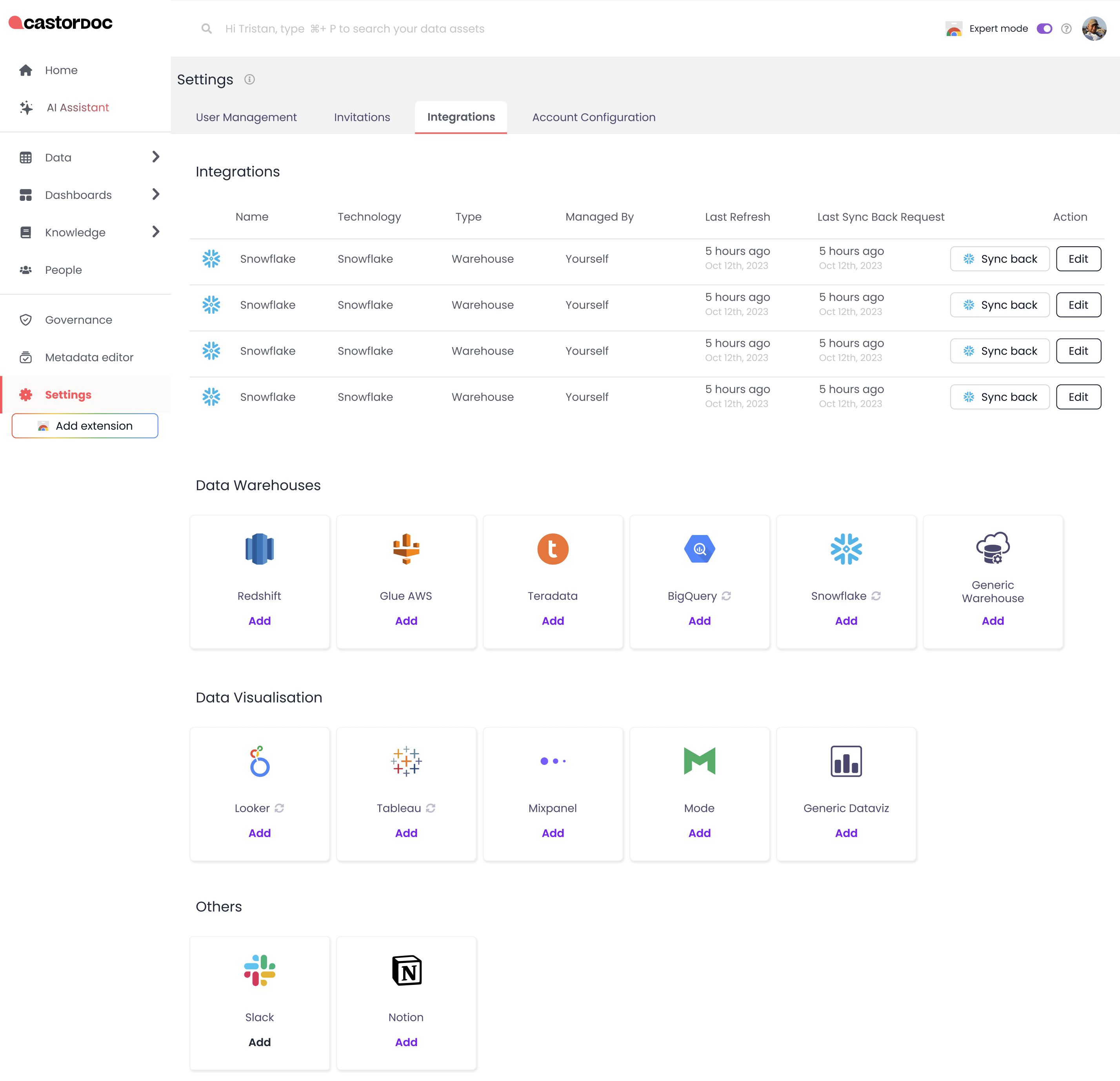
Start the synchronization process by clicking on the Notion icon. You will need to enter your credentials.
FAQ
Questions About Page Synchronization
- Q: If a parent page is selected, are all its children automatically ingested? A: Yes, all child pages are automatically ingested.
- Q: If you want to select only one child page out of 10 ingested, do you need to disconnect the other 9? A: Yes, you'll need to manually disconnect the unwanted child pages. Or, you can directly synchronize the desired one in the first place.
- Q: How can you ingest only a single page without its children? A: You need to manually disconnect its child pages.
- Q: What are the ingestion rules for private pages? A: Private pages within a public parent page are ingested. To prevent this, manually disconnect the private pages.
Questions About Rights and Permissions
- Q: Are the permissions on Notion pages reflected in Catalog? A: No, not currently. If User A doesn't have rights to view a page in Notion, but that page is synchronized to Catalog and User A has access to Catalog, they will be able to see the page content. This content will also be used by the AI Assistant.