Documentation index: llms.txt. This page is also available as markdown: append .md to this URL or send Accept: text/markdown.
Build Incremental Pipelines with Run Views and Sequences
Introduction
When you load change data in batches across multiple sources, a timestamp watermark alone often is not enough. You need a durable record of which source slice ran, in what order, and which rows belong to the current load window. This guide walks you through building that pipeline in Coalesce with Run Views, a sequence control table, and Job parameters.
This guide assumes you have knowledge of Coalesce including:
What You Will Build
When you finish this guide, you will have:
- Installed the Incremental Loading Package and used Run View and Incremental Load Node Types.
- A multi-suffix pipeline where Jobs pick branch A, B, both, or ALL through the
sourcesuffixparameter. - Deploy-safe guards so Deploy creates empty views and does not advance
LOAD_SEQUENCE.

How the Pipeline Fits Together
| Node | Node Type | What it does |
|---|---|---|
LINEITEM | Source | Snowflake sample table that supplies row data for every branch. |
LOAD_SEQUENCE | Persistent Stage | Empty control table you create first. Each suffix Run View appends a row with the next sequence number, suffix letter, and load timestamp when a Job runs. |
STG_LINEA | Run View | Staging view for branch A. Reads LINEITEM, creates the view, and inserts 'A' into LOAD_SEQUENCE. Deploy guards skip the insert. |
STG_LINEB | Run View | Same pattern as STG_LINEA for branch B. The trailing B in the Node name is the suffix the package matches to Job parameters. |
RV_LINEITEM | Run View | Multi-source union over STG_LINEA and STG_LINEB. sourcesuffix selects which branches contribute rows to the union for the current Job. |
INC_LINEITEM | Incremental Load | View over RV_LINEITEM that returns only rows newer than the watermark in PSTG_LINEITEM once incremental filtering is on. |
PSTG_LINEITEM | Persistent Stage | Physical table that stores merged rows after each successful load. |
Source Suffixes and Node Names
The suffix is the trailing character on each branch Run View name (A on STG_LINEA, B on STG_LINEB). The Incremental Loading Package compares that character to the Job parameter sourcesuffix when Filter data based on Source is on.
Name branches with a uniform suffix length. This guide uses one character, which matches Length of suffix of source table 1 on RV_LINEITEM. See Incremental Loading Package Run View Parameters for longer suffix patterns.
When to Use Run Views
Use this table to decide whether the multi-suffix Run View pattern fits your pipeline.
| Requirement | How this pattern helps |
|---|---|
| Multiple source branches into one incremental target | Per-suffix Run View Nodes feed a multi-source union (RV_LINEITEM). |
| Parameterized source selection per Job | sourcesuffix selects suffix A, B, a list, or ALL. |
| Orchestration metadata across runs | LOAD_SEQUENCE stores batch id, suffix, and load timestamp. |
| Deploy without re-running load logic | Environment sourcesuffix ('DEPLOY') plus Override Create SQL guards. |
If you only have one source and a single timestamp watermark, start with Incremental Loading with Coalesce or Incremental Loading Strategies.
Before You Begin
- A Coalesce account with Snowflake access. Start a free Coalesce trial from our Snowflake Marketplace listing if needed.
- A Project and Workspace with Storage Locations and Storage Mappings configured. This guide uses
SAMPLEandWORK. - Have your sources added to the Workspace.
- Have Version Control configured.
- Have an Environment configured.
- Snowflake roles that can create views and tables in those locations.
- Optional: Snowflake sample data sets available in your account. Map
TPCH_SF1.LINEITEMor equivalent to locationSAMPLE.
Step 1: Install the Incremental Loading Package
-
Go to the Coalesce Marketplace and search for Incremental Loading.
-
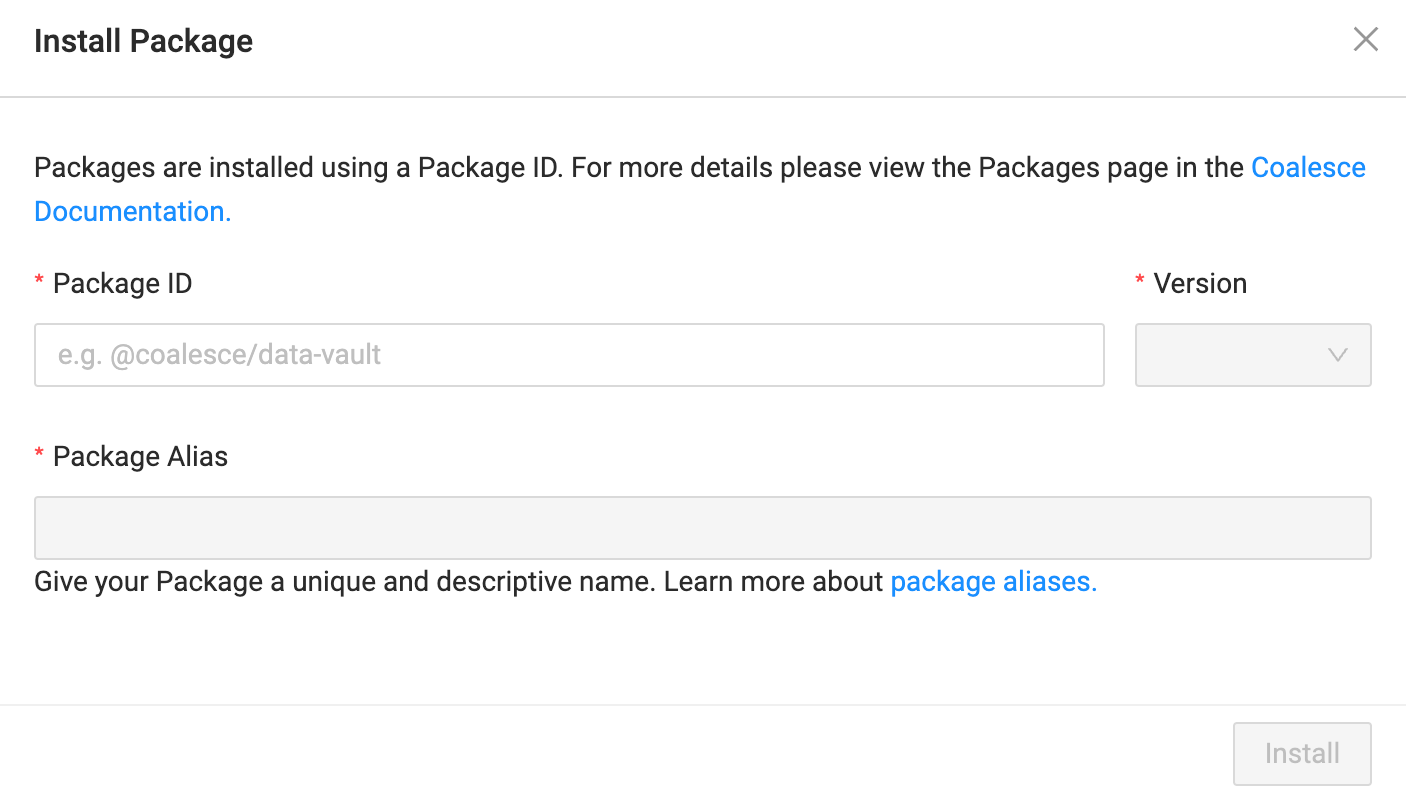
Copy the Package ID
@coalesce/snowflake/incremental-loading. -
Open Build Settings from the left sidebar.
-
In the Coalesce App, go to Build Settings > Packages. Click Install.
-
Enter the Package ID you previously copied.
-
Select the version you want to install.
-
Enter a Package Alias. The alias is a unique and descriptive name for the Package so you can identify it later.
- A Package alias can only contain letters, numbers, and dashes. It can't contain consecutive dashes.
- Package aliases can't start or end with a dash.
-
Click Install to add the Package.
Step 2: Create the LOAD_SEQUENCE Control Table
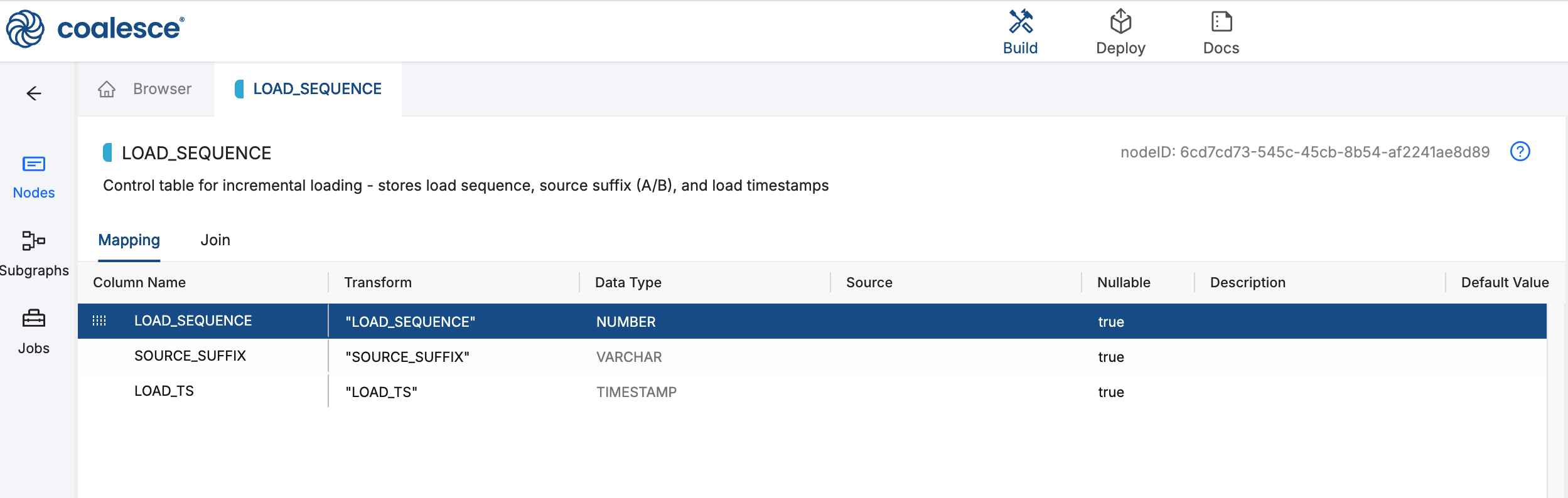
LOAD_SEQUENCE is the orchestration control table for this pattern. Create it first, while it is still empty, before you add suffix Run Views that append rows to it. When a Job runs STG_LINEA or STG_LINEB, each node inserts the next sequence number, its suffix letter A or B, and a load timestamp.
-
In the Nodes panel, click the plus sign + and select Create New Node > Persistent Stage.
-
Rename the Node to
LOAD_SEQUENCE. -
In Config > Node Properties, set the Storage Location.
-
You can delete any existing columns.
-
Open the Mapping tab and click the plus sign + to add a column:
Column Data type LOAD_SEQUENCENUMBER SOURCE_SUFFIXVARCHAR LOAD_TSTIMESTAMP -
Click Create to create the empty table.
Step 3: Add STG_LINEA, Suffix A Run View
This Run View stages branch A data and records suffix A in LOAD_SEQUENCE when a Job runs.
-
On the graph, right-click
LINEITEMand select Add Node > Incremental Loading > Run View. -
Rename the Node to
STG_LINEA. -
Open
STG_LINEAin the Node editor. Go to Config > Options and turn Override Create SQL on. A Create SQL tab appears in the editor alongside Join and Mapping. -
Open the Create SQL tab and paste the full script below. Coalesce allows only one SQL statement per stage in Override Create SQL, so the view
CREATEand theINSERTuse separate{{ stage(...) }}blocks. Learn more in Run Multiple SQL Statements.{{ stage('Override Create SQL', deploy_phase_override="create") }}CREATE OR REPLACE VIEW {{ ref('WORK', 'STG_LINEA') }} AS (SELECT"L_ORDERKEY" AS "L_ORDERKEY","L_PARTKEY" AS "L_PARTKEY","L_SUPPKEY" AS "L_SUPPKEY","L_LINENUMBER" AS "L_LINENUMBER","L_QUANTITY" AS "L_QUANTITY","L_EXTENDEDPRICE" AS "L_EXTENDEDPRICE","L_DISCOUNT" AS "L_DISCOUNT","L_TAX" AS "L_TAX","L_RETURNFLAG" AS "L_RETURNFLAG","L_LINESTATUS" AS "L_LINESTATUS","L_SHIPDATE" AS "L_SHIPDATE","L_COMMITDATE" AS "L_COMMITDATE","L_RECEIPTDATE" AS "L_RECEIPTDATE","L_SHIPINSTRUCT" AS "L_SHIPINSTRUCT","L_SHIPMODE" AS "L_SHIPMODE","L_COMMENT" AS "L_COMMENT"FROM {{ ref('SAMPLE', 'LINEITEM') }} "LINEITEM");{{ stage('Insert Load Sequence') }}{% raw %}{% if 'DEPLOY' not in parameters.sourcesuffix %}{% endraw %}INSERT INTO {{ ref_no_link('WORK', 'LOAD_SEQUENCE') }}SELECTCOALESCE(MAX("LOAD_SEQUENCE"), 0) + 1,'A',CURRENT_TIMESTAMP()FROM {{ ref_no_link('WORK', 'LOAD_SEQUENCE') }};{% raw %}{% endif %}{% endraw %}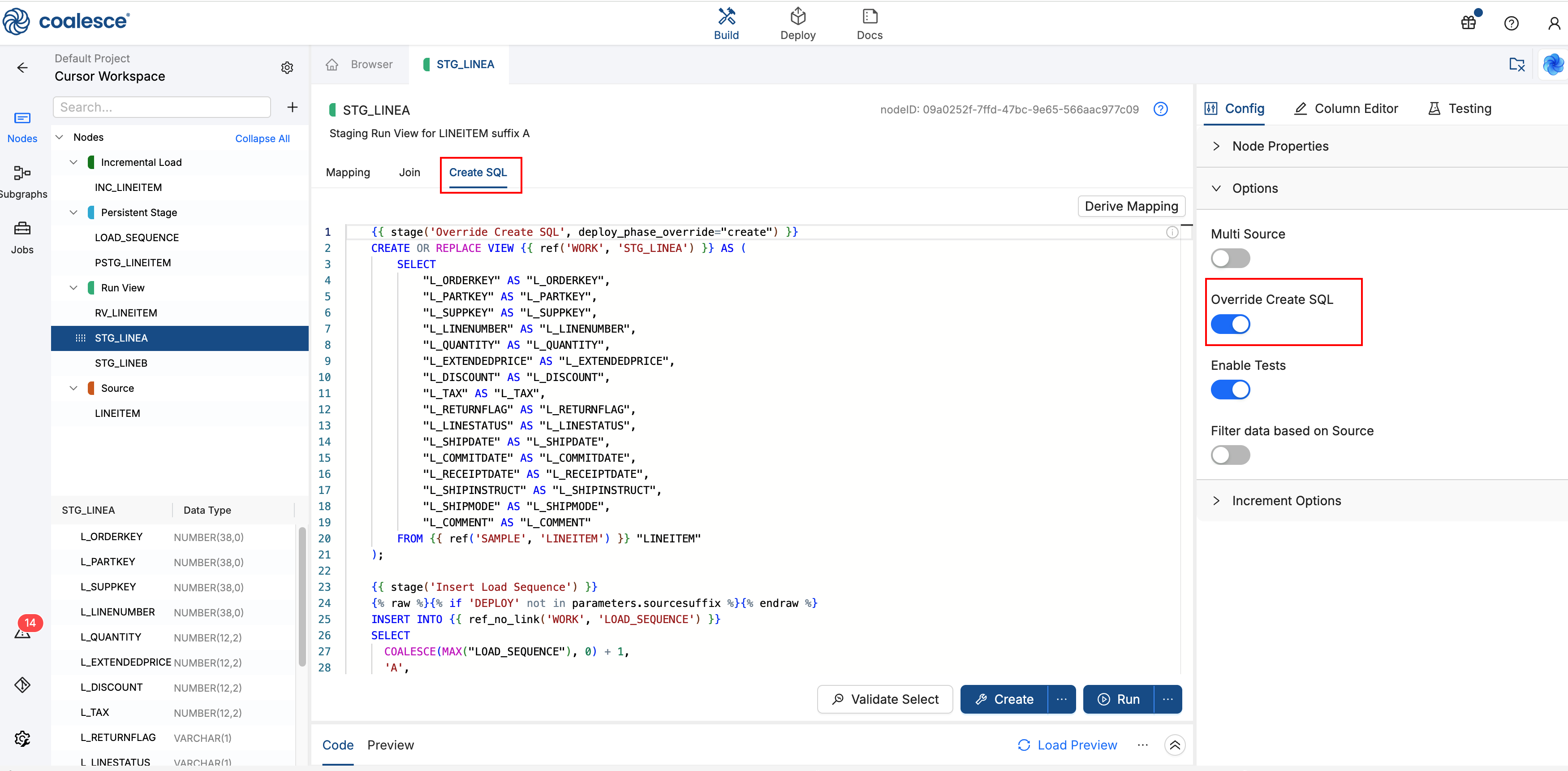
-
Open the Join tab and paste the block below.
LINEITEMis the data source.ref_link()adds a graph edge so Jobs runLOAD_SEQUENCEbeforeSTG_LINEA. TheINSERTusesref_no_link()so it resolves the table name without drawing that edge.FROM {{ ref('SAMPLE', 'LINEITEM') }} "LINEITEM"{{ ref_link('WORK', 'LOAD_SEQUENCE') }} -
Click Create.
Insert Load Sequence
The Insert Load Sequence SQL stage appends one row to LOAD_SEQUENCE each time STG_LINEA runs on a Job. STG_LINEB uses the same pattern with suffix 'B'.
{% raw %}{{ stage('Insert Load Sequence') }}{% endraw %}- Separate SQL statement from the viewCREATEin the first stage.{% raw %}{% if 'DEPLOY' not in parameters.sourcesuffix %}{% endraw %}- Skips the insert during Deploy whensourcesuffixis('DEPLOY'). Sequence rows are written on Jobs only.INSERT- Stores the next sequence number (COALESCE(MAX("LOAD_SEQUENCE"), 0) + 1, starting at 1), suffix'A', and load timestamp.ref_no_link()- ResolvesLOAD_SEQUENCEwithout adding a graph edge. Run order comes fromref_link()on the Join tab.
Each Job run records the batch number, suffix A, and load time in the control table.
Step 4: Add STG_LINEB, Suffix B Run View
Repeat the STG_LINEA pattern for branch B. The only differences are the Node name, view name, and 'B' in the sequence insert.
-
Right-click
LINEITEMand select Add Node > Incremental Loading > Run View. -
Rename the Node to
STG_LINEB. -
Set Storage Location.
-
In Config > Options, turn Override Create SQL on, then open the Create SQL tab. Paste the full script below.
{{ stage('Override Create SQL', deploy_phase_override="create") }}CREATE OR REPLACE VIEW {{ ref('WORK', 'STG_LINEB') }} AS (SELECT"L_ORDERKEY" AS "L_ORDERKEY","L_PARTKEY" AS "L_PARTKEY","L_SUPPKEY" AS "L_SUPPKEY","L_LINENUMBER" AS "L_LINENUMBER","L_QUANTITY" AS "L_QUANTITY","L_EXTENDEDPRICE" AS "L_EXTENDEDPRICE","L_DISCOUNT" AS "L_DISCOUNT","L_TAX" AS "L_TAX","L_RETURNFLAG" AS "L_RETURNFLAG","L_LINESTATUS" AS "L_LINESTATUS","L_SHIPDATE" AS "L_SHIPDATE","L_COMMITDATE" AS "L_COMMITDATE","L_RECEIPTDATE" AS "L_RECEIPTDATE","L_SHIPINSTRUCT" AS "L_SHIPINSTRUCT","L_SHIPMODE" AS "L_SHIPMODE","L_COMMENT" AS "L_COMMENT"FROM {{ ref('SAMPLE', 'LINEITEM') }} "LINEITEM");{{ stage('Insert Load Sequence') }}{% raw %}{% if 'DEPLOY' not in parameters.sourcesuffix %}{% endraw %}INSERT INTO {{ ref_no_link('WORK', 'LOAD_SEQUENCE') }}SELECTCOALESCE(MAX("LOAD_SEQUENCE"), 0) + 1,'B',CURRENT_TIMESTAMP()FROM {{ ref_no_link('WORK', 'LOAD_SEQUENCE') }};{% raw %}{% endif %}{% endraw %} -
On the Join tab, add
LINEITEMas the source plusref_link()toLOAD_SEQUENCE.FROM {{ ref('SAMPLE', 'LINEITEM') }} "LINEITEM"{{ ref_link('WORK', 'LOAD_SEQUENCE') }} -
Click Create.
Step 5: Add RV_LINEITEM
RV_LINEITEM unions the suffix staging views and applies sourcesuffix so each Job reads only the branches you select.
-
Right-click
STG_LINEAand select Add Node > Incremental Loading > Run View. -
Rename the Node to
RV_LINEITEM. -
In Config > Options, set:
Option Value Multi Source On Multi Source Strategy UNION ALLFilter data based on Source On Length of suffix of source table 1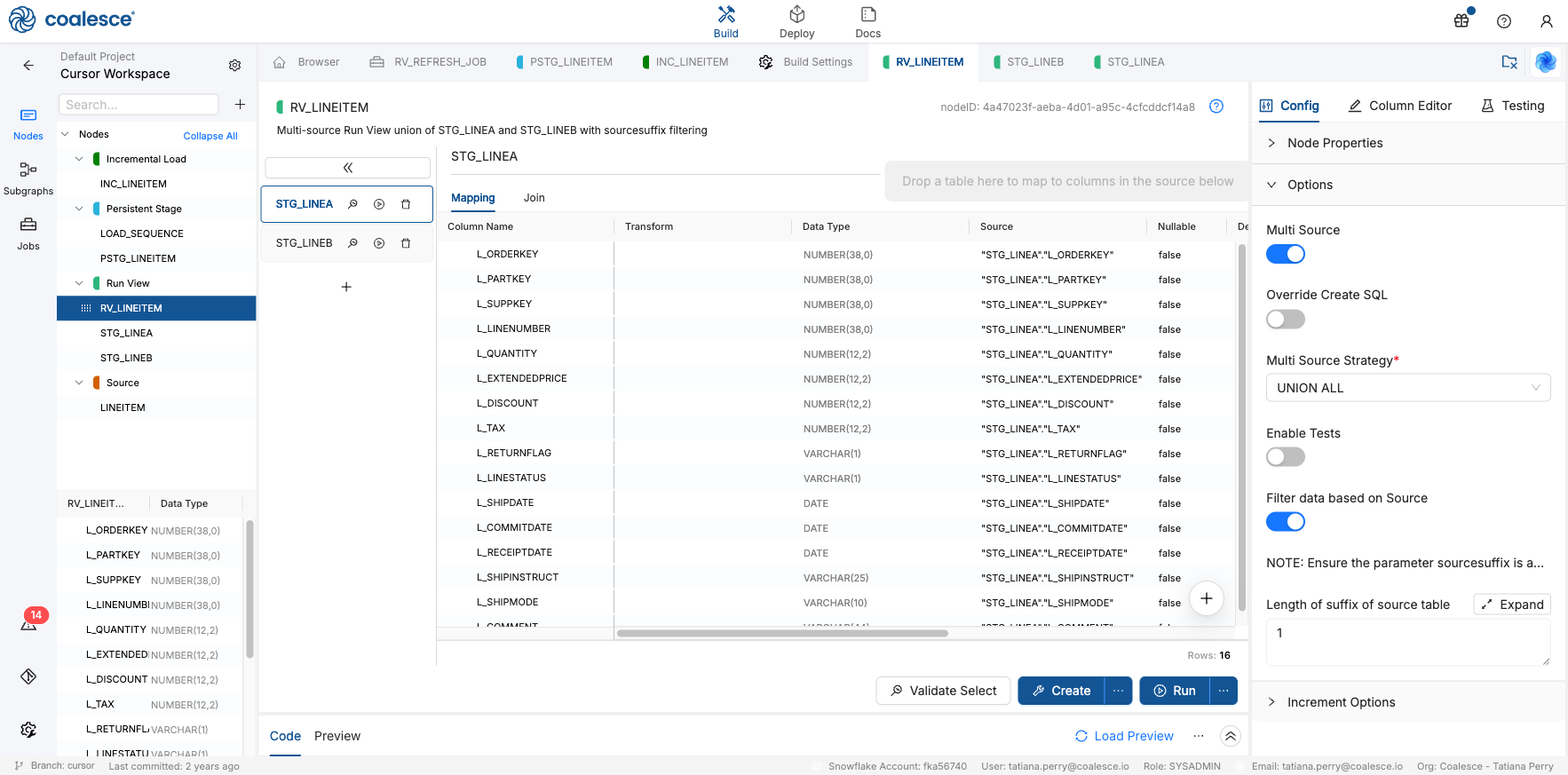
RV_LINEITEM Config and Options with multi-source union and sourcesuffixfiltering enabled -
On the Join tab for
STG_LINEA, add the following. Make sure to update to match your Nodes and Storage Locations:FROM {{ ref('WORK', 'STG_LINEA') }} "STG_LINEA"{% if 'DEPLOY' in parameters.sourcesuffix %}WHERE 1=0{%- elif 'ALL' not in parameters.sourcesuffix -%}WHERE 'A' in {{ parameters.sourcesuffix }}{% endif %} -
Click the plus sign + to add a new source. Rename it
STG_LINEB. Then dragSTG_LINEBfrom the Nodes list into Map to Existing Columns. You should see the source update forSTG_LINEB.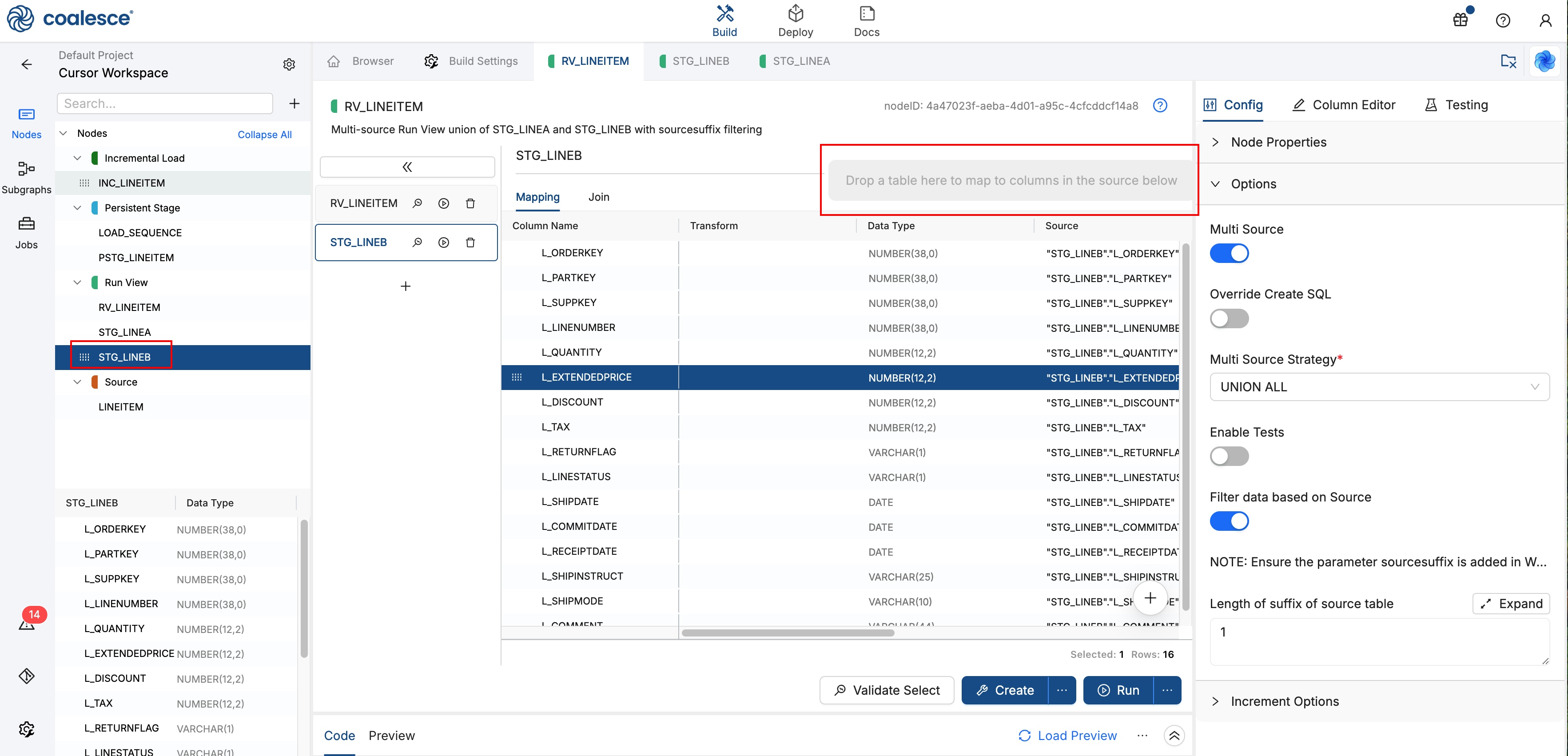
-
On the Join tab for
STG_LINEB, add the following. Make sure to update to match your Nodes and Storage Locations:FROM {{ ref('WORK', 'STG_LINEB') }} "STG_LINEB"{%- if 'DEPLOY' in parameters.sourcesuffix -%}WHERE 1=0{%- elif 'ALL' not in parameters.sourcesuffix -%}WHERE 'B' in {{ parameters.sourcesuffix }}{% endif %}
Each source pill on the Join tab uses the same sourcesuffix pattern with a different suffix letter:
FROM STG_LINEAorFROM STG_LINEB- Reads from that branch Run View.DEPLOYinsourcesuffix-WHERE 1=0creates the view empty so no data loads during Deploy.'ALL' not in sourcesuffix-WHERE 'A' in sourcesuffixorWHERE 'B' in sourcesuffixincludes that branch only when its letter is in the Job parameter list, for example('A'),('B'), or('A','B').('ALL')- NoWHEREclause, so both branches contribute rows.
sourcesuffix controls which branches contribute rows: A, B, both, or all.
At this point you should have a multi-source Node named RV_LINEITEM with STG_LINEA and STG_LINEB mapped. Do not click Create until you set Workspace parameters in Step 6.
Step 6: Set Workspace Parameters and Create RV_LINEITEM
Set Workspace parameters before you Create RV_LINEITEM. With Filter data based on Source on, the join template reads parameters.sourcesuffix. Workspace defaults apply until an Environment or Job Schedule overrides them.
-
Open Build Settings > Workspace > Settings > Parameters.
-
Add a default for the first Create, for example:
{"sourcesuffix": "('ALL')"}You can also set it to
('A')or('B').RV_LINEITEMthen returns rows from that branch only. With('ALL'), it unions both branches.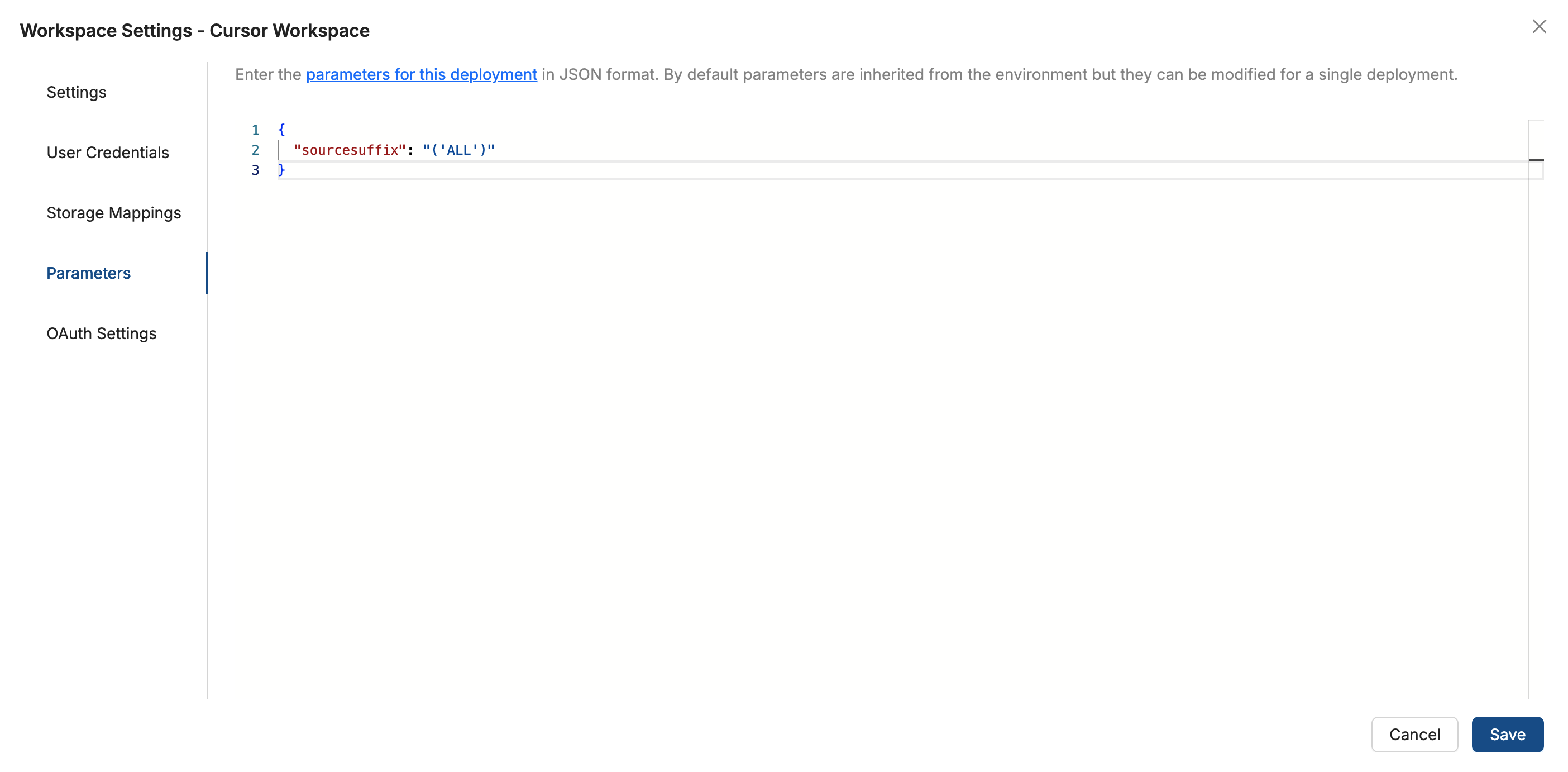
-
Open
RV_LINEITEMand click Create so the union view exists in Snowflake with your defaultsourcesuffix.
Step 7: Add INC_LINEITEM and PSTG_LINEITEM and Run the Initial Load
Create the incremental view and its persistent target before you turn on watermark filtering.
-
Right-click
RV_LINEITEMand select Add Node > Incremental Load. -
Rename the Node to
INC_LINEITEMand set the Storage Location . Leave Filter data based on Persistent table off for now.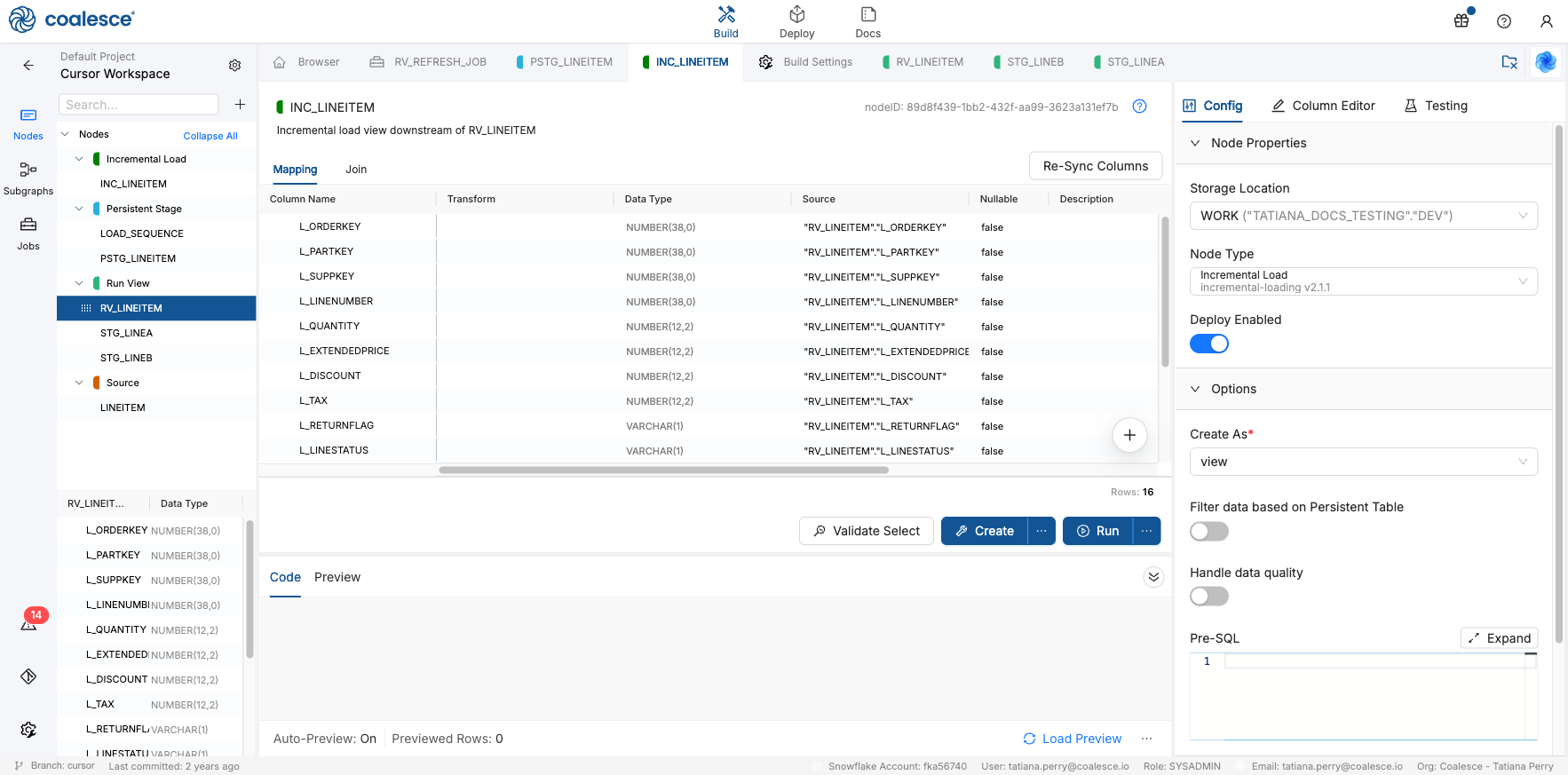
INC_LINEITEM initial setup with Storage Location WORK and persistent-table filtering off -
Right-click
INC_LINEITEMand select Add Node > Base Node Types > Persistent Stage. -
Rename the Node to
PSTG_LINEITEM. -
Open
INC_LINEITEM. On the Join tab, confirm the source isRV_LINEITEM, then click Create so the view exists before you load the persistent table. -
Open
PSTG_LINEITEMand click Create, then Run to load the initial data set.
Step 8: Configure INC_LINEITEM for Incremental Loads
Turn on incremental filtering so INC_LINEITEM returns only rows newer than the watermark in PSTG_LINEITEM.
-
Open
INC_LINEITEMNode. -
In Config > Options:
- Filter data based on Persistent table on. Set Persistent table location to your Storage Location.
- Persistent table name to
PSTG_LINEITEM - Incremental load column (date) to
L_SHIPDATE.
-
On the Join tab, remove any existing Join text, enter the following SQL. Make sure to update to match your Nodes and sources.
FROM {{ ref('WORK', 'RV_LINEITEM') }} "RV_LINEITEM"WHERE "RV_LINEITEM"."L_SHIPDATE" >(SELECT COALESCE(MAX("L_SHIPDATE"), '1900-01-01')FROM {{ ref_no_link('WORK', 'PSTG_LINEITEM') }} )This keeps rows from
RV_LINEITEMwhoseL_SHIPDATEis newer than the maximum already inPSTG_LINEITEM, or after1900-01-01when the table is empty. -
Click Create, then Run.
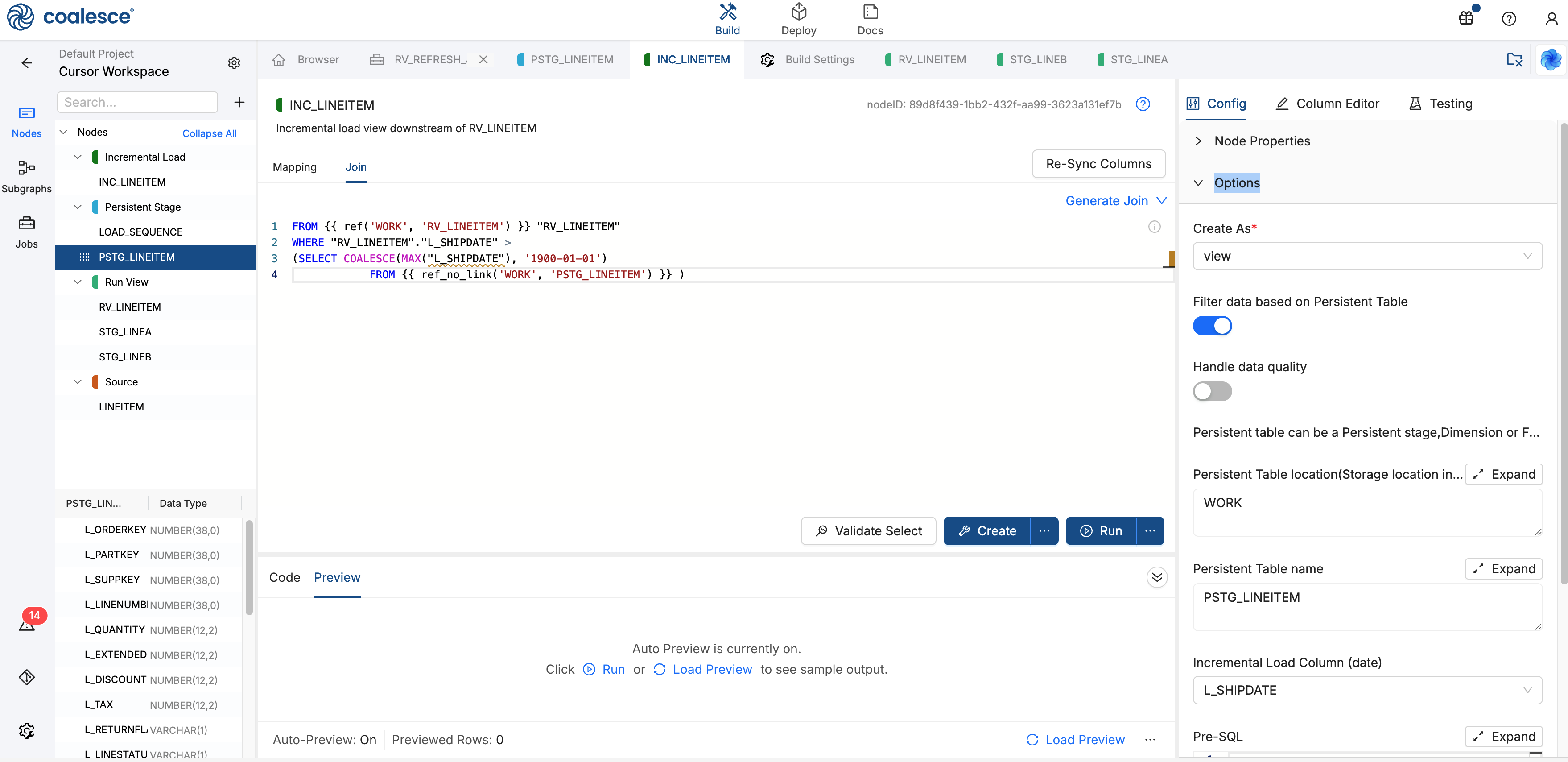
INC_LINEITEM returns only rows newer than the watermark in PSTG_LINEITEM.
Step 9: Create a Job
You'll create a Job that contains the Nodes to refresh.
-
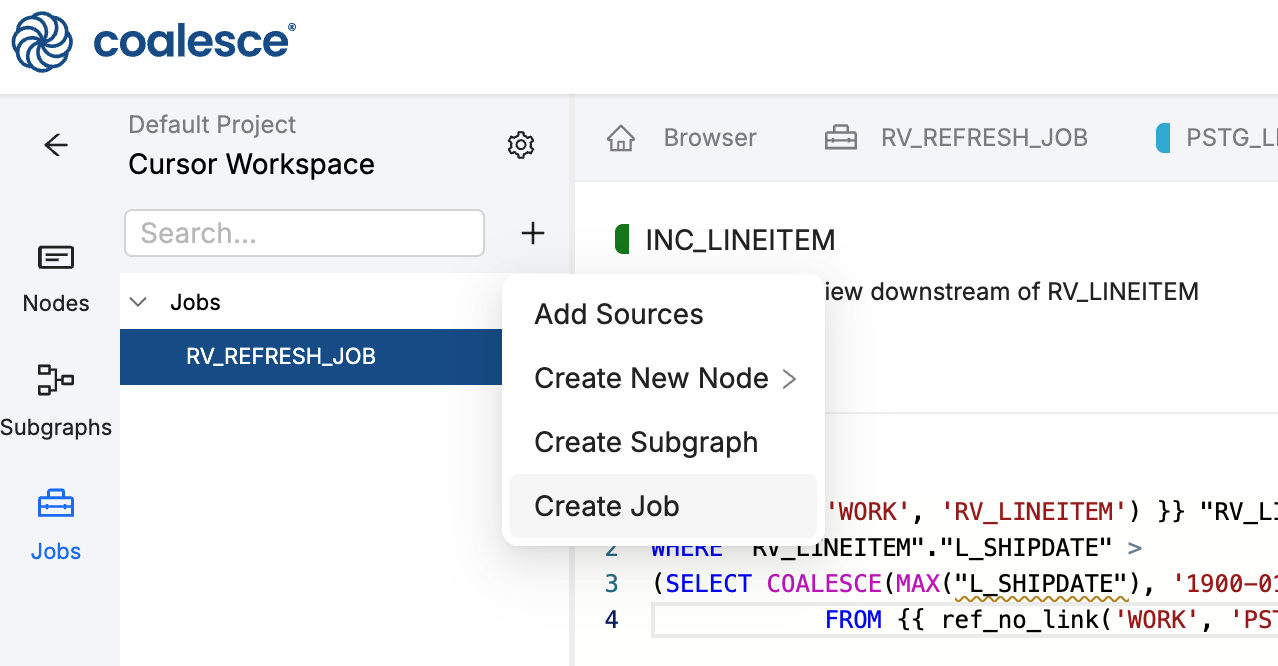
In the left sidebar, click Jobs, then click + and select Create Job.
-
Create a new Job called
RV_REFRESH_JOB. -
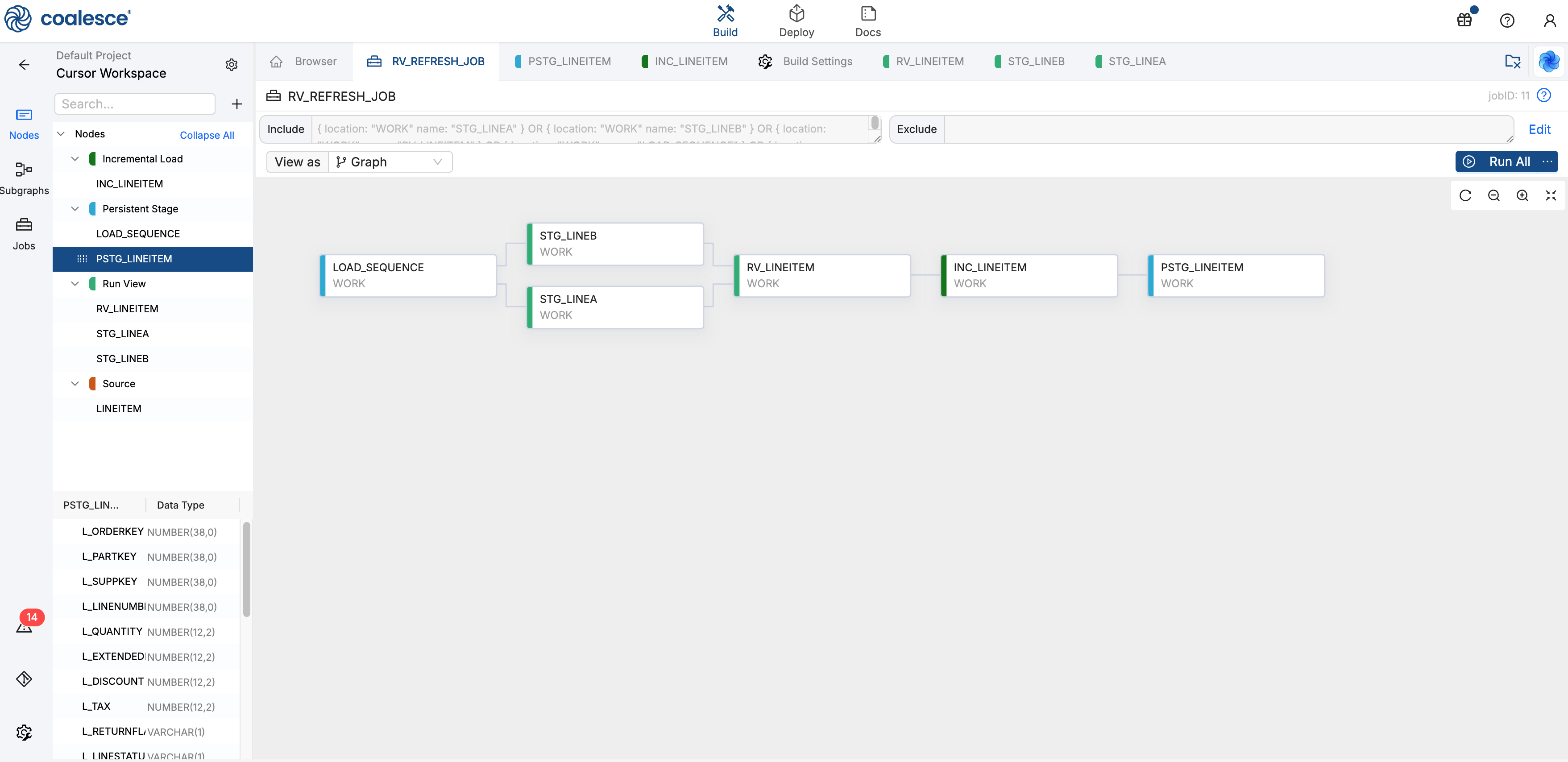
While on the Jobs screen, click Nodes.
-
Drag all your Nodes into the Job except for the Source Node.
Step 10: Commit and Deploy
Commit and deploy your changes using the version control provider and Environment created in Before You Begin.
Set sourcesuffix on the target environment so Deploy uses empty views and skips sequence inserts.
{
  "sourcesuffix": "('DEPLOY')"
}
Step 11: Schedule the Job with Parameters
Use the Coalesce Scheduler to refresh the pipeline on a schedule. You can set different refresh times and a different sourcesuffix for each schedule if needed.
-
In the Coalesce App, open Deploy, click the dropdown next to the Environment and click View Scheduled Jobs.
-
Click Create Job Schedule.
-
Fill out the Configuration information.
-
Then set the Notifications.
-
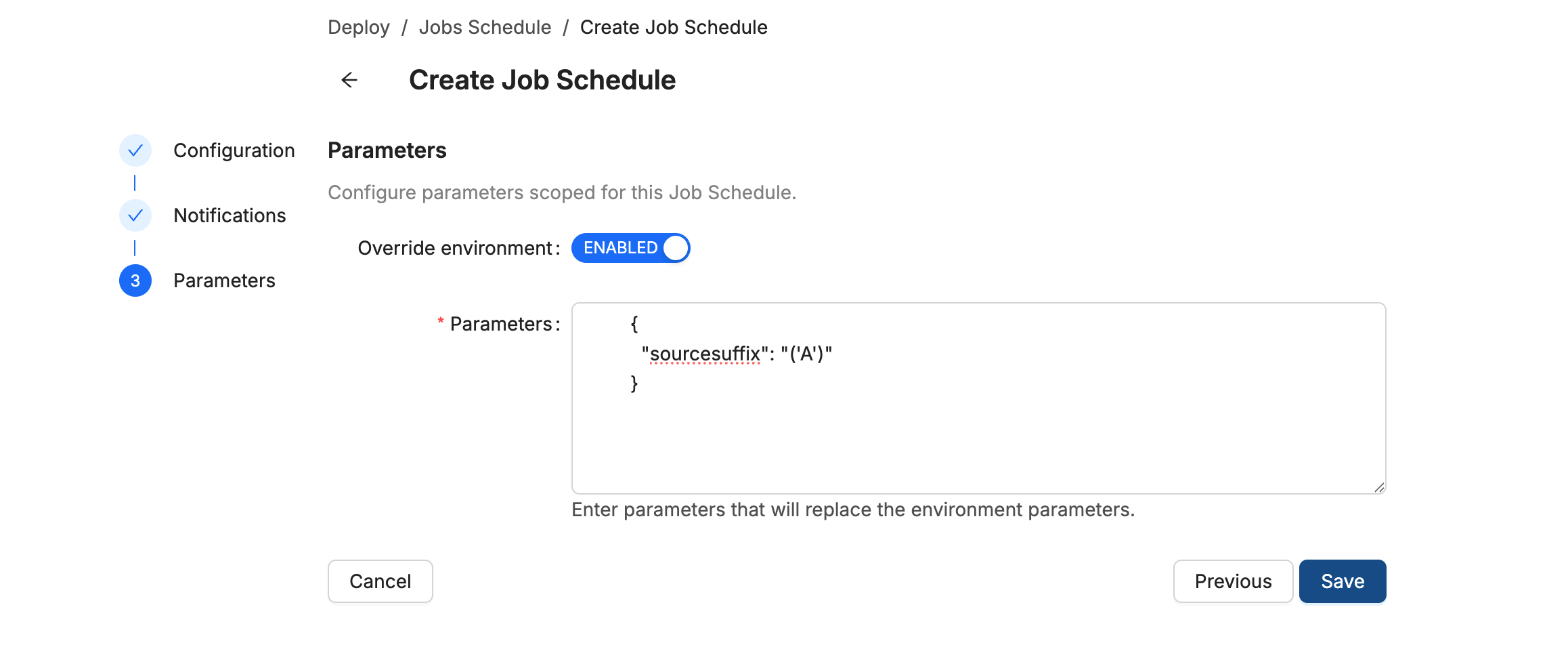
On Parameters, enable Override Environment. Then set the parameters based on how you want this refresh Job to run. You can create multiple Job Schedules if you want to run this job multiple times with different parameters.
-
Branch A only
{"sourcesuffix": "('A')"} -
Branches A and B
{"sourcesuffix": "('A','B')"} -
All branches
{"sourcesuffix": "('ALL')"}
-
-
Save the Job Schedule. Each scheduled run re-creates the Run Views with your
sourcesuffix, advancesLOAD_SEQUENCE, and drivesINC_LINEITEMfor the selected branches.
Common Issues
- Sequence rows on every Deploy: Confirm Step 10 sets environment
sourcesuffixto('DEPLOY'), and Steps 3 and 4 includedeploy_phase_override="create"and the{% if 'DEPLOY' not in parameters.sourcesuffix %}guard on sequence inserts. Actual statement count 2 did not match the desired statement count 1: Put the viewCREATEand theINSERTinto separate{{ stage(...) }}blocks. See Run Multiple SQL Statements.- Wrong branch or no rows from
RV_LINEITEM: Keep suffix length uniform onSTG_LINEAandSTG_LINEBwith length 1, and regenerate Join on each source pill after you change suffix length. - Empty incremental load on first run: Leave Filter data based on Persistent table off until
PSTG_LINEITEMhas data from Step 7. LOAD_SEQUENCEdependency errors: Create and CreateLOAD_SEQUENCEbefore you addref_link()on the suffix Run Views.
What's Next?
- Incremental Loading Strategies for chooser context across warehouses
- Incremental Loading with Coalesce for watermark basics on a single source
- Incremental Loading Package listing for Run View, Looped Load, and Grouped Incremental Load reference
- Parameters for inheritance between environments and Jobs
- Refreshing Your Pipeline Using the Coalesce Scheduler for cron, notifications, and schedule management