SQL Copilot
Use SQL Copilot to generate SQL queries from natural language. Find the right tables and get query suggestions in the web app or browser extension.
What Does It Do
The SQL Copilot answers your data needs. It finds the right tables and writes SQL with them. It is embedded directly in your SQL cloud editors. Ask your questions and it will get you to the right SQL query. Use it in the web app or in the Catalog Chrome extension.
Here are some examples of questions you can ask:
- Get the number of users per customer
- What is our revenue per country per month
- Give a list of the newly signed customers of last quarter
- How to join these two tables
- Fix this query (add query after)
How To Use It
To write SQL, you need knowledge about tables and columns. You can pick the tables manually inside the copilot, or you can use the Table auto-select.
Where You Can Use It
SQL Copilot in the Web App
Go to app.castordoc.com/ai/copilot, describe the query you want to write. Iterate with follow-up requests if needed. The job is done.
.gif)
SQL Copilot in the Browser Extension
First install the CastorDoc browser extension following the Browser Extensions guide. Then open it when you are about to write SQL in your editor, and ask it your question.
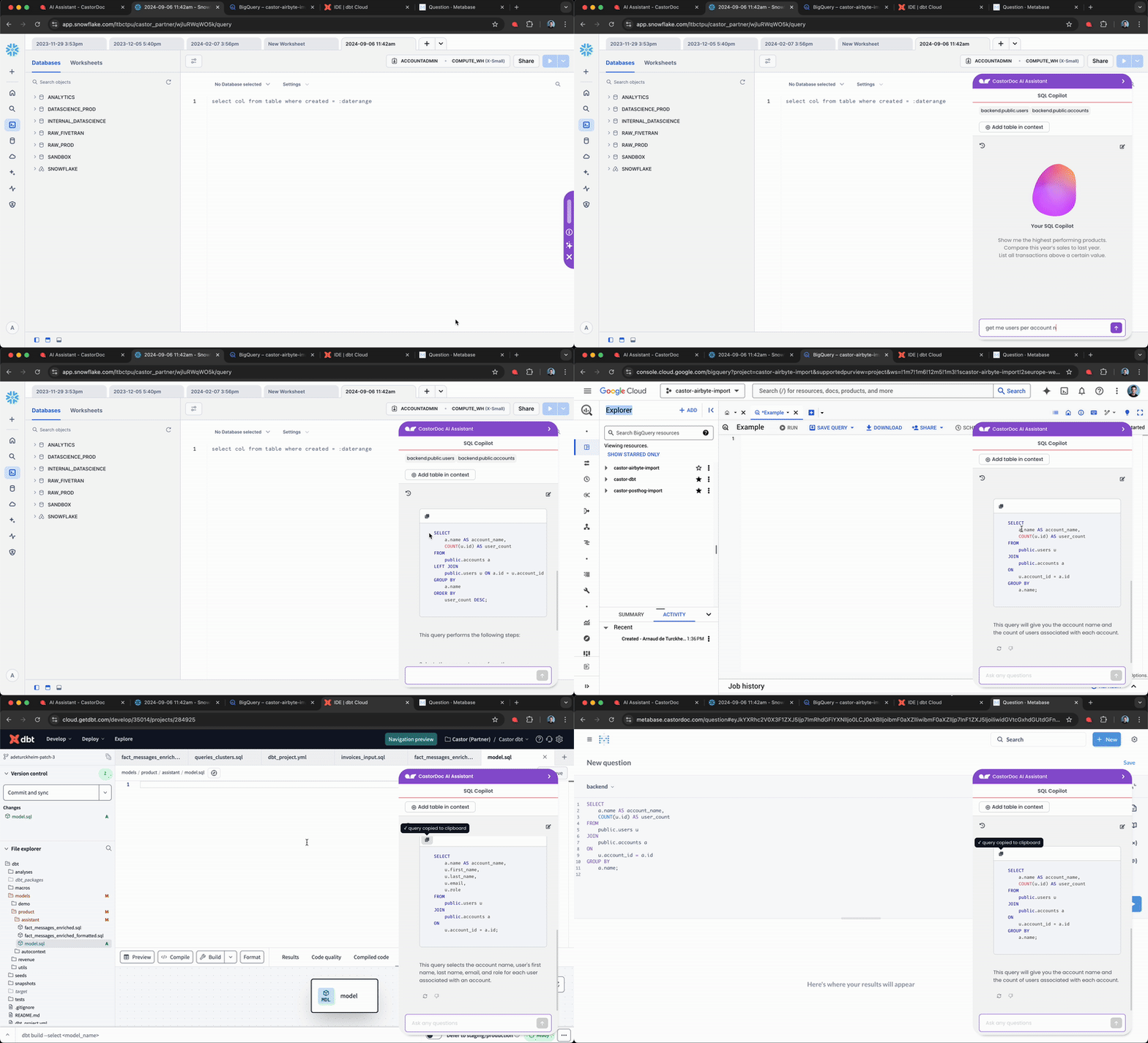
Supported cloud editors by CastorDoc Browser Extension:
- Snowflake SQL Editor
- BigQuery SQL Editor
- Count SQL Editor
- Hex SQL Editor
- dbt Cloud IDE
- Metabase SQL Editor
Note: We can easily add more editors. Let us know your preferences.
Iterate
This is a key strength of the assistant. If you are not happy with the first answer, tell the assistant and iterate, as you would with ChatGPT. One thing to keep in mind: Table Auto-Select only works for the first message.
Tables Auto-Select
When starting a new query, describe what you are looking for and keep the Auto-select tables toggle on. Catalog AI will automatically find the best tables to write your SQL query.

You can then review these tables and edit them by clicking the Edit tables selected button. You will be able to remove tables automatically added and search for other ones you want to add.

How It Works
Leverage Your Query History To Find the Best Tables
Catalog checks across all previously run SQL queries, by you, by others, and even by your BI tool. It tries to find the best matching queries to answer your need. These queries will serve as examples for our LLM.
We also extract the tables used by these queries. These tables, along with all the metadata Catalog has (column names and types, descriptions, and so on), will be fed to our LLM and added to the context.
About Joining Tables
Thanks to our systematic parsing of all your SQL queries, if anyone joined tables together, our assistant will know how to do it. This will feed our assistant as well.
Build the Query
Finally, we provide our LLM with your question, the best past queries, the best tables to answer, and the relevant metadata. Now the LLM will answer you.
The assistant knows which SQL flavor you are using. It will adapt its answer to it.
Improving Its Answers
This is where data stewards, analysts, and data engineers play a key role. The better the tables and columns are documented, the better the copilot will answer.
- When documenting columns, add frequent column values for enum types.
- Pin queries to tables in the Query tab in the app
- Certify tables to build trust
Privacy Concerns
See the Catalog AI safety notice for more information.