Documentation index: llms.txt. This page is also available as markdown: append .md to this URL or send Accept: text/markdown.
Dashboard Q&A
While you view a dashboard in a supported BI tool, Dashboard Q&A answers natural-language questions about how that dashboard is built, where its data comes from, and which Catalog assets power it. You use it from the Catalog Browser Extension on the page you already have open.
Before You Begin
Confirm the following before you expect the Dashboard Q&A tab to appear:
- Browser extension - Install the Catalog extension in Chrome or Edge. See Browser Extensions for install steps and supported BI tools.
- Catalog sign-in - Sign in to your Catalog Workspace in the same browser profile you use for the BI tool so the extension can load metadata you are allowed to see.
- Dashboard in Catalog - The dashboard you are viewing must be ingested through your organization's BI integration, and extraction must be complete. If the dashboard was added recently, wait for the next sync or run your extraction process according to your setup.
- Supported dashboard URL - The extension matches the open page to a dashboard asset in Catalog. Unsupported hosts, or dashboards that load only inside embedded iframes, can block overlays. See Browser Extensions troubleshooting if panels stay empty.
- Workspace capability - Some Workspaces include Dashboard Q&A as a licensed capability. If your Workspace does not include it, the Dashboard Q&A tab may not appear.
- Catalog AI enabled - An administrator must request AI activation for your account before AI features send metadata to the AI provider. Until activation completes, AI capabilities may be unavailable. See Catalog AI Safety.
When the extension cannot match your current page to a dashboard in Catalog, you may see other extension capabilities, such as SQL Copilot or an Info tab, instead of Dashboard Q&A.
What Dashboard Q&A Does
Dashboard Q&A is scoped to one dashboard: the page you have open in your BI tool. It uses deeper metadata for that dashboard (descriptions, SQL, lineage-related fields, pinned assets, owners, and related context) to answer your question. Answers are based on metadata in Catalog, not live query results from your warehouse.
Here are example questions you can ask:
- "What data is used in this dashboard?"
- "What is the definition of this metric?"
- "What related assets should you check to get more context around this dashboard?"
- "Show the SQL query for this visualization"
- "What elements are included in this dashboard?"
- "Which tables and columns are used here?"
Questions that are out of scope or limited today
- Org-wide discovery, such as "Do we have a dashboard about churn?" In that case, use AI Search in the Catalog App, Slack, or Microsoft Teams instead.
- Impact of failed data quality tests on this dashboard. Use data quality surfaces in Catalog where your organization has them configured.
- Broad lineage traversal, asset counts across a schema, or how to use Catalog in the Coalesce App. Many of the same limits apply to AI Search; see the AI Assistant page for the current list.
How To Use It
- Install and enable the Catalog extension. Follow How to Install the Extension on the Browser Extensions page.
- Open a dashboard in a supported BI tool (Tableau, Looker, Power BI, Domo, Metabase, Sigma, Strategy, Qlik, Looker Studio, and others listed on Browser Extensions).
- Sign in to Catalog in the same browser if you are not already signed in.
- Open the extension from the browser toolbar. The panel opens beside your BI content.
- Select the Dashboard Q&A tab when it is available, then type your question in natural language.
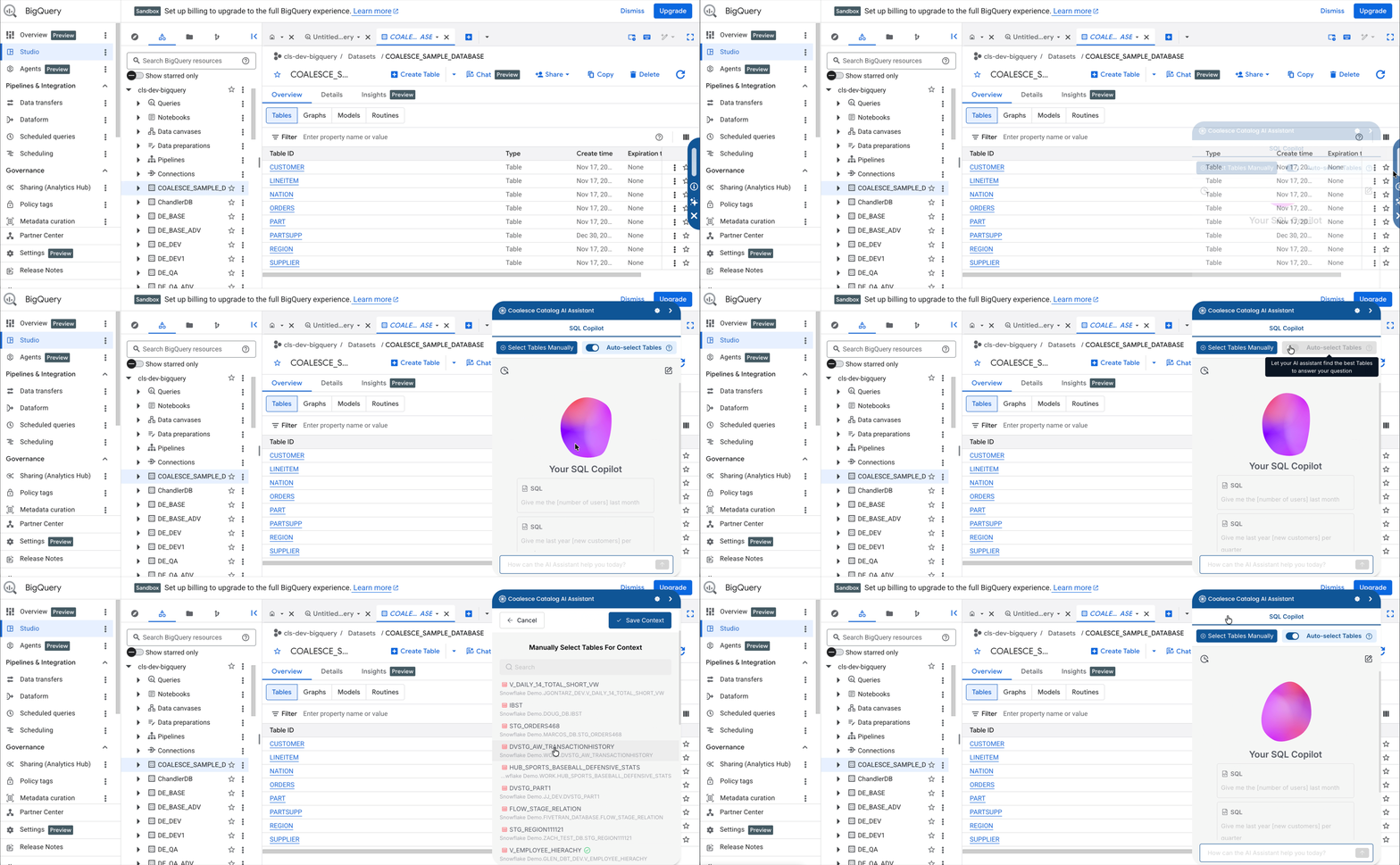
When the extension recognizes the open dashboard, use the Info tab for metadata such as owners and descriptions, and Dashboard Q&A for questions about that dashboard. If you do not see Dashboard Q&A, work through Before You Begin and Troubleshooting.
You can refine answers in a conversation. If you change topics, reset, or start a fresh conversation so earlier context does not carry over. Conversation history is shared across extension AI features in the same session.
For Looker-specific URL matching and verification, see Looker and the Catalog Browser Extension.
Choose Dashboard Q&A or AI Search
Use this guide to pick the right capability for your question:
- Dashboard Q&A - You are on a dashboard in a supported BI tool and your question is about this dashboard: build, metrics, tables, or SQL for a visualization.
- AI Search - You are in the Catalog App, Slack, or Microsoft Teams and need discovery across many assets or org-wide definitions.
| Situation | Use |
|---|---|
| On a dashboard in Tableau, Looker, Power BI, or another supported tool | Dashboard Q&A |
| Question is about the dashboard you are viewing | Dashboard Q&A |
| Need depth on one asset (tables, columns, SQL for this dashboard) | Dashboard Q&A |
| In the Catalog App, Slack, or Teams | AI Search |
| Question spans many dashboards, tables, columns, or Knowledge pages | AI Search |
| Need a list of relevant assets plus an answer | AI Search |
For availability, input, output, and context in more detail, see Comparison Between Dashboard Q&A and AI Search.
How It Works
Dashboard Q&A sends your question together with metadata for the dashboard the extension matched from your current URL. That includes dashboard fields, descriptions, SQL source queries, parent tables, pinned, and mentioned assets, owners, editors, tags, and certification state. For the full field list, see Dashboard Q&A Context.
To improve answer quality:
- Write clear descriptions on the dashboard and on tables or terms it uses.
- Certify trusted assets and deprecate outdated ones so scoring favors the right content.
- Pin related Knowledge pages and assets to the dashboard.
The Describe with AI action on a dashboard uses the same contextual metadata as Dashboard Q&A. See Describe with AI for how descriptions are generated.
Changes you make in Catalog follow your BI extraction and Catalog indexing cadence. New or edited descriptions may not appear in answers until the dashboard metadata is synced and available to the extension.
Dashboard Q&A does not run queries against your warehouse. It answers from Catalog metadata only. For what is sent to the AI provider and when, see Catalog AI Safety.
Confirm It Is Working
Run through this checklist when you first use Dashboard Q&A or after large BI changes:
- You opened a dashboard that exists in Catalog (search Catalog first if you are unsure).
- The extension is installed and enabled in Chrome or Edge, and you are signed in to the correct Catalog Workspace and region.
- The extension Info tab shows metadata (owners, description, popularity) for this dashboard, not a different asset.
- The Dashboard Q&A tab is visible when your Workspace includes the capability.
- A simple factual question, such as "What tables power this dashboard?", returns an answer that aligns with Catalog lineage or metadata for that dashboard.
- If you changed topics, you started a new conversation or reset the thread before asking again.
If metadata on Info looks wrong or empty, fix extraction and URL matching before you rely on Dashboard Q&A answers. For Looker, follow Looker and the Catalog Browser Extension.
Troubleshooting
Most issues come from extension setup, dashboard matching, or metadata gaps rather than the model alone.
No Dashboard Q&A Tab
The extension did not match your current page to a dashboard in Catalog, or your Workspace does not include Dashboard Q&A.
- Confirm the dashboard exists in Catalog and BI extraction has finished.
- Open the dashboard in a top-level browser tab when your BI tool embeds dashboards in iframes. See Browser Extensions troubleshooting.
- Refresh the BI tab and open the extension again after sync completes.
- Confirm your Workspace includes Dashboard Q&A and that an administrator enabled Catalog AI. See Before You Begin and Catalog AI Safety.
Seeing SQL Copilot without Dashboard Q&A is expected when no Catalog dashboard matches the open URL.
Metadata Panel Is Empty or Describes the Wrong Dashboard
- Sign in to Catalog in the same browser profile and confirm you use the correct region or tenant for your organization.
- Compare the open URL to the dashboard asset in Catalog (name, path, source).
- Check Settings > Integrations that the BI source completed ingestion.
- For Looker URL patterns, see Looker and the Catalog Browser Extension.
For sign-in failures, wrong region, or empty toolbar panels, see Browser Extensions troubleshooting.
Answers Look Wrong or Too Generic
- Open the dashboard in Catalog and confirm descriptions, owners, and pinned assets match what you asked about.
- Verify the extension matched this dashboard on the Info tab before you trust a Dashboard Q&A reply.
- Certify trusted assets and deprecate misleading ones. See AI FAQ for scoring impact and question patterns.
- Rephrase with terms that appear in asset titles or descriptions.
- Start a new conversation when you switch to a different subject.
If the answer still looks off, enrich documentation on the dashboard and its parent tables, then ask again after metadata syncs.
Questions About Data Quality Test Failures
Dashboard Q&A does not answer which failed tests affect this dashboard or similar data quality impact questions today. Use your organization's data quality views in Catalog where available.
What's Next?
- Comparison Between Dashboard Q&A and AI Search for a full side-by-side table.
- Dashboard Q&A Context for metadata fields used in answers.
- AI FAQ for differences between Dashboard Q&A and AI Search, and accuracy best practices.
- AI Assistant for AI Search in the Catalog App, Slack, and Teams.
- Catalog AI Safety for what metadata is shared with the AI provider, activation requirements, and privacy commitments.
- Browser Extensions for install, supported technologies, and extension-wide troubleshooting.
- Looker and the Catalog Browser Extension for Looker prerequisites and URL matching.