Documentation index: llms.txt. This page is also available as markdown: append .md to this URL or send Accept: text/markdown.
Google Chat
The Google Chat integration brings the Catalog AI Assistant into Google Chat. This page shows you how to connect Google Chat to Catalog, install the Coalesce Catalog app for your Google Workspace organization, and use the assistant.
With the Google Chat app, people in your organization can:
- Ask the Catalog AI Assistant questions in a direct message with the app.
- Mention the app in a space to get answers in the middle of a team conversation.
- Ask follow-up questions in the same thread. The assistant keeps the context of the conversation.
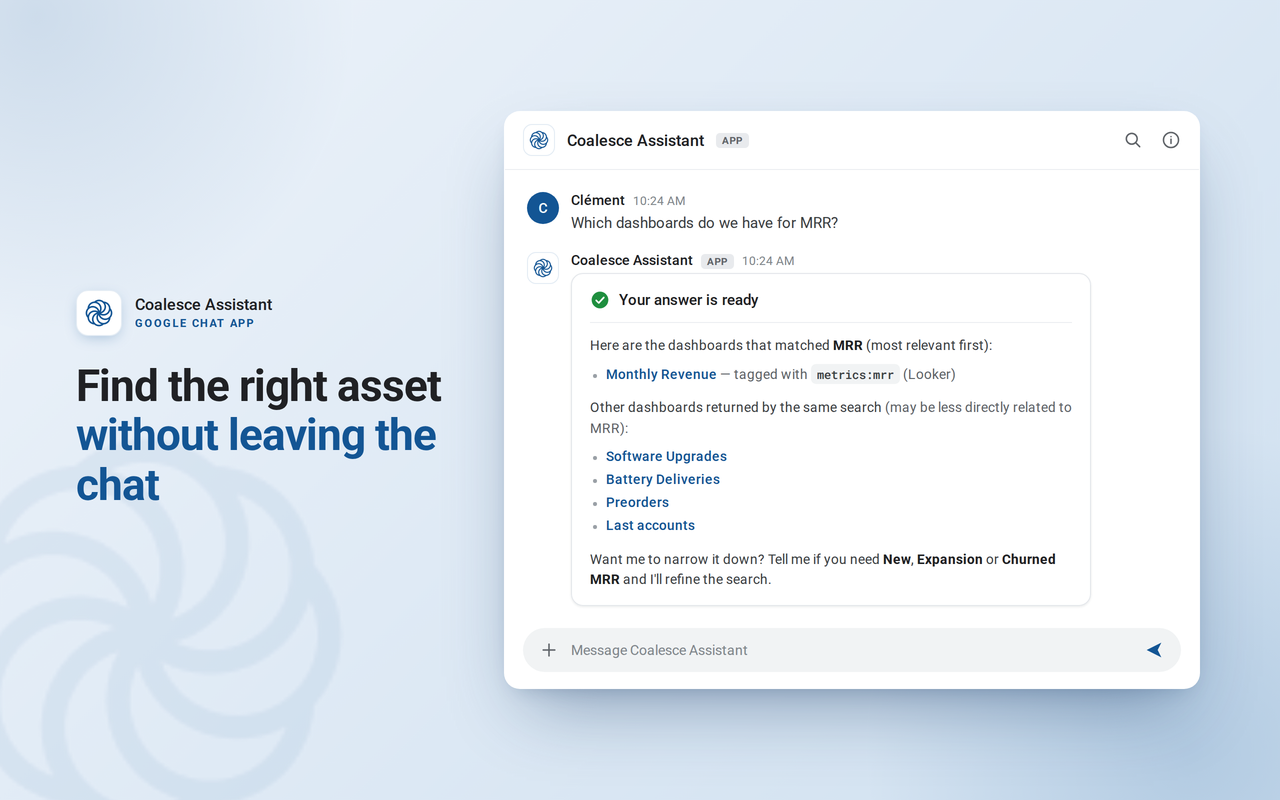
Unlike Slack and Microsoft Teams, the Google Chat app doesn't support notifications or reactions yet. Notifications about assets you own keep arriving by email.
Prerequisites
Before you begin, make sure you have the following:
- Catalog Admin role - Only Catalog admins can connect the integration from Settings > Integrations.
- Google Workspace admin account - The Google account that connects Catalog must be able to read users in your Google Workspace directory. Installing the app for your whole organization also requires the Google Workspace Marketplace administrator privilege. For details, see Install Marketplace apps for your organization.
- Google Chat turned on - Google Chat must be available to the people who will use the app.
- Matching Catalog accounts - Each person who uses the app needs an active Catalog account that uses the same email address as their Google Workspace primary email.
Step 1: Connect Google Chat to Catalog
Catalog matches each person's Google email with their Catalog account email. This way, the assistant knows who is asking and only shares the assets that person can access in Catalog.
- In Catalog, go to Settings > Integrations.
- In the Communication section, find the Google Chat™ tile and click Add. A Google sign-in page opens in a new browser tab.
- Sign in with your Google Workspace admin account.
- Review the requested access, See info about users on your domain, and allow it.
- Google sends you back to Settings > Integrations, and a confirmation message says the Google Chat integration is installed.
Complete the sign-in within 5 minutes of clicking Add. If the link expires, go back to Settings > Integrations and start again.
After the connection succeeds, Catalog runs a first synchronization of your Google Workspace users. This synchronization then runs automatically every day, so people added to your directory can use the app after the next daily run. Guest accounts aren't synchronized.
Each Catalog account supports one Google Chat integration. Once it's connected, the Google Chat™ tile is turned off and the integration appears in your list of integrations. To disconnect it later, see Remove the Integration.
Step 2: Install the Google Chat App for Your Organization
Installing the app from the Google Workspace Marketplace makes Coalesce Catalog available in Google Chat for everyone you choose. Complete Step 1: Connect Google Chat to Catalog first, so Catalog recognizes people as soon as the app reaches them.
Coalesce publishes one app per Catalog region. Pick the app that matches the URL you use to sign in to Catalog:
| Catalog URL | Region | Google Chat app |
|---|---|---|
app.castordoc.com | EU | Coalesce Catalog (EU) |
app.us.castordoc.com | US | Coalesce Catalog (US) |
These steps use the EU app. The steps for the US app are the same.
-
Open the Google Workspace Marketplace listing for your region.
-
Click Admin install.
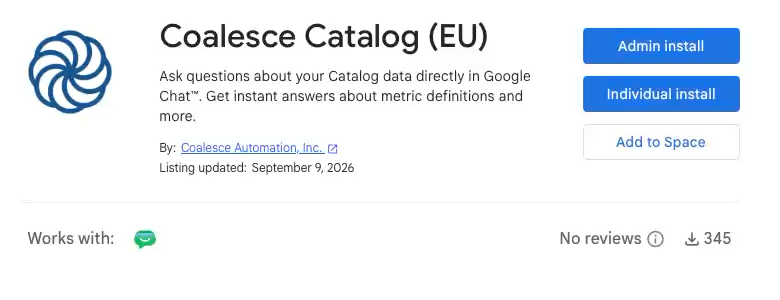
-
Review the Admin install dialog and click Continue.
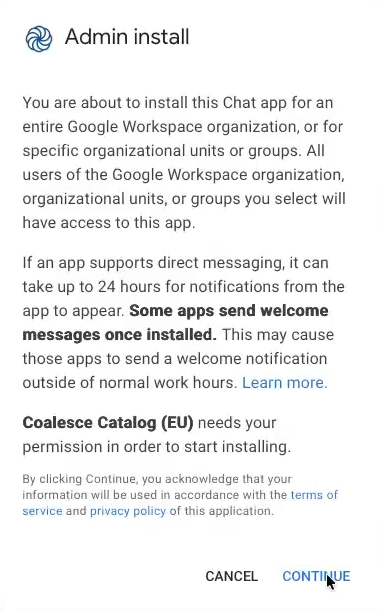
-
Review the access the app requests.
-
Under Install the app automatically for the following users, choose who gets the app:
- Everyone at your organization installs the app for all users.
- Certain groups or organizational units lets you pick groups or organizational units in the next step. Use this option to roll out the app to a pilot group first.
-
Select the checkbox to agree to the Terms of Service and Privacy Policy, then click Finish.
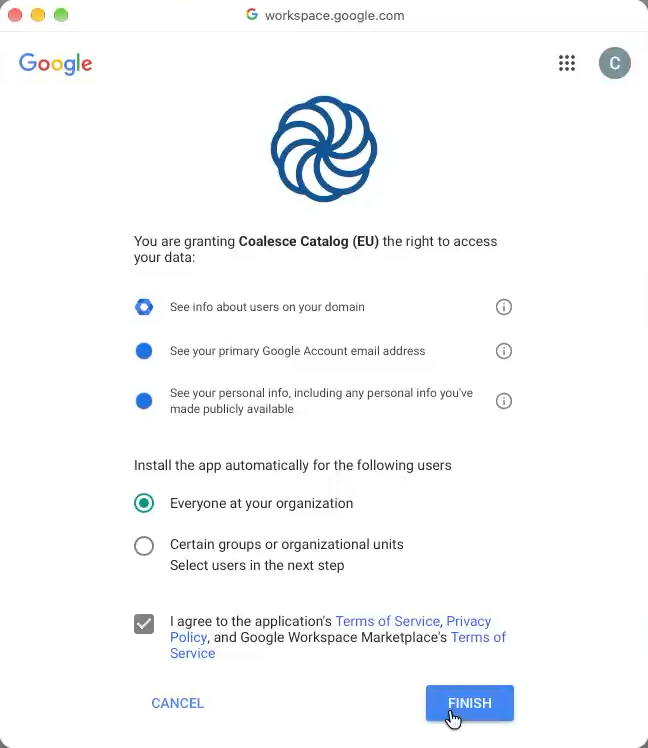
-
When the confirmation dialog appears, click Done.
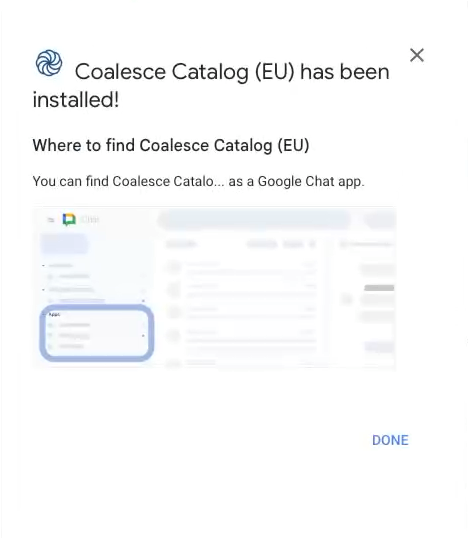
Google can take up to 24 hours to make the app available to everyone in the selected groups, although it's usually faster.
Ask the AI Assistant in Google Chat
Once both steps are complete, people with an active Catalog account can start asking questions.
In a Direct Message
To chat with the assistant one-on-one:
- In Google Chat, open the direct message with Coalesce Catalog. If you don't see it, click New chat, then Find apps, and search for Coalesce Catalog.
- Type your question and send it.
In a Space
To ask a question in a space:
- Add the app to the space if it's not there yet. Open the space, click the space name, select Apps & integrations, then search for Coalesce Catalog and click Add.
- Mention the app followed by your question, for example
@Coalesce Catalog what tables contain customer data?
In a space, the app only reads messages that mention it.
How the Assistant Replies
The assistant replies in the thread of your message:
- It first posts a Looking for the right answer placeholder message.
- When the answer is ready, it updates that same message with the answer and links to related Catalog assets.
- To refine the answer, reply in the same thread. The assistant remembers the conversation context for that thread.
To see usage tips at any time, send help in a direct message, or mention the app with help in a space.
For more on how the assistant finds answers, see the AI Assistant introduction.
Remove the Integration
Removing Google Chat involves two separate actions, one in Google Workspace and one in Catalog.
- Uninstall the Google Chat app - Open the Google Workspace Marketplace listing for your region and click Uninstall. You can also manage the app from the Google Admin console. See Install Marketplace apps for your organization.
- Disconnect Catalog from Google Workspace - The integration can't be removed from Settings > Integrations. Contact Coalesce Support to disconnect it.
Troubleshooting
Use this section to solve the most common setup and usage issues.
The Assistant Says It Couldn't Find a Catalog Account
The assistant replies with "I couldn't find a Coalesce Catalog account" when it can't match the person to an active Catalog account. Check the following:
- The person has a Catalog account, and it's active, not pending or suspended.
- The Catalog account uses the same email address as the person's Google Workspace primary email. Email aliases aren't matched.
- The person was added to Google Workspace before the latest daily synchronization. New directory users can use the app after the next run.
Connection Fails Because the Account Isn't a Workspace Admin
If Catalog shows "the Google account you just authorized is not a Workspace admin," the Google account you signed in with can't read your directory. Go back to Settings > Integrations and connect again with a Google Workspace admin account.
Sign-In Shows an Error Page Instead of Returning to Catalog
This happens when the sign-in link expired, when you denied access on the Google consent screen, or when your Catalog account isn't an admin. Go back to Settings > Integrations as a Catalog admin and click Add again, then complete the sign-in within 5 minutes.
The App Doesn't Appear in Google Chat
Google can take up to 24 hours to roll out an app after an admin install. If the app still doesn't appear, check that the person belongs to a group or organizational unit you selected during installation, and that Google Chat is turned on for them.
The Assistant Doesn't Reply in a Space
Make sure the app is added to the space and that your message mentions it. Messages that don't mention the app aren't sent to it.
For further help, contact Coalesce Support. Include your Google Workspace domain and your Catalog region to speed up the investigation.
What's Next?
- Learn how the assistant works in the AI Assistant introduction.
- Learn which channels Catalog uses to reach asset owners in Notifications.