Documentation index: llms.txt. This page is also available as markdown: append .md to this URL or send Accept: text/markdown.
Slack
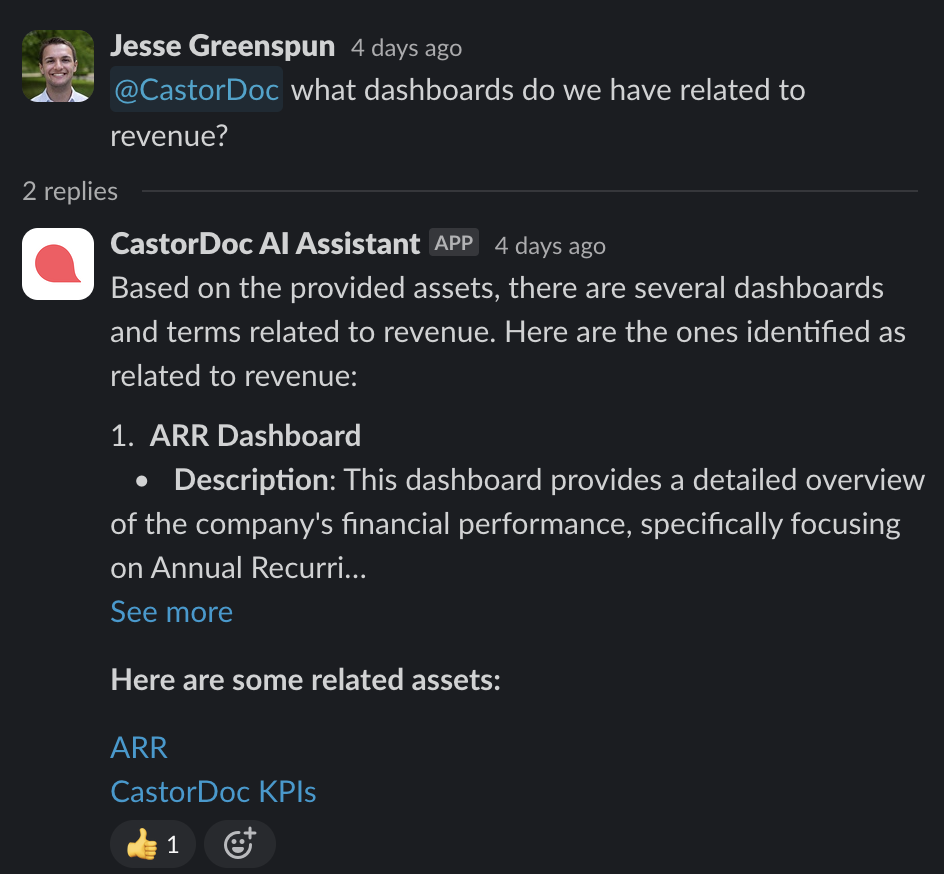
Using the Catalog Slack app, your users will be able to:
- Ask any question to the Catalog Data Assistant
- Get notifications about assets they own
- Provide in-context information on any Catalog URL shared
Ask Questions From Slack to the Data Assistant
When you are in a channel, type @Coalesce and ask your question. The Assistant will answer you. Make sure to invite the Assistant first in your channel.
See more on the Assistant in the AI Assistant introduction.
User and Team Notifications in Slack
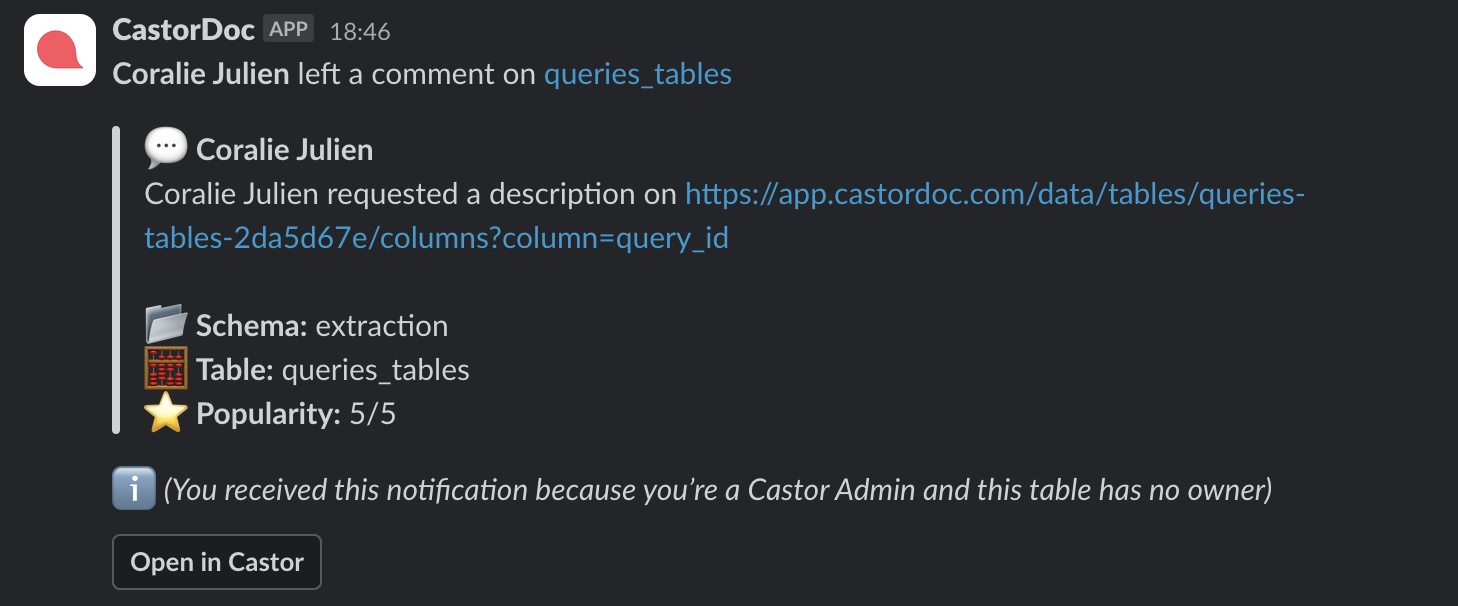
Notification of New Comments
Whenever someone posts a comment on your owned assets, you will receive a notification.
In case an asset does not have an owner, admins will get notified (probably a good sign that the asset should have one of several owners).
Notification of Metadata Changes
To avoid spamming, the following notifications are grouped in hourly batches. Catalog waits for 60 minutes without new notifications to send them as a batch.
The following actions will trigger a notification to be sent to the table owner or the admins if there is no owner:
- A table or column description is edited
- An owner is added
- A tag is added or updated
- The table is Certified or Uncertified
- The table is Deprecated or Undeprecated
Catalog Link Prettified and Sync Back to Catalog
Get People To Share Catalog URLs When They Have a Data Question
That way, you are sure that they have checked the doc before asking a question.
The Catalog Slack App Adds Context to the URL
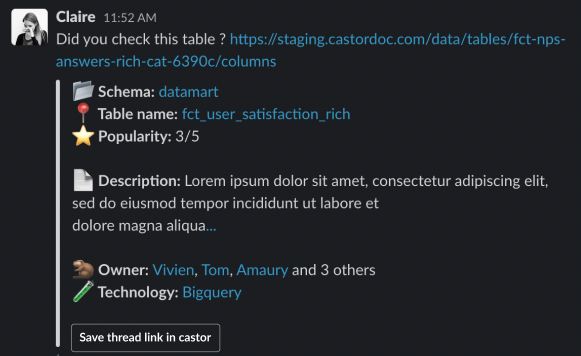
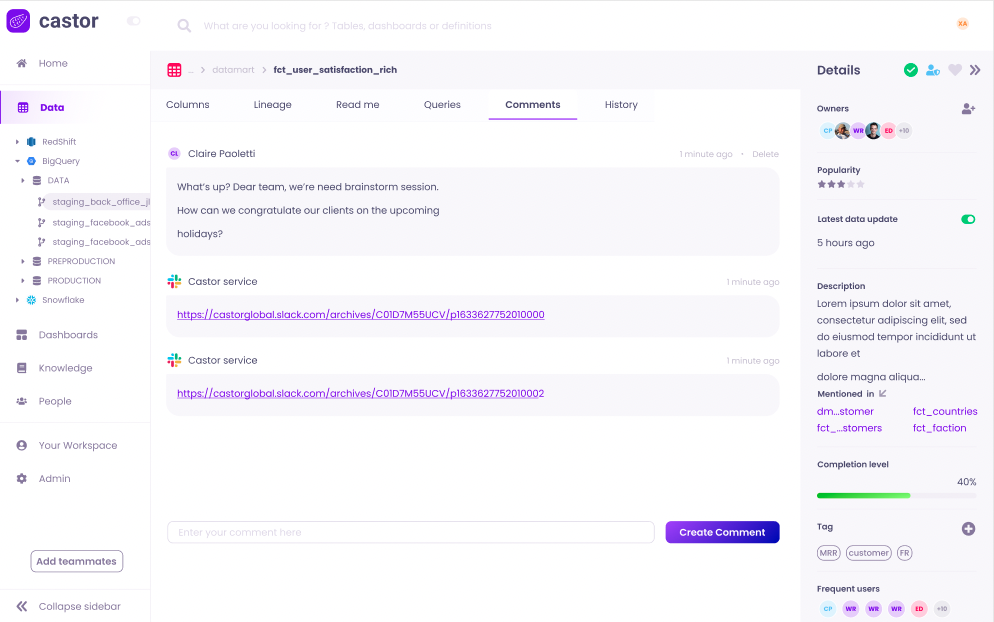
It Saves Your Thread on Catalog App
By clicking on Save thread link in Catalog, the message URL is saved in Catalog, on that Table, Dashboard, or Knowledge page, in the Comments tab.
How To Set Up the Catalog Slack App
At Catalog, we love to make things simple.
Requirements: be an Admin.
- Go to the Integrations Set Up page
- Click on the Slack tile
- Add the Catalog app on Slack
Make sure to add the Catalog Slack Application in your Public Channel where you want it to run. By default it will not be added, to give you full control on where it can act.
Set Up Your Teams Notifications Channel
By following the documentation on teams notifications.