Documentation index: llms.txt. This page is also available as markdown: append .md to this URL or send Accept: text/markdown.
Orchestrate Deploys With GitHub Actions and the CLI
Node 16 is reached the end of it's life. GitHub now requires Node 20.
Learn more in GitHub Actions: Transitioning from Node 16 to Node 20.
Before You Begin
You'll need:
- GitHub: GitHub account with admin privileges to configure pipelines and manage secrets.
- Project: A Project with version control configured using your chosen platform.
- Environment: At least one Environment configured for deployment.
- Access Token: Your Coalesce access token for the CLI configuration file.
Create and Configure an Environment
- Create a new Environment for CI/CD deployments. It's recommended to use a dedicated Environment for automated deployments.
- Configure authentication for your Environment based on your data platform:
- Snowflake: Set up Snowflake Key-Pair Authentication with a service account.
- Databricks: Set up OAuth Machine-to-Machine authentication with a service principal.
- Configure Storage Mappings for your Environment.
- Deploy the Environment to verify configuration.
Data Platform Permissions
Snowflake
USAGEprivilege on the database and schema.SELECT,INSERT,UPDATE, andDELETEprivileges on tables involved in transformations.EXECUTEprivilege for procedures or functions referenced by Coalesce.- Ability to create Snowflake Key-Pair Authentication (recommended for automated deployments).
Databricks
- SQL Warehouse configured and accessible.
- Appropriate catalog and schema permissions.
- Ability to create OAuth Machine-to-Machine authentication (recommended for automated deployments).
Configure Your CLI
The Coalesce CLI orchestrates your deployments and refreshes within CI/CD pipelines. You'll create a configuration file with credentials required to authenticate the CLI.
- Follow the instructions in CLI Setup to install the CLI.
- Create a new text file, for example,
coa_config.txt, and save it securely. This file contains the authentication credentials your pipeline will use.
Your configuration file should include profiles for each Environment.
- Databricks
- Snowflake
[production]
token=your_coalesce_token
domain=https://app.coalesce.io
platformKind=Databricks
databricksAuthType=OAuthM2M
databricksClientID=client_id_here
databricksClientSecret=client_secret_here
databricksAccountHost=https://accounts.cloud.databricks.com
databricksWorkspaceHost=https://your-workspace.cloud.databricks.com
databricksPath=/sql/1.0/warehouses/abc123xyz
environmentID=456
[production]
token=your_coalesce_token
domain=https://app.coalesce.io
snowflakeAuthType=Keypair
snowflakeUsername=service_account_user
snowflakeRole=TRANSFORMER_ROLE
snowflakeWarehouse=TRANSFORM_WH
snowflakeAccount=xy12345.us-east-1
environmentID=123
Configuration Notes:
- Create separate profiles using
[profile_name]for different Environments. - Use service accounts or service principals rather than individual user accounts.
- For Snowflake, include the private key path when using key-pair authentication.
- Store this file securely - it contains sensitive credentials.
Upload Actions Secret
To follow best practices, Coalesce recommends that you upload your COA config file as a secure file within the GitHub Actions settings.
-
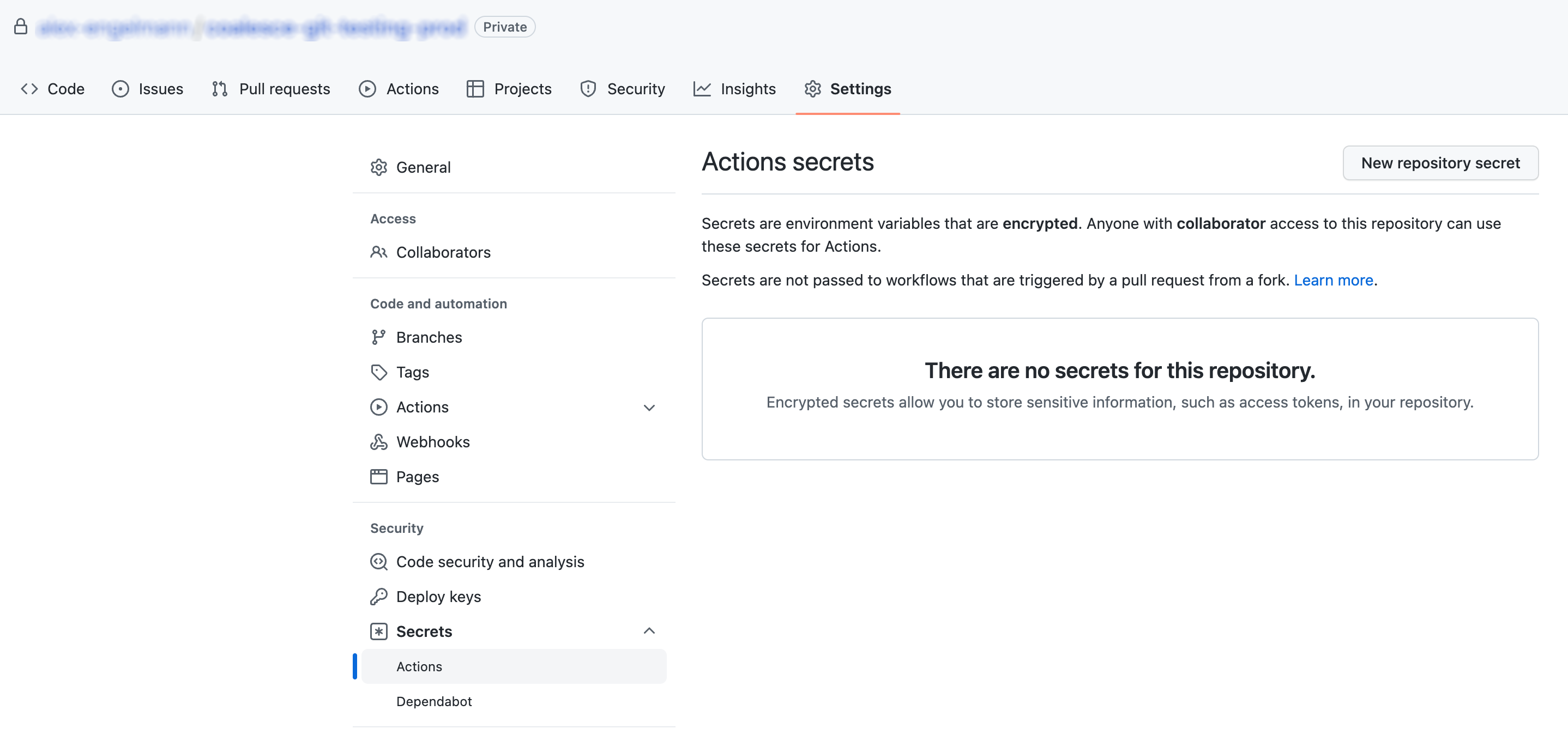
From within your GitHub project, go to Settings > Secrets > Actions
-
Click New repository secret.
-
Provide a name for it. In this example we will call it
COA_CONFIG. -
Find and open your COA
configfile. Default location is~/.coa. -
Copy its contents into the Value field.
-
Click Add Secret to save.
Example Deploy on Merge Workflow
-
From within your GitHub project, go to Actions and click New workflow.
-
Choose Simple workflow > Configure.
-
You will be presented with a template YAML file. Provide it a name and replace its content with the Deploy Workflow code below.
Deploy Workflowname: Deploy to Environmenton:push:branches:- mainworkflow_dispatch:env:COA_VERSION: latest # Before utilizing this pipeline in production scenarios, it is advised to pin a specific version. This practice aims to reduce potential disruptions. You can find the released versions on NPM at this link: https://www.npmjs.com/package/@coalescesoftware/coajobs:deploy:runs-on: ubuntu-lateststeps:- uses: actions/checkout@v3- uses: actions/setup-node@v3with:node-version: 22.19.0# Fetch config secret from GitHub Actions secret repository, then write coa config to a temporary file- run: echo '${{ secrets.COA_CONFIG }}' >> COA_CONFIG# Install Coalesce CLI tool, if not installed already- run: npm list | grep "@coalescesoftware/coa@${{ env.COA_VERSION }}" || npm install @coalescesoftware/coa@${{ env.COA_VERSION }}# Print version number- run: npx coa --version# Create Deployment Plan- run: npx coa plan --config COA_CONFIG --out ./coa-plan --debug# Deploy Plan- run: npx coa deploy --config COA_CONFIG --plan ./coa-plan --debug -
Commit this file to your repository.
-
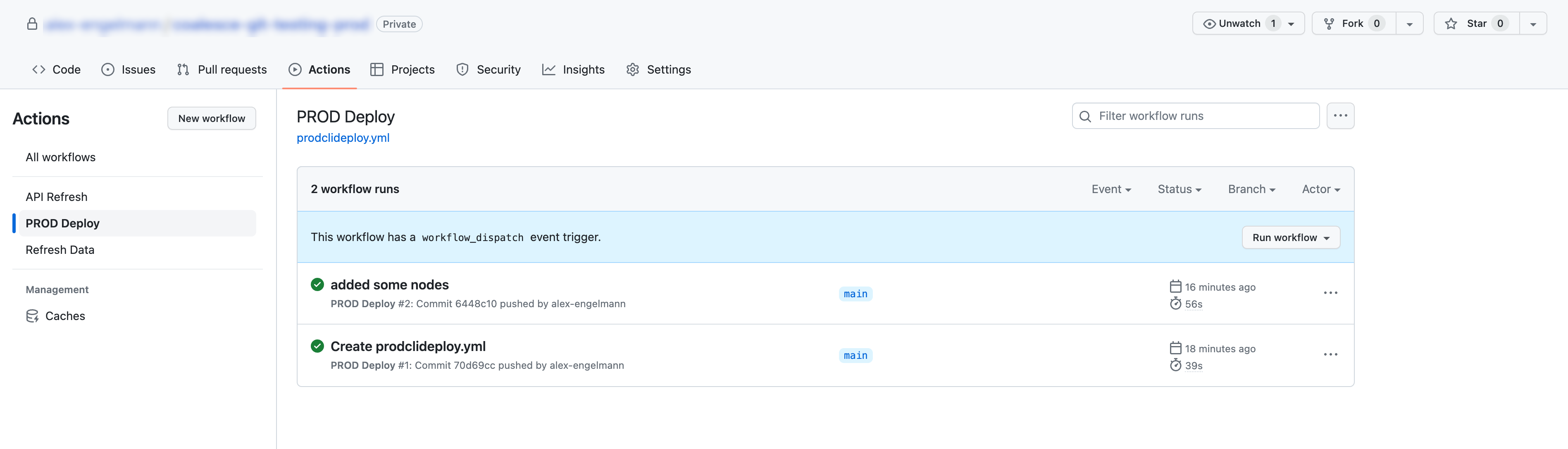
You'll now see your workflow, and it will automatically run when a commit is merged to the
mainbranch. You can also manually run it by clicking Run workflow.
Example Scheduled Refresh Workflow
The following instructions provide an example workflow where an Environment is refreshed hourly using a cron job.
-
From within your GitHub project, go to Actions and click New workflow.
-
Choose Simple workflow > Configure.
-
You will be presented with a template YAML file. Provide it a name and replace its content with the Refresh Workflow code below.
Refresh Workflowname: Refresh Dataon:# Set a schedule using cronschedule:- cron: "0 * * * *"# This option allows the workflow to be triggered manuallyworkflow_dispatch:env:COA_VERSION: latest # Versions released on NPM here: https://www.npmjs.com/package/@coalescesoftware/coajobs:build:runs-on: ubuntu-lateststeps:- uses: actions/checkout@v3- uses: actions/setup-node@v3with:node-version: 22.19.0# Fetch coa config secret from GitHub Actions secret repository, then write coa config to a temporary file- run: echo '${{ secrets.COA_CONFIG }}' >> COA_CONFIG# Install Coalesce CLI tool, if not installed already- run: npm list | grep "@coalescesoftware/coa@${{ env.COA_VERSION }}" || npm install @coalescesoftware/coa@${{ env.COA_VERSION }}# Execute coa CLI, starting coa refresh- run: npx coa refresh --config COA_CONFIG -
Commit this file to your repository.
-
You'll now see your workflow, and it will automatically run every hour. You can also manually run it by clicking Run workflow.