Documentation index: llms.txt. This page is also available as markdown: append .md to this URL or send Accept: text/markdown.
The SQL Node Editor
When you open a Node built on a SQL Node Type, you author in a SQL-first editor instead of the YAML Node mapping grid. This page explains each part of the interface and how it connects to your .sql file.
Build Settings
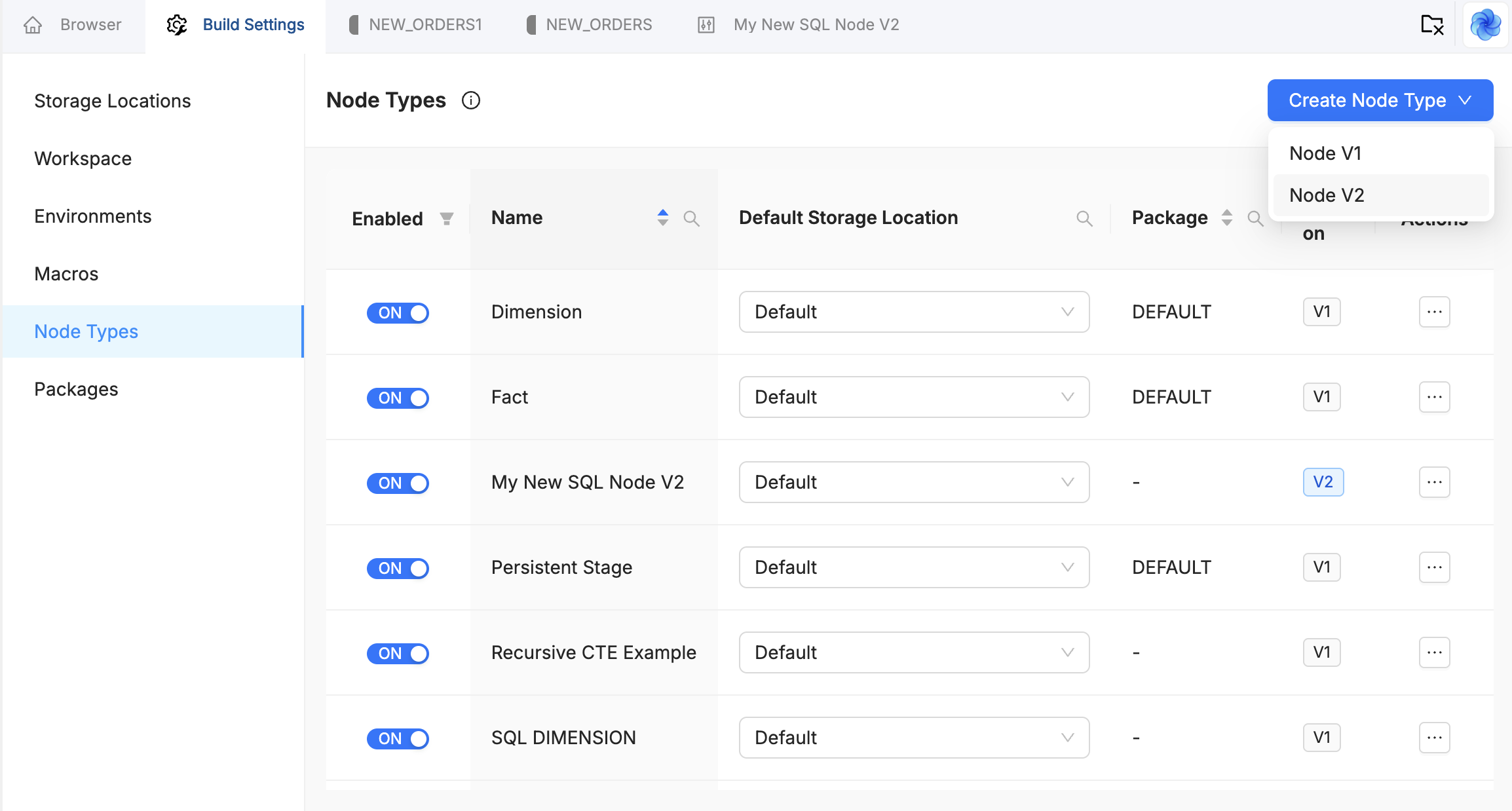
When creating a Node Type in Build Settings > Node Types, you choose between Node V1 and Node V2. The Version column shows the version of every existing Node Type.
SQL Editor
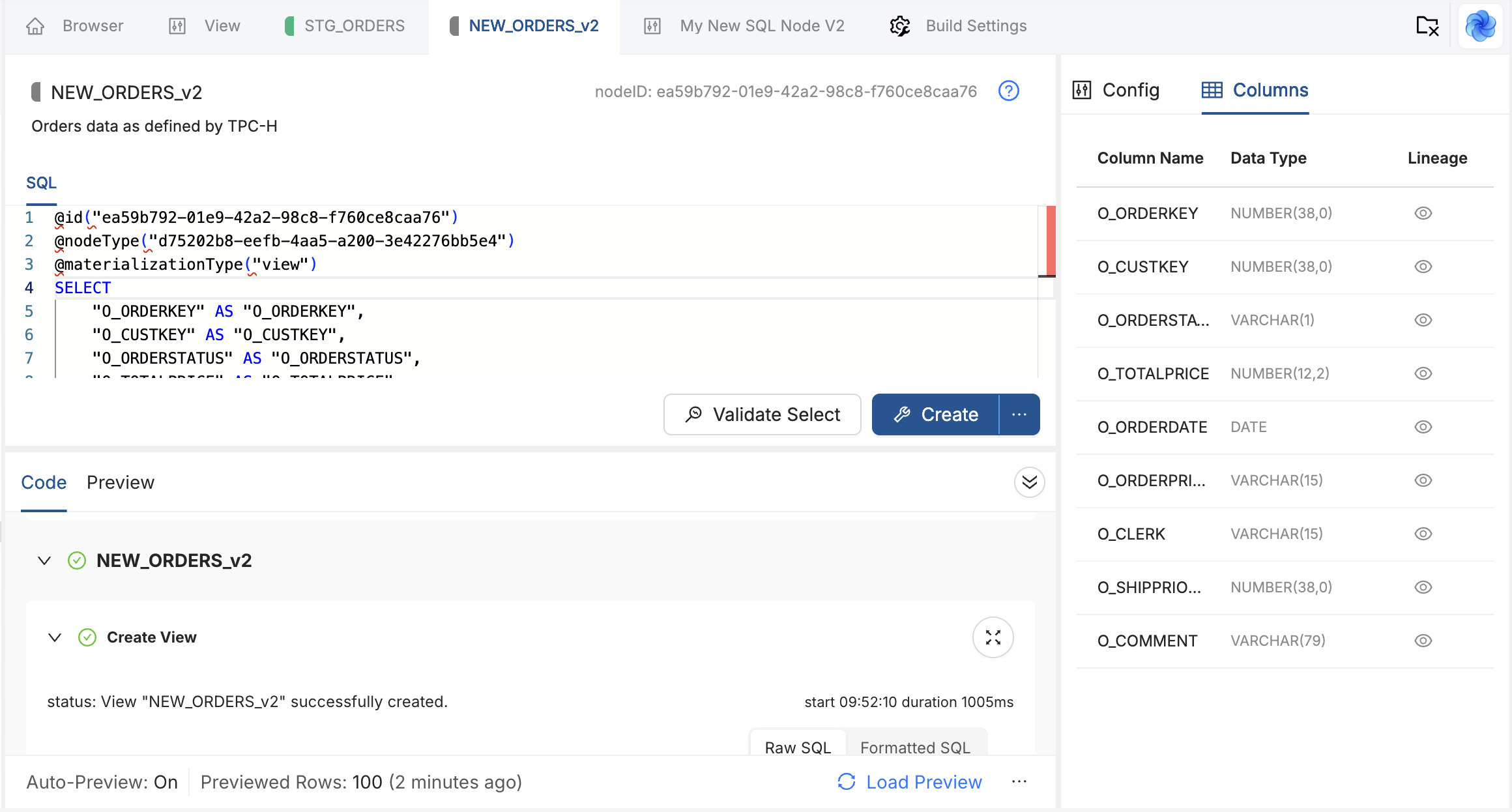
The center panel opens on the SQL Editor tab, where you write your SELECT statement. Switch to Mapping to review the columns Coalesce inferred from that SQL. The Node is stored as a .sql file. The file name combines the Storage Location and Node name, for example WORK-STG_CUSTOMERS.sql.
The first two lines of every SQL Node file are reserved annotations that Coalesce manages automatically:
@id("1d181c4d-ac7d-4721-bc39-5ac6be21ac79")
@nodeType("fd252eae-7b6d-4061-91cd-291ceaa52be1")
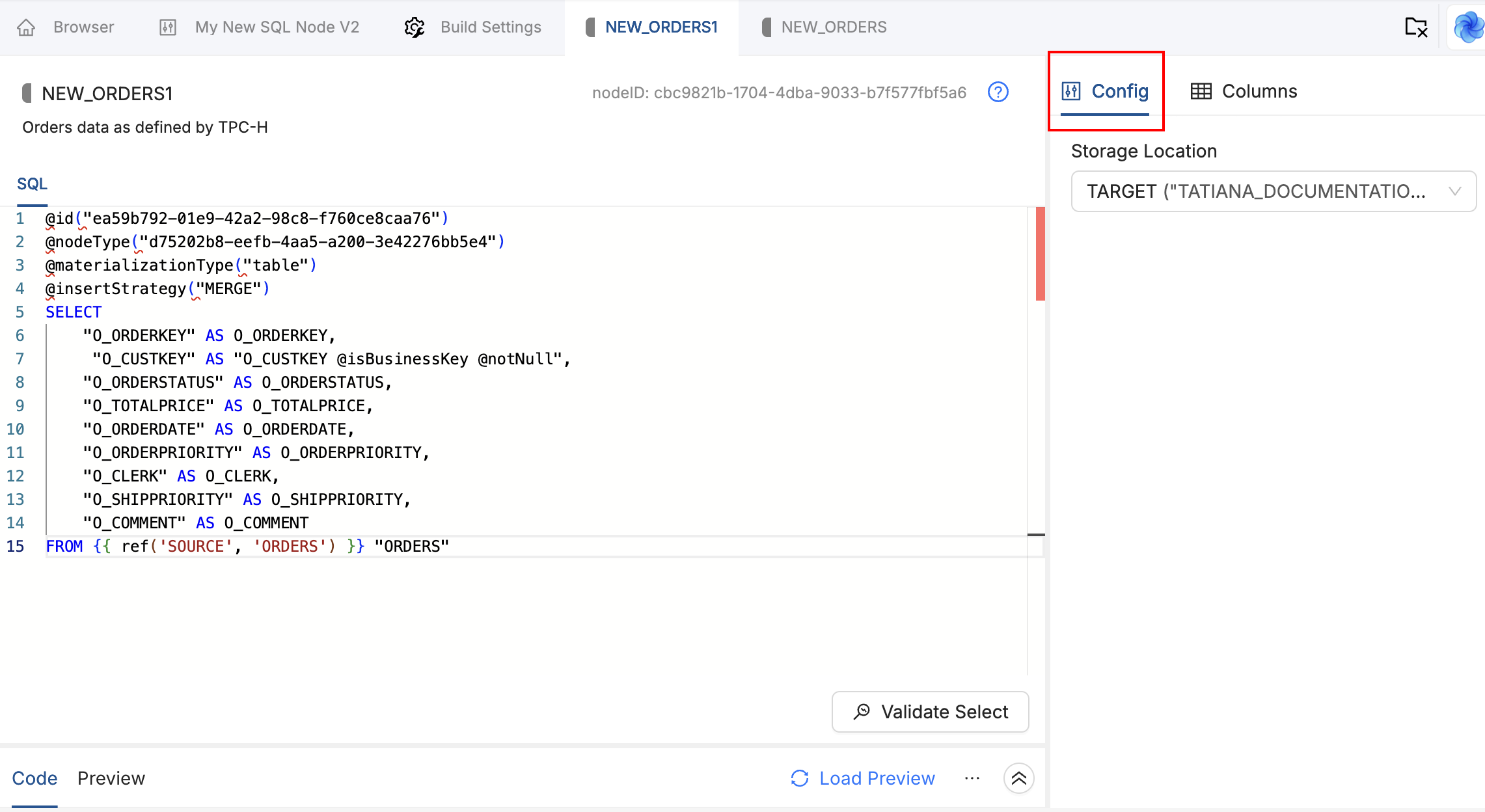
Do not edit @id or @nodeType. @id identifies the Node. Changing it breaks the Node's identity, version control history, and references to it. @nodeType must map to a valid Node Type ID in your Workspace. Change it only when you are intentionally pointing the Node at a different valid Node Type.
Below the reserved annotations, you add your SQL: CTEs, the final SELECT, and any inline annotations for configuration:
@id("...")
@nodeType("...")
@materializationType("table")
@writeMode("append")

WITH source_data AS (
    SELECT
        C_CUSTKEY,
        TRIM(C_NAME) AS C_NAME,
        TRIM(C_ADDRESS) AS C_ADDRESS
    FROM {{ ref('TARGET', 'STG_CUSTOMER') }}
)

SELECT
    C_CUSTKEY AS customer_key @notNull @not_null,
    C_NAME AS customer_name @description("Customer name"),
    C_ADDRESS AS customer_address,
    C_NATIONKEY AS nation_key @min_max("0", "24"),
    C_ACCTBAL::DECIMAL(12,2) AS account_balance,
    C_MKTSEGMENT AS market_segment
FROM source_data
Node-level annotations such as @materializationType("table") and @writeMode("append") go before the SELECT. Column-level annotations such as @notNull, @description, and @min_max go directly after the column expression in the SELECT list. @materializationType, @notNull, and @description are reserved and work on every SQL Node Type; @writeMode, @not_null, and @min_max are defined by the Node Type, here Coalesce's Work Node Type, and work because its templates consume them.
If a reserved annotation is invalid, for example @materializationType("TABLE") or a duplicated @nodeType, the editor underlines it and hovering shows the message. The same issue appears in the Problems panel and blocks deploy until fixed.
For every reserved name, quoting rule, and template hook, see the SQL Annotations Reference.
Config Panel
On YAML Nodes, the Config tab holds dropdowns, toggles, and text fields for materialization, insert strategy, preSQL and postSQL, and other settings.
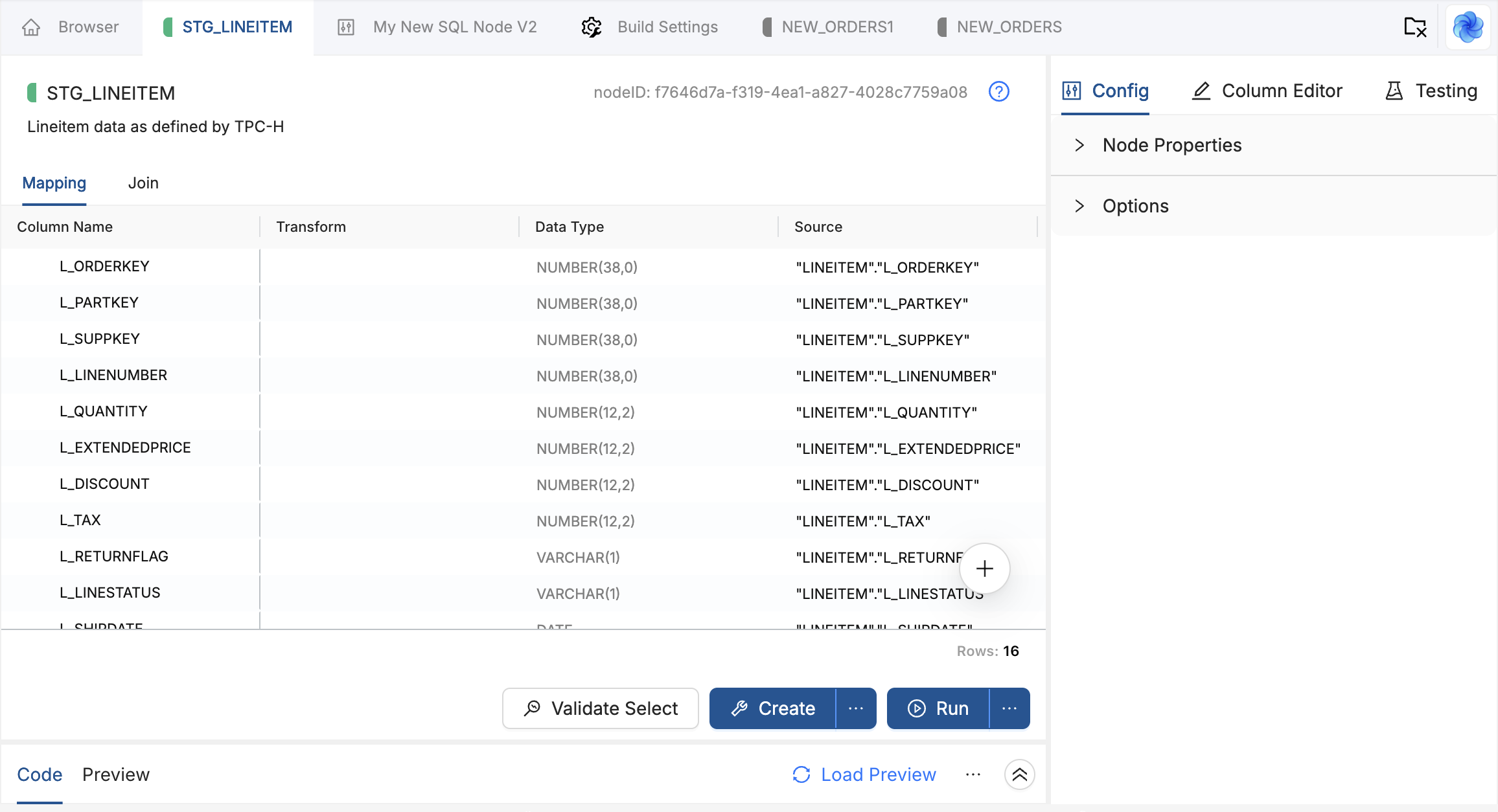
On SQL Nodes whose Node Type declares annotations, the right panel shows Annotations in place of Config. It lists what you can write in the Node's SQL:
- General holds the Node properties that live outside the SQL, such as the Storage Location.
- Node Annotations are written above the leading
WITHorSELECT. - Column Annotations are written after
AS <alias>on a column in the outermostSELECT.
Each row shows the annotation's signature, tags for reserved, required, and repeatable, its description and parameters, and a copy button that produces a paste-ready line (@id has none, because Coalesce manages it). The panel is read-only: it is there for discovery, and the SQL file is the source of truth for every value. See SQL Annotations Reference for syntax and hydration.
Mapping
Open the Mapping tab next to SQL Editor to review the columns Coalesce inferred from your SELECT clause. Each column appears with its name and data type.
Mapping is a read-only view of what your SQL defines. Your SQL remains the source of truth. To add, remove, or rename a column, edit the SELECT statement on the SQL Editor tab, then return to Mapping to confirm the updated list.
Scroll horizontally within a row to see that column's lineage alongside its name and data type.
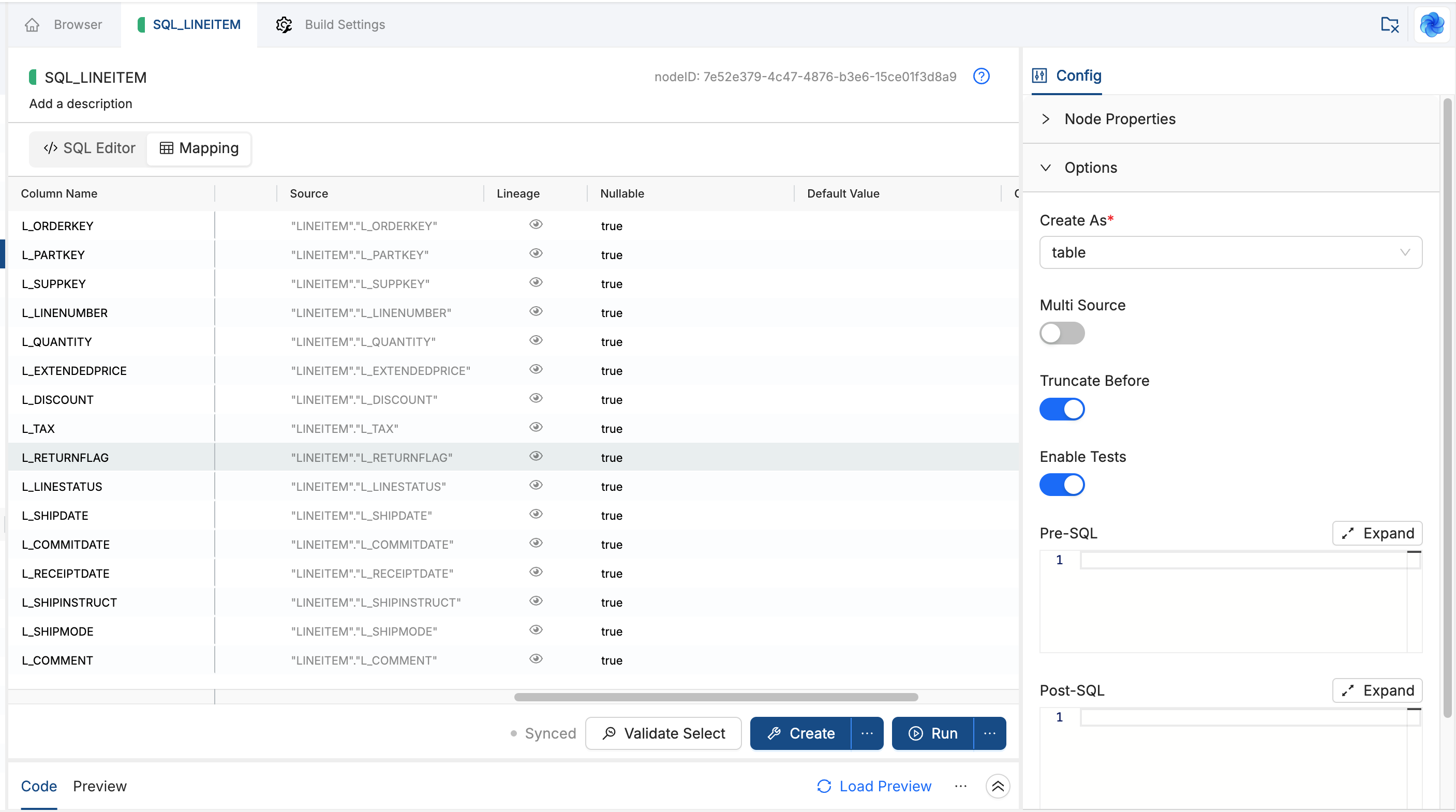
If a column's data type shows as UNKNOWN, Coalesce could not infer the type from the expression. Add an explicit cast in your SQL, for example CAST(value AS DECIMAL(12,2)) or value::TIMESTAMP_NTZ.
Column Lineage
In Mapping, scroll within a column row to see how that column flows from its source through CTEs to the final SELECT.
For example, for C_NAME in the sample above, lineage can show how values move through each CTE step, from the upstream column through any functions such as TRIM, then into the final projection.
Column lineage behaves the same as for other Coalesce Nodes. For a SQL Node, the parser rebuilds the path from your CTE chain instead of from per-column transforms in the YAML Node mapping grid.
Code and Preview Pane
The collapsible pane at the bottom of the SQL Node editor shows compiled SQL, run output, and a sample of table data. Use the toolbar above the pane to validate, create, and run the Node, then review results without leaving the editor.
Save Status
Next to the action buttons, a status pill shows whether your latest SQL or Config edits have been saved:
| Status | Meaning |
|---|---|
| Synced | No pending edits since you opened the Node. What you see already matches the saved Node. |
| Saving | Coalesce is writing your changes. This can appear briefly after you stop typing while the save completes. |
| Saved | Your latest change finished saving. After the first save in a session, the pill toggles between Saving and Saved. |
Validate Select, Create, and Run wait for any in-progress save to finish before they run, so they always use your latest SQL and Options.
Node Actions
These actions work like the YAML Node Results and Data Pane controls. For the full behavior of each mode, including how validation wraps SQL with EXPLAIN, see The Node Editor.
- Validate Select compiles a
SELECTfrom your Node SQL and shows the compiled statement in the Results view without writing to the warehouse. - Create runs the Node Type Create template to apply DDL in your warehouse. Use the menu on the button for Validate Create when you want to compile without executing.
- Run runs the Node Type Run template to apply DML and load data. Use the menu on the button for Validate Run when you want to compile without executing.
Preview Data
After a successful run, the Data Viewer can show a sample of the target table. Click Load Preview to fetch sample rows without re-running the Node. Project and session Auto-Preview settings control whether that sample loads automatically. See Auto-Preview.
What's Next?
- Getting Started with SQL Nodes for an end-to-end first Node.
- SQL Annotations Reference for every supported annotation and template pattern.
- Node Types for how SQL Nodes compare to YAML Nodes, platform scope, and links to the rest of the section.
- Troubleshooting and FAQ for common parse, column, and lineage issues.